This article explains what happens after you click Approve submit on a Fix Package: which screens to expect, how to read the results, and how to fix common submission problems.
How Panaya Submits Fixes to SAP
Panaya doesn't connect to your SAP system directly. It uses the SAP Synchronizer, a small client component that runs on your machine. The Synchronizer uses your SAP GUI session and your own SAP user to apply the approved fixes through the ZPANAYA_ACC_SYNC transaction installed during SAP Synchronizer Setup.
This means that:
Changes are made with your SAP user's authorizations. Panaya never holds SAP credentials.
Every change is recorded in a standard SAP Workbench transport request, which you choose or create during submission.
The SAP GUI on your machine must stay open and logged in to the target development system until the process finishes.
Step 1 – Panaya Recorder Launches
After you click Approve submit, Panaya launches the Panaya Recorder component on your machine and runs three checks:
Check | What it means |
|---|---|
Connecting to Panaya | The local component is reaching your Panaya site. |
Checking proxy settings | Your proxy, VPN or security software allows the connection to *.panaya.com. |
Checking for updates | The online Synchronizer is updating itself to the latest version. (Local installations are not updated automatically.) |
If one of these checks fails, see Troubleshooting Submission below.
Step 2 – Synchronizer Applies the Fixes in SAP
The Panaya Synchronizer – Issue Fixes window opens and connects to the SAP GUI session you're logged in to. While it runs, you may see SAP GUI screens open and change on their own, because the Synchronizer is applying each fix.
Important!
Don't use SAP GUI or close it until the Synchronizer finishes.
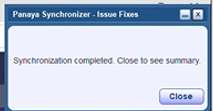
When it finishes, the Synchronizer shows "Synchronization completed. Close to see summary." Click Close.
Step 3 – Review the Submission Execution Results
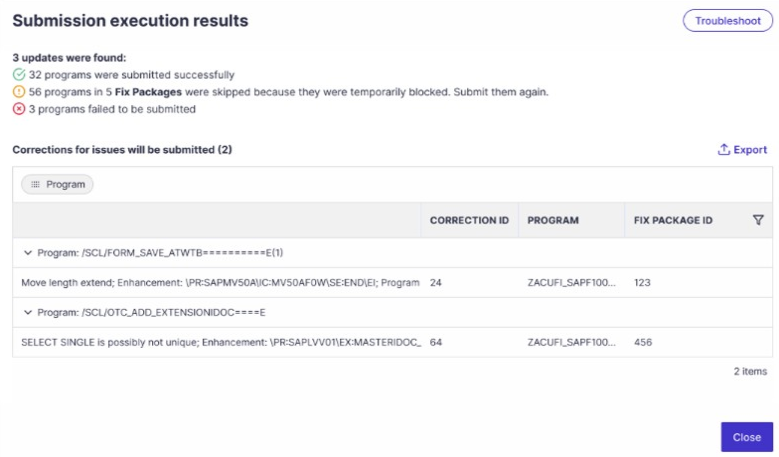
Panaya then shows the Submission execution results summary, with every program in the submission sorted into one of these outcomes:
Outcome | Meaning | What to do |
|---|---|---|
Submitted successfully | The fix was written to SAP and added to the selected transport. The correction is set to Closed. | Nothing. Continue with your transport release process. |
Skipped – temporarily blocked | The program couldn't be changed at that moment, for example because the object is locked. These programs are listed by Fix Package. | Resolve the block, then submit again. |
Failed to submit | The fix couldn't be applied. | Click Troubleshoot or check the Fix Package History tab for the failure reason. |
The Corrections for issues will be submitted grid lists each correction with its Correction ID, Program and Fix Package ID. Use Export to download the results to Excel.
Fix Package Status After Submission
Result | Fix Package status |
|---|---|
All corrections submitted | Submitted |
Some submitted, others still New or Open | Partial submission |
All corrections failed | Submit Errors |
The failure reason for each submission attempt is logged in the Fix Package History tab. After you submit, you can still compare the original and corrected code in the code diff tab.
When the Whole Submission Fails
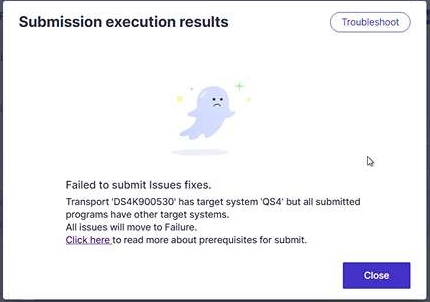
If no fixes could be submitted, the results screen shows "Failed to submit Issues fixes", explains why, and links to the submit prerequisites. All issues in the submission are moved to Failure.
Troubleshooting Submission
The Recorder Checks Fail or the Synchronizer Doesn't Start
Connecting to Panaya / proxy check fails: Add *.panaya.com (or my.panaya.com / emea.panaya.com, cdn.panaya.com, sso-us.panaya.com / sso-emea.panaya.com) to your proxy, antivirus and VPN allowlists.
Chrome users: The Synchronizer requires Local Installation mode. See Synchronizer Local Setup.
Citrix / VDI: Run SAP GUI and Panaya on the same machine or remote session.
For more fixes, see Panaya RDx synchronizer does not launch and Panaya cannot connect to the SAP client.
Common Submission Errors
Error / symptom | Likely cause | How to fix |
|---|---|---|
Transport '…' has target system 'X' but all submitted programs have other target systems | The transport layer of the programs' package points to a different target system from the selected transport. | Change the transport layer for the package of the programs you're fixing. See Checking or changing the transport layer for an SAP program. |
Program is already linked to CR … and therefore cannot be assigned to CR … | The program is already part of another open transport request. | Release the existing CR, or if it's obsolete, remove the program from it. Then submit again. |
Program skipped – temporarily blocked | The object was locked or being edited at submission time. | Make sure nobody is editing the object, then submit the Fix Package again. |
Syntax error. line: … offset: … message: … | The program has syntax errors. Panaya won't overwrite code that doesn't compile. | Fix the syntax error in SAP, then upload a new custom code extraction. |
Program … source system … is not the same as a current system | The object's Original System isn't the system you're submitting to. | |
KONV / VBUP / VBUK fixes fail | Fixed Point Arithmetic isn't enabled. | |
Authorization error in SAP | Your SAP user is missing S_TCODE = ZPANAYA_ACC_SYNC or S_GUI activities 60/61. |
For the full list of submission error messages, see SAP Synchronizer Troubleshooting.
Corrections Stuck in "Submit in Progress"
If the submission was interrupted (for example, SAP GUI was closed or the connection dropped), some corrections may stay in Submit in Progress. Use Reset Submit Status to reset them.
Important!
Before you reset, check that the code in Panaya and in SAP is synchronized, to avoid inconsistencies or duplicate corrections.
FAQ
Does Panaya connect directly to my SAP system?
No. All changes go through the SAP Synchronizer on your machine, using your SAP GUI session and your SAP user's authorizations.
Where do the changes go in SAP?
Into the standard Workbench transport request you selected or created during submission. Panaya doesn't release the transport. You release and import it through your usual change management process.
Can I keep working in SAP GUI while the Synchronizer runs?
No. Leave the SAP GUI session alone until you see "Synchronization completed".
Some programs were skipped. Do I need to start over?
No. Programs that were already submitted stay submitted. Resolve the cause, then submit the Fix Package again.
How many Fix Packages can I submit at once?
Up to 50 Fix Packages in one operation, with limits of 300 corrections and 100 objects.
Where can I see why a submission failed?
In the Submission execution results screen (Troubleshoot), and afterwards in the Fix Package History tab, which logs the failure reason for each attempt.
Can I see what was changed after submission?
Yes. Submitted Fix Packages and corrections have a dedicated tab with the code diff between the original and corrected code.