Automated tests can be assigned to run on specific agents by matching them using tags for each agent and for each automated test.
To set up tags for an agent -
To manage execution agents, click the settings button
 to open up the settings panel.
Scroll down and select View & Manage Execution Agents in the Test Automation section.
.png)
Click on Edit

To add new tags, start typing the tag name and then select the check box and click Done.
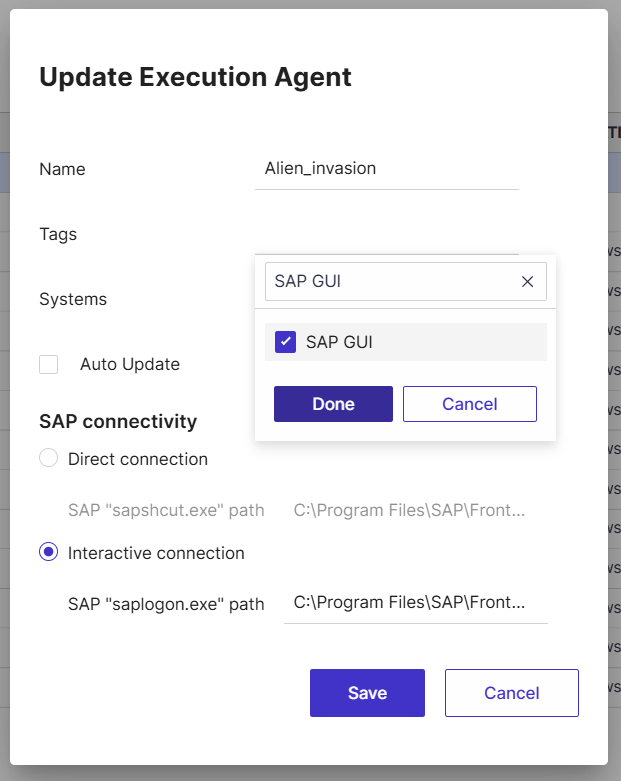
To associate specific automated tests with tagged agents, set up the execution agent tags for the automated test in the General tab.

Good to Know!
Automated tests without tags can run on any agent regardless of agent tags.
If you select more than one tag in a test, it will look for an agent that has all the selected tags.
If you would like a test to be executed by several specific agents, make sure that each agent contains the tag selected for the test.
Mass Update Execution Agent Tags
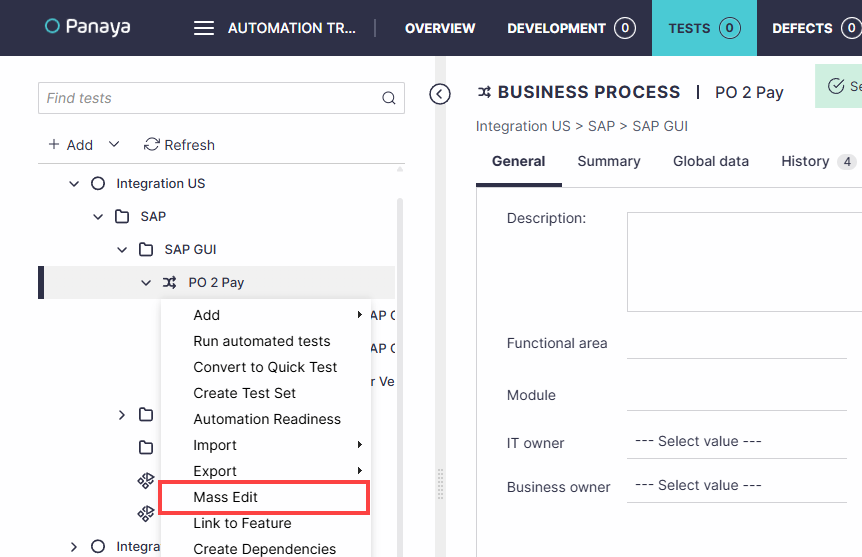
You can edit the Execution Agent Tags for your automated tests in bulk from the test list or tree.
In the test tree view, right-click on a Cycle, Folder, or Business Process and select Mass Edit.
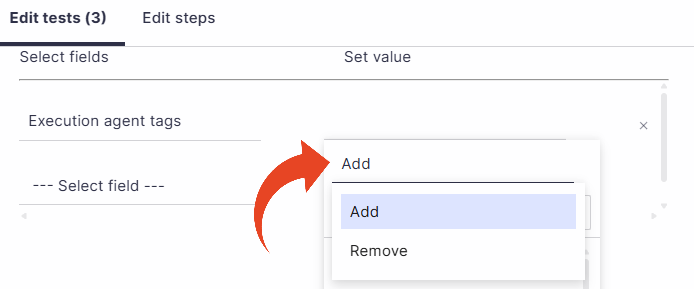
In Edit tests, select the Execution agent tags field.
Set the value to Add or Remove and select one or more tags.
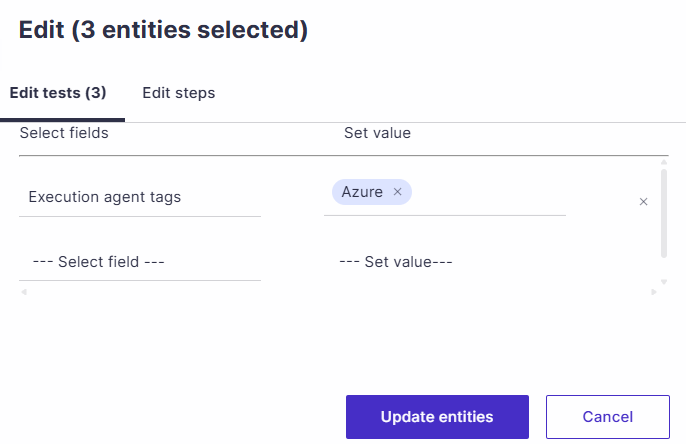
Click on Update entities.
Note
The mass edit execution agent tags option is available in the test tree when the selected Cycle, Folder, or Business Process contains only automated tests and components.