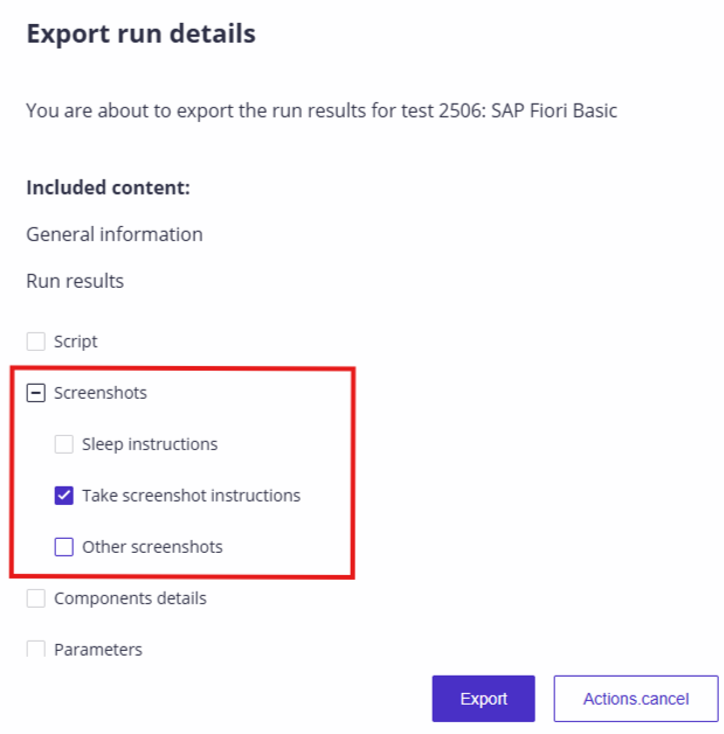
You can export information and results from automated runs, with the option to include the script, data sets, and screenshots.
Good to Know!
You can export all evidence of an execution trigger.
Run details can be exported in Japanese. The export uses the language selected in your Panaya profile.
Important: Automation Script Size
Although test automation scripts support up to 5,000 instructions, we recommend keeping scripts to 1,000 instructions or fewer. Larger scripts may cause issues when exporting test run evidence and increase the risk of execution failures.
Click on the Show evidence button in the Planned Runs tab of your automated test.

Alternatively, you can view the run details from the automation executions view by clicking an execution and then Show, in the evidence column.
Click on the Export button to export the run details.

Select what information should be exported - Data sets, Script and/or Screenshots. Then click Export.

Screenshot options for PDF evidence: When exporting screenshots, select which screenshot types to include in the PDF report. You can include or exclude screenshots captured by Sleep and Take Screenshot instructions, as well as other available screenshot categories. Exclude unnecessary screenshots to keep the exported evidence focused.