“Trouble connecting to Panaya” - If you encounter this error message when opening ScriptBuilder, please follow the instructions below to solve the issue.
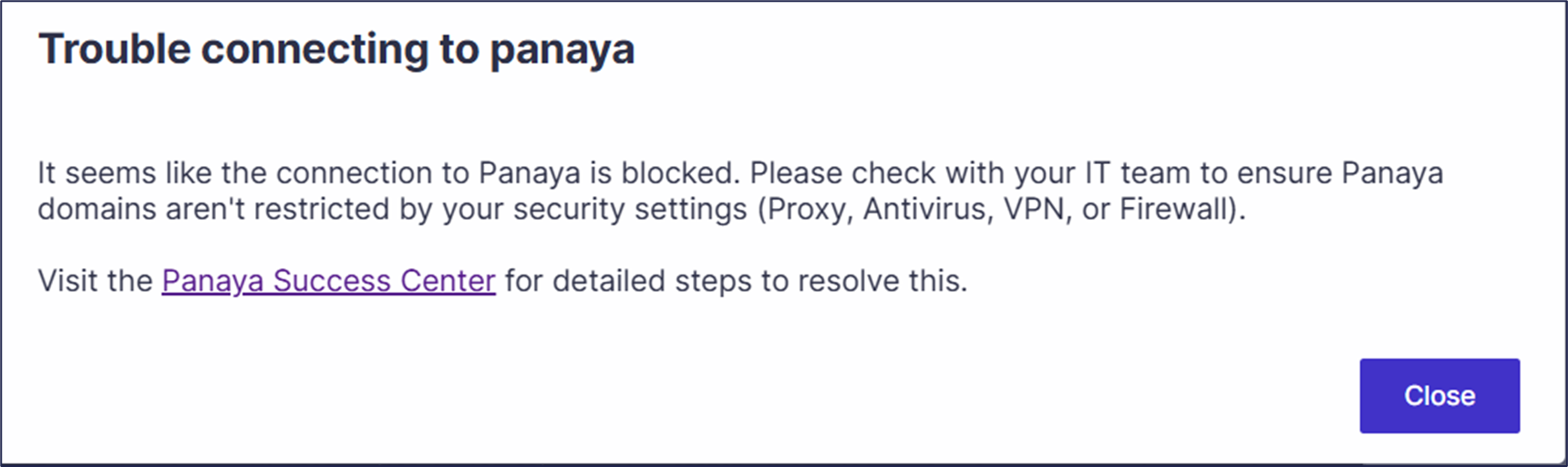
Network and IT Settings
Please contact your IT administrator and request that the network and IT settings for Panaya Test Automation be reviewed and enabled.
Update to the latest Browser version
Please update to the latest version of Edge or Chrome. If the default Application version is different from the browser you use for Panaya, please be sure to update both browsers.
Browser extension policies
If the issue occurs while recording or playing web tests, ScriptBuilder may show an Additional setup needed dialog. It automatically detects ExtensionInstallBlocklist = * and BrowserSignin = 2, and shows which setup requirements are missing.
Depending on the policies, IT may need to force-install or allowlist the Panaya extension, and you may need to select Main menu > Setup Panaya user-data folder in ScriptBuilder. If both policies are set, the Forcelist and the dedicated user-data folder are required.
Follow the instructions in the ScriptBuilder Extension Policy – Troubleshooting Guide. If all settings are correct but the extension still cannot connect, try Chrome for Testing on Panaya Support's recommendation before escalating.
Contact support
If the suggested solutions above do not solve the issue, please contact support and share the log file (scriptbuilder.log).
Alternatively, create a troubleshooting ticket.