This article explains how to mass-edit test and step metadata, due dates, assignments, and other standard and custom fields. You can perform mass changes to steps using the Test List or Test Tree view.
Looking to mass-assign testers?
You can do this quickly in the Steps List view.
From the Test List
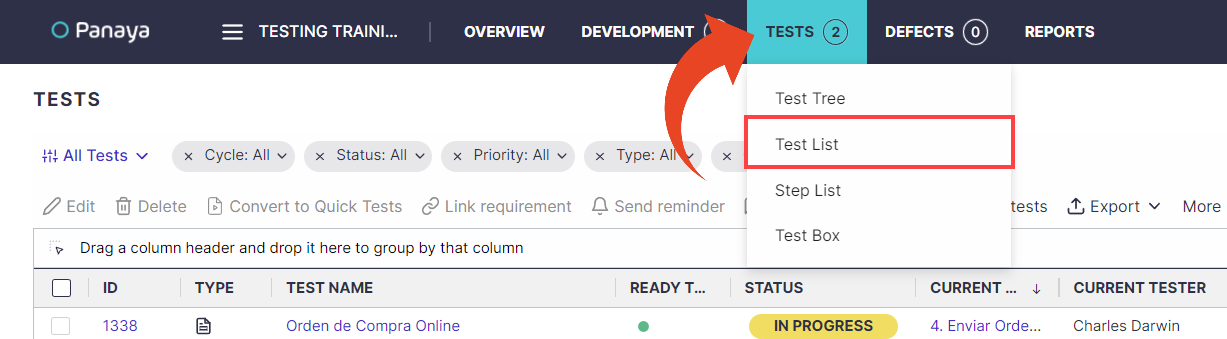
Hover over the Tests tab and select Test List.
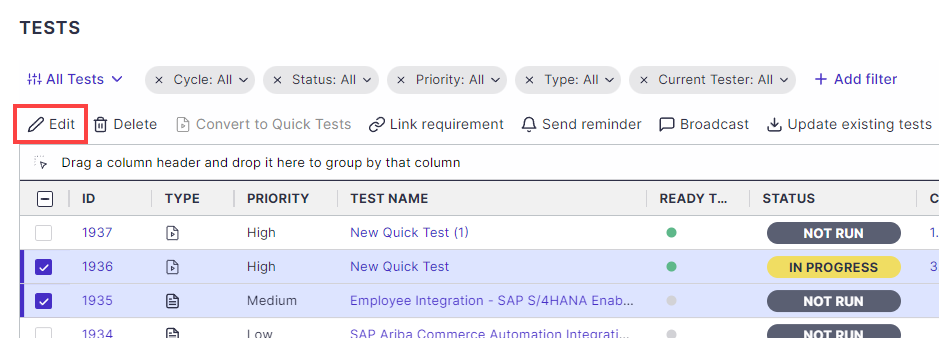
Select the relevant test activities, then click the Edit button.
From the Test Tree
In the Tree View, right-click a test, cycle, folder, or business process to mass-edit. 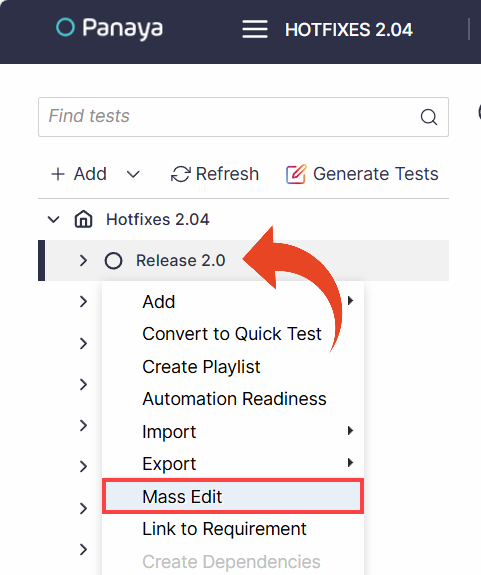
Editing the Steps
Select the Edit Steps tab
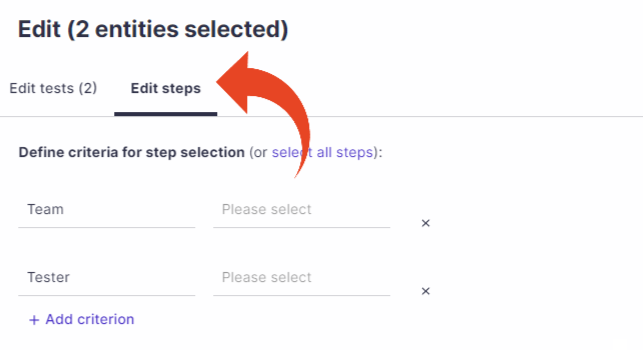
To edit all steps in the selected tests, click on select all steps.
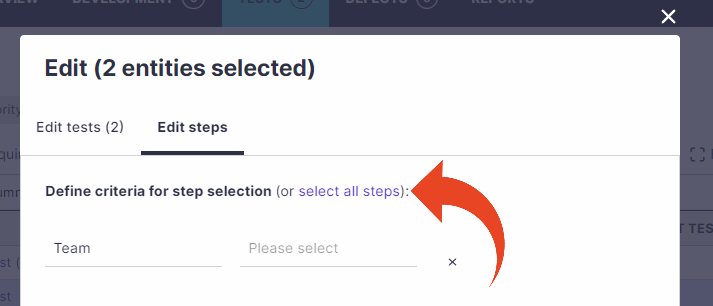
Pre-Filtering (Optional)
To filter the steps before making the changes, click on Add criterion and define the fields and values. After adding all the criteria, click on Define fields.Select which fields to modify and define the new values.
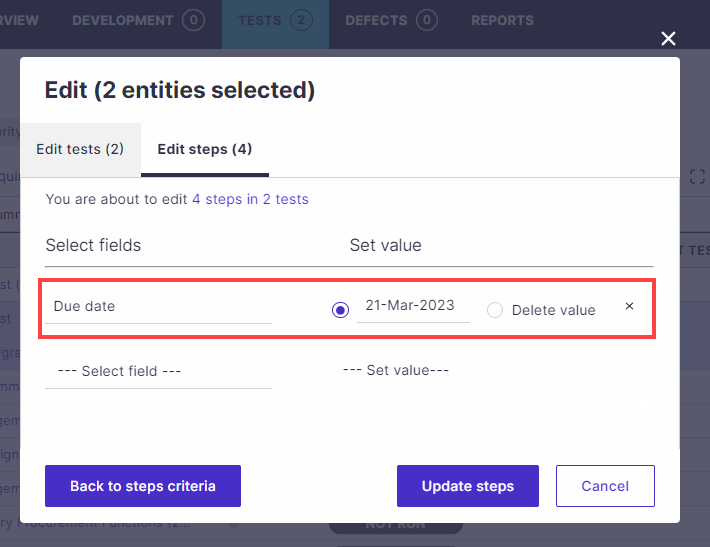
When done, select Update steps
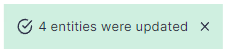
This method works both for manual test steps and planned runs for Quick Tests.
Note
All steps matching the selected criteria for the selected tests will be assigned.
Planned runs matching the selected criteria for Quick Tests will be assigned.
Tip!
Click here to learn how to create a list of selected Tests that can later be mass-edited or assigned.