Internal parameters can be helpful if you use the same value in multiple areas of your script or if you need to manipulate a value throughout the script's execution.
This article explains how to work with ScriptBuilder internal parameters.
Creating Internal Parameters
Set Parameter
To set a parameter, click the Add button
 and select Set parameter.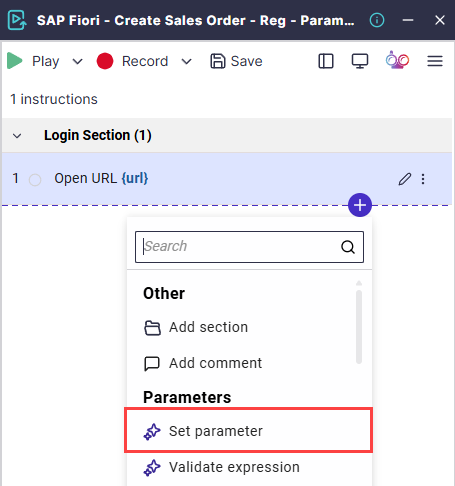
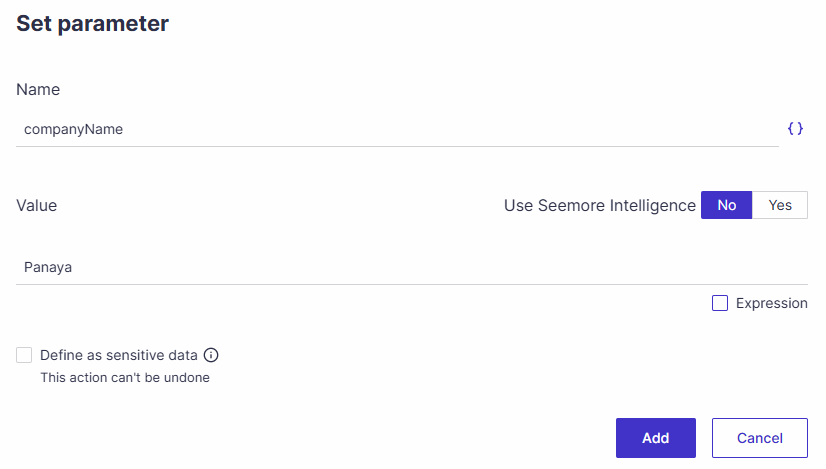
Define the name of your parameter and its initial value. Then click on Add.
Important!
Parameter names -
Are NOT case-sensitive.
Must begin with a letter.
Can contain letters, digits and underscores only.
Parameter values -
If you need to use ‘\’ (backslash) in a string value, use ‘\\’ instead.
Only the Numeric English format is supported.
Use a comma as a thousands separator and a dot as a decimal separator.
The instructions for creating the parameter and its value will appear in the scriptBuilder.
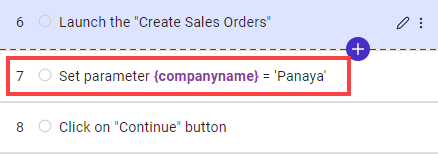
When you play the instructions in ScriptBuilder, the following validation will appear.

Important!
For string values, use single quotation marks.
Copying Multi-value Parameters
Multi-value parameters can be copied with the “Set parameter” instruction. You can copy all values from one multi-value parameter to another, provided both share the same structure in terms of dimension and size.
Using AI
You can use AI prompts to generate dynamic parameter values, as shown in the examples below. The functionality enables users to leverage AI and easily generate values that can be highly specific and would otherwise be cumbersome to define.
A city in the USA
A valid phone number in Germany, including the international code.
The {x} number in US format.
A random Japanese female name that starts with 'M' and has more than 5 characters.
I got a number in this format: 123_456_123,56. Can you give it to me in a US format? I need you to give me, as a result, just the number, without any text/explanation.
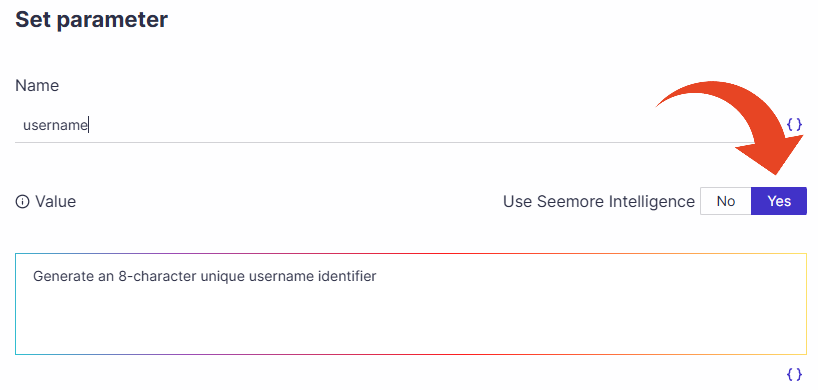
To use AI when setting parameters, set the ‘Use Seemore Intelligence option’ to Yes.
Then type your prompt. You can include parameters in your prompt.
ⓘ GOOD TO KNOW!
You can use internal or input parameters in your AI prompts.
ScriptBuilder functions are not supported in AI prompts.
ⓘ Wrap exact text in quotes
When your prompt refers to exact text, wrap it in straight quotes or backticks, for example: the first word is 'testdata'.
Snip from Parameter
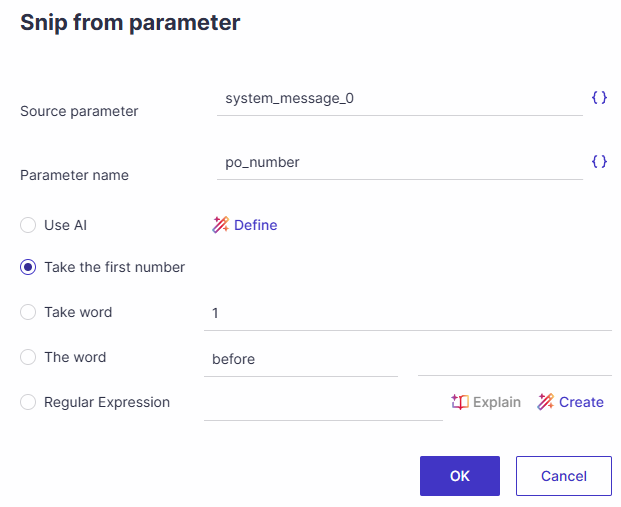
You can use the Snip from parameter instruction to parse a text from one parameter to another. The instruction supports multiple snipping options (AI, RegEx, others) to isolate the required value and store it for reuse within the test flow.
Validate expression
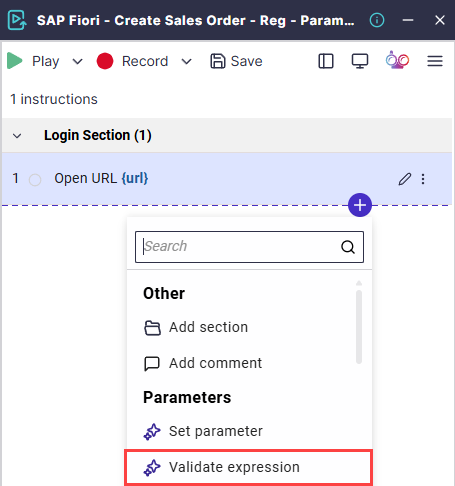
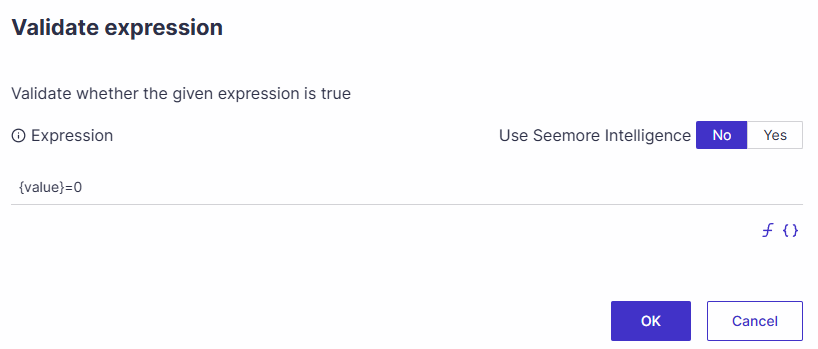
Use the validate expression instruction to validate whether the given expression is true. The expression can include functions and parameters. The validation results (true/false) can be stored in a parameter.
Good to Know!
You can use the operators AND, NOT, and OR in your expressions.
Assign validation result to parameter
The instruction returns True or False, which can be stored as an internal parameter for subsequent use in the script.
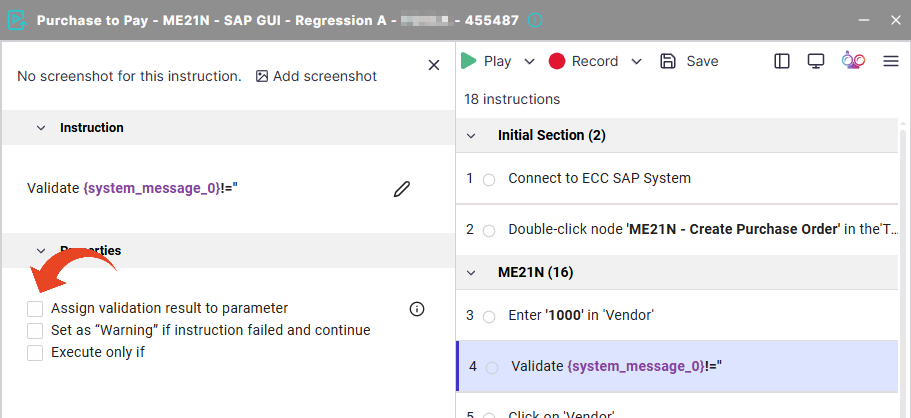
When assigning the result to a parameter, if the expression is evaluated as false it would fail the instruction unless the user checks the Set as “Warning” flag like shown below.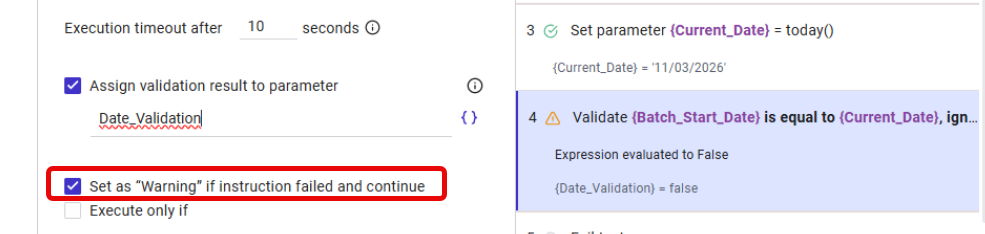
Using AI
Use AI to ask whether a parameter is valid, as in the examples below. AI-based validation expressions simplify the task and dismiss the technical/syntax understanding required to create similar validations using other methods. The validation results (true/false) can be stored in a parameter.
You can use free text and include strings, parameters, and functions.
The word {X} has exactly 5 characters
{y} is divisible by 5
{delivery_date} is later than today’s date
Check that {p} contains at least 5 digits, and the first character is '#'
Check that {p} is a valid ID number in French
Check that {p} is a city in country {u}
To validate expressions with AI when, set the ‘Use Seemore Intelligence option’ to Yes, in the Validate expression dialog box.
Then type your prompt. You can include parameters in your prompt.
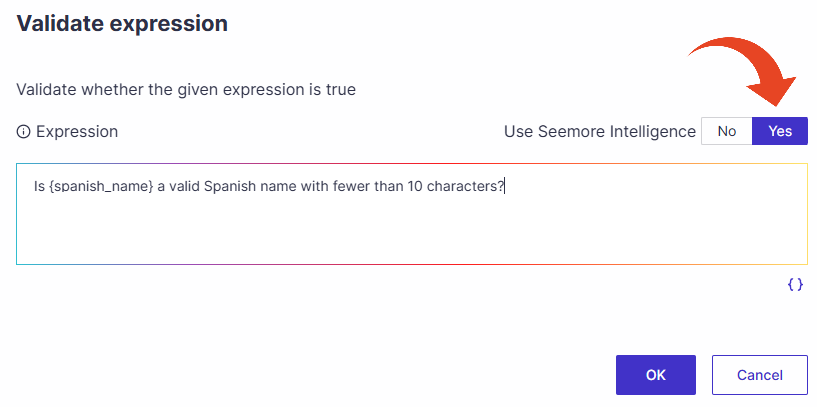
ⓘ Wrap exact text in quotes
When your prompt refers to exact text, wrap it in straight quotes or backticks, for example: the first word is 'testdata'.
AI Prompt
The AI Prompt instruction is a game-changer for how you create automated instructions. With the AI Prompt, you can generate automation effortlessly using simple, plain English.
Click here to read more about AI Prompt instructions
Viewing Internal Parameter
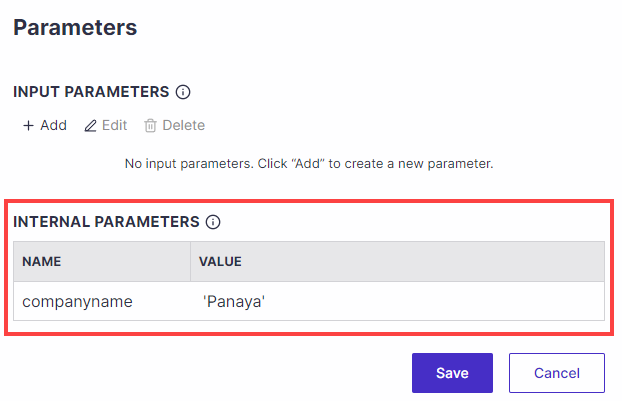
To view defined internal parameters and their values, click the menu button and select Parameters.
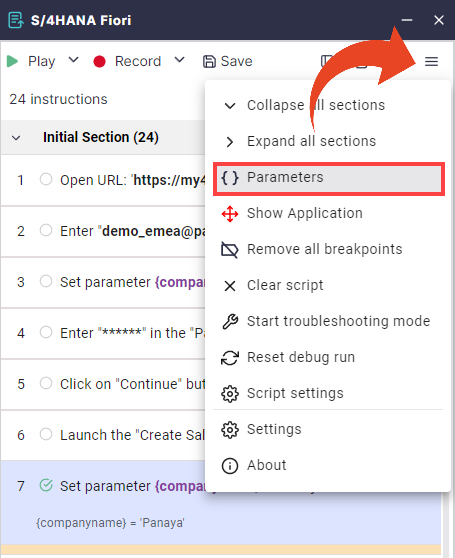
Utilizing Internal Parameters
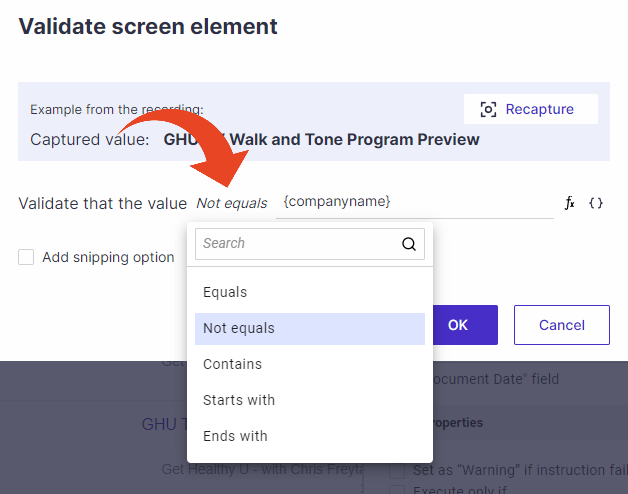
You can utilize internal parameters anywhere in your script. For example, when validating a screen element value in an expression. To add input parameters to your expression, click the parameters button to select from existing pre-defined internal parameters. The validation results (true/false) can be stored in a parameter.

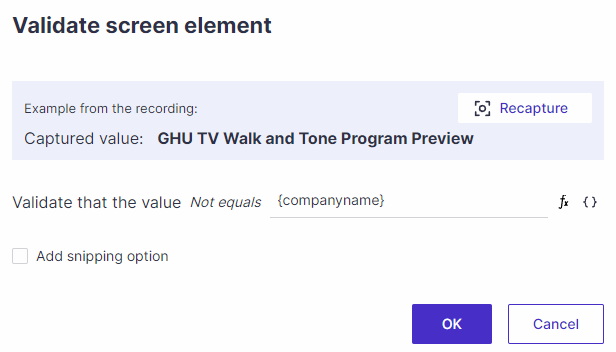
Click on equals to change the operator. You can select from Equals, Not equals, Contains, Starts with, or Ends with.