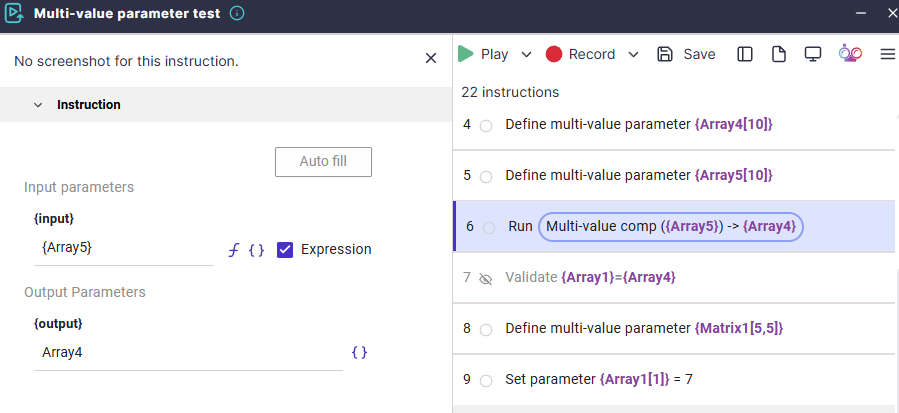
Use multi-value parameters to store several values within a single parameter. This makes it easy to pass large volumes of data in loops and between components. Multi-value parameters can serve as both input and output in components, during code execution, and in validations, enabling advanced data-driven automation scenarios.
For example, you can -
Capture the status of all checkboxes on a page in a single parameter, simplifying the validation of complex forms.
Collect approval statuses displayed as multiple visual blocks, such as role-based approval flows, and process them as an array parameter.
Adding Multi-Value Parameters
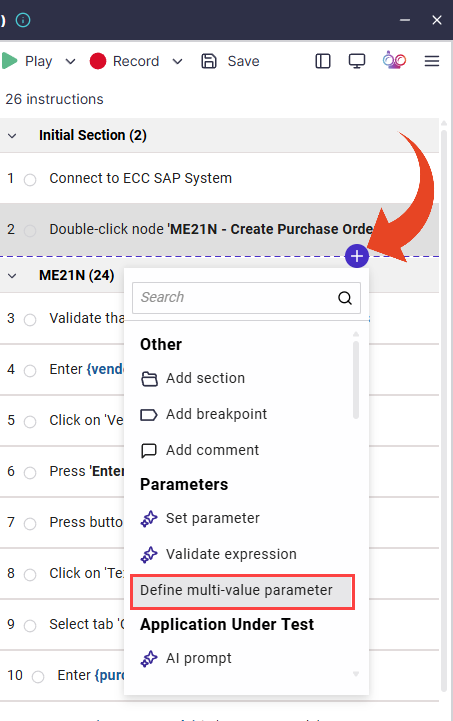
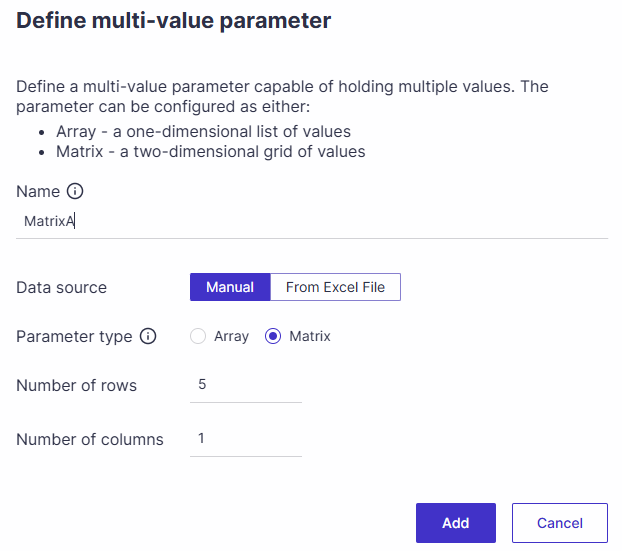
In ScriptBuilder, hover over an instruction and click on the + Add button > Define multi-value parameter
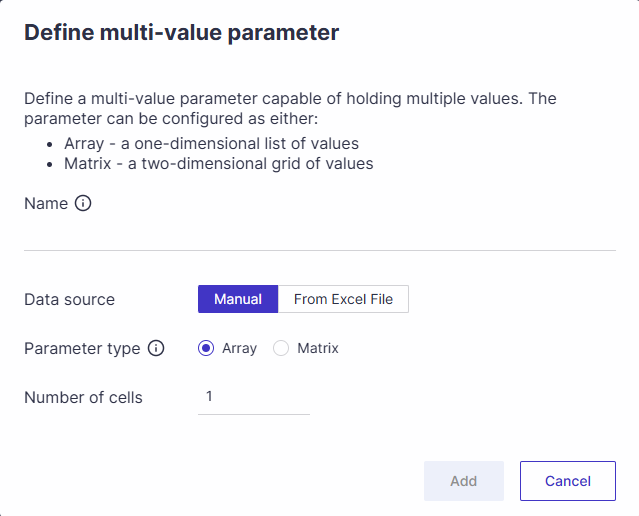
Set the name for the parameter, select the parameter type, and the number of cells/rows and columns. When done, click OK.
Array
A one-dimensional list of values.
Use an Array when -All values represent the same type of data.
The order of values matters, but there is no need to group values by rows or columns.
Each item can be processed independently.
Typical examples of using an array
A list of checkbox states, such as Checked or Unchecked.
A list of approval statuses, such as Approved, Rejected, or Pending.
A list of text values collected from repeating fields.
Matrix
A two-dimensional grid of values.
Use a Matrix when -Values are interrelated across multiple dimensions.
Each row represents a logical record or entity.
You need to compare or validate values across columns within the same row.
Typical examples of using a matrix
A table where each row contains multiple fields, such as User, Role, and Status.
Approval flows where each step includes multiple attributes such as Role, Decision, and Timestamp.
Grids or reports are displayed in the application UI.
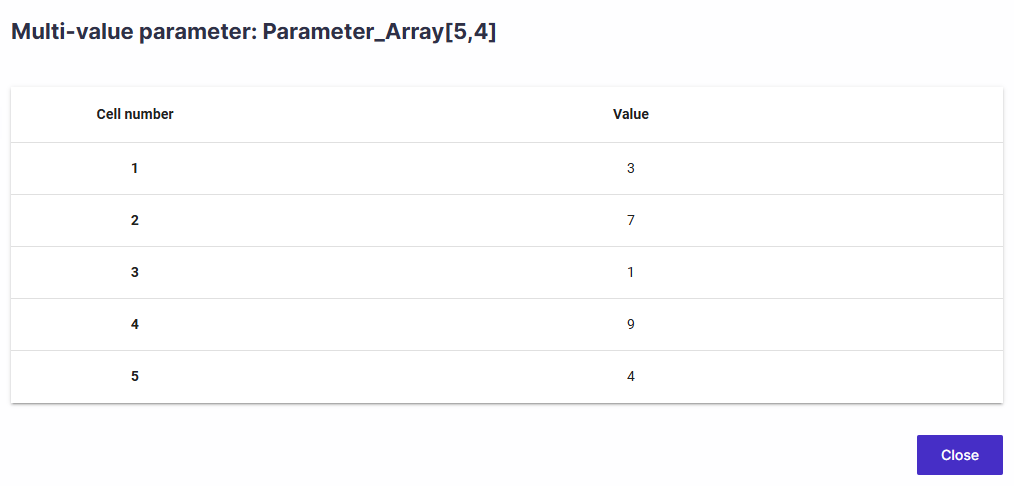
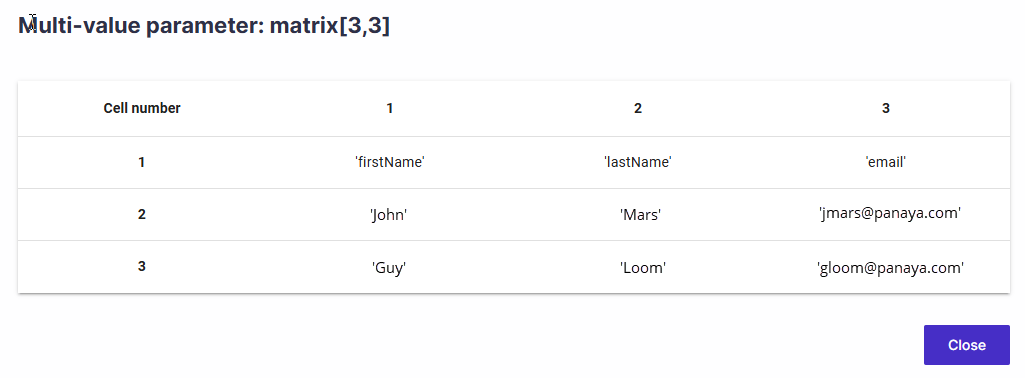
In the example below, the first row serves as the column header.
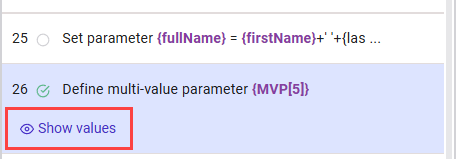
To view the values in your parameter, play the instruction (F7), then click on Show values.
Alternatively, you can view the parameters by clicking on the ScriptBuilder Menu > Parameters.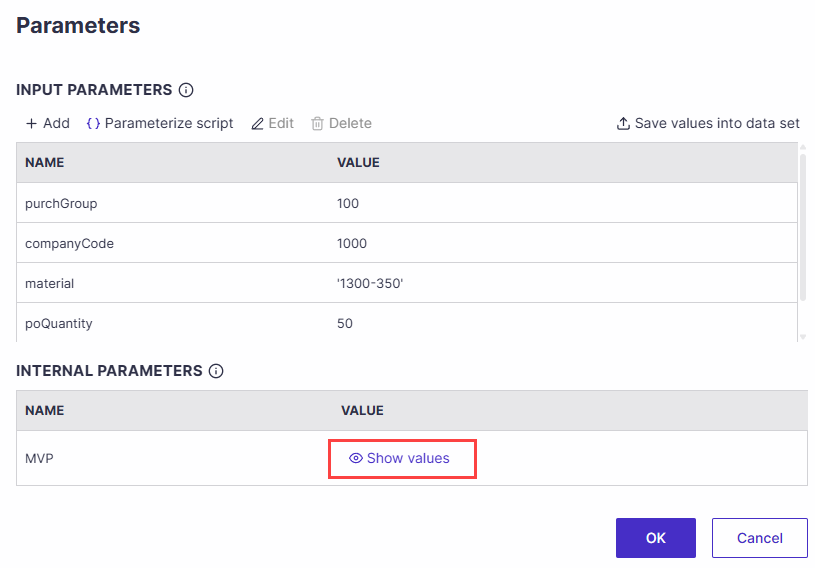
Populating Multi-value parameters
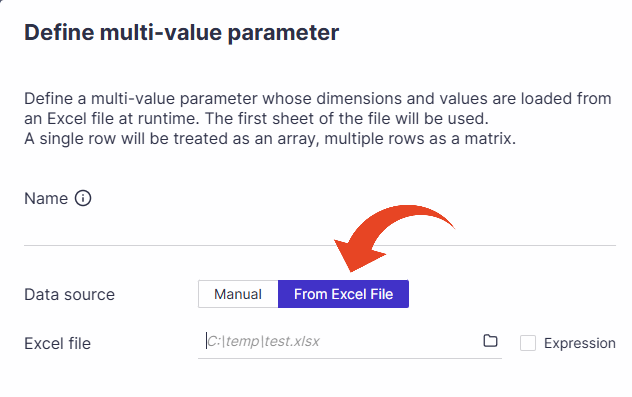
Populating Multi-value Parameters from Excel
Multi-value parameters allow you to load multiple values from an Excel file and reuse them during the automation flow. This capability is useful when large datasets need to populate tables with multiple rows and columns.
A multi-value parameter can store arrays or matrices depending on the structure of the Excel file.
Use this capability when users need to quickly load multiple parameters from an Excel file rather than entering them manually.
Common use-cases include -
Populating tables with multiple rows and columns
Importing test data from Excel
Passing structured datasets into an automation flow
Important!
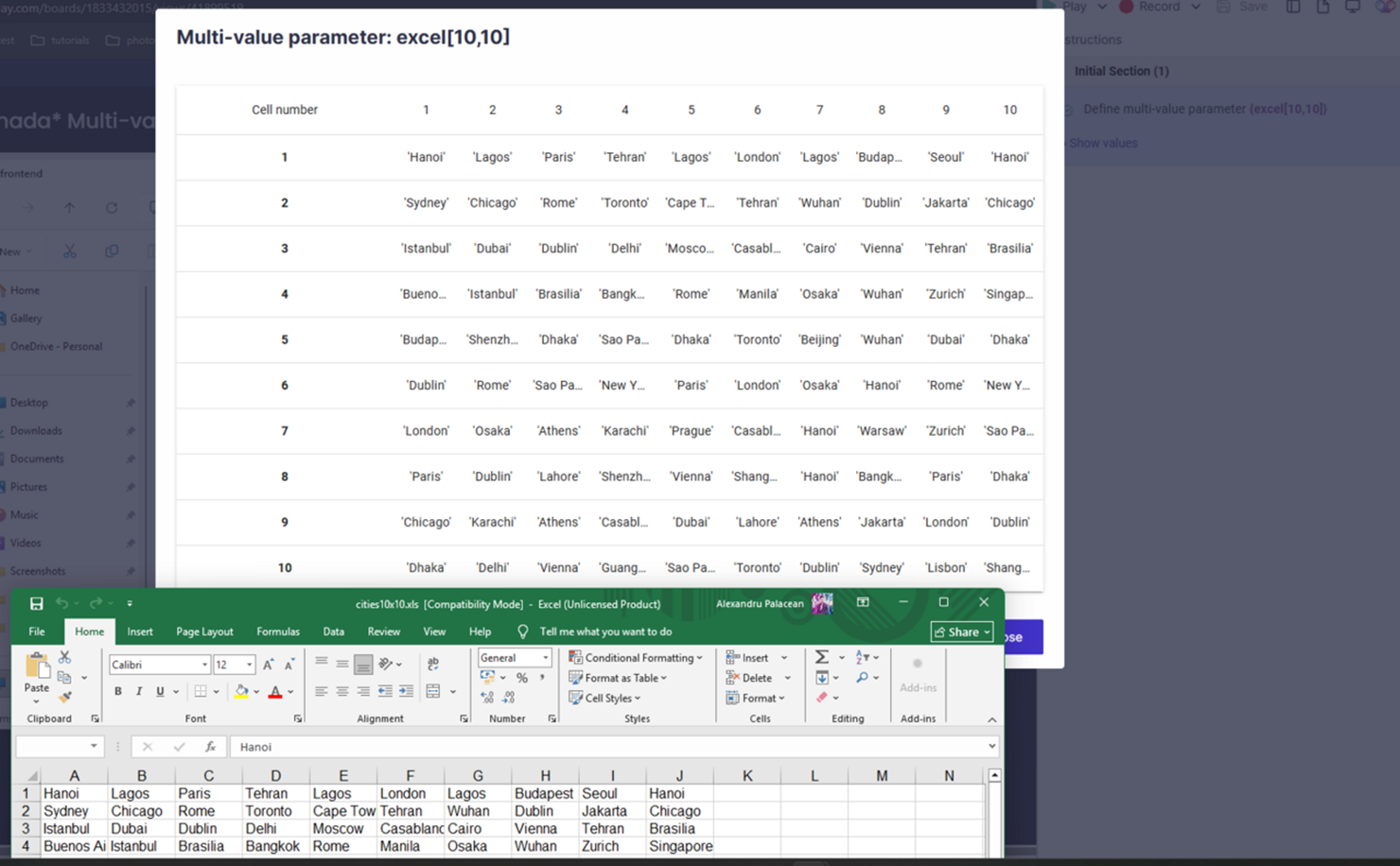
The multi-value parameter reads data directly from an Excel file at runtime.
If the Excel file contains one row, it is treated as an array.
If the Excel file contains multiple rows, it is treated as a matrix.
The automation reads only the first sheet in the Excel file.
Good to Know!
The Excel file path can be:
Hardcoded
Selected from the file browser
Passed dynamically using an expression
With the Set Parameter Instruction
Use the Set Parameter instruction to populate your multi-value parameter.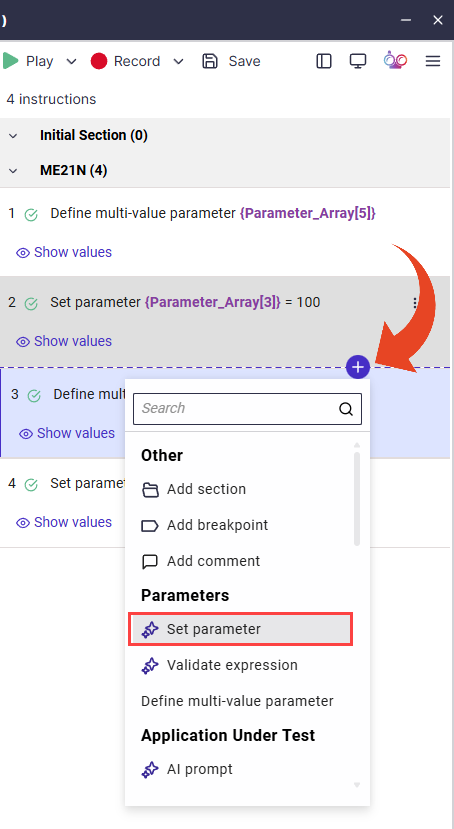
To fill an array, you need to access each cell using parameterName[cell_number]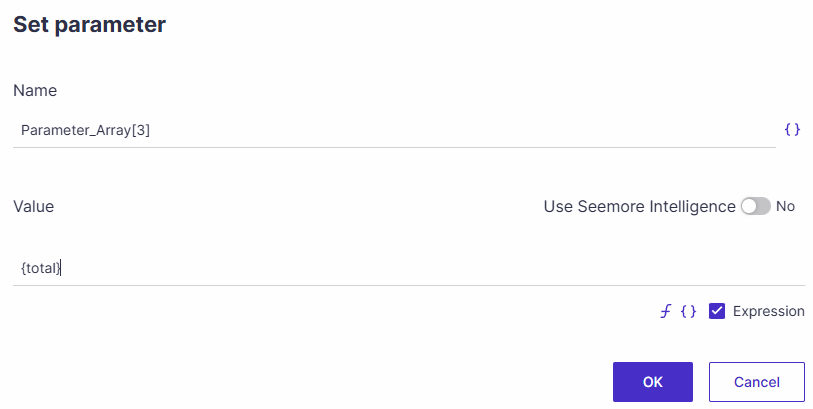
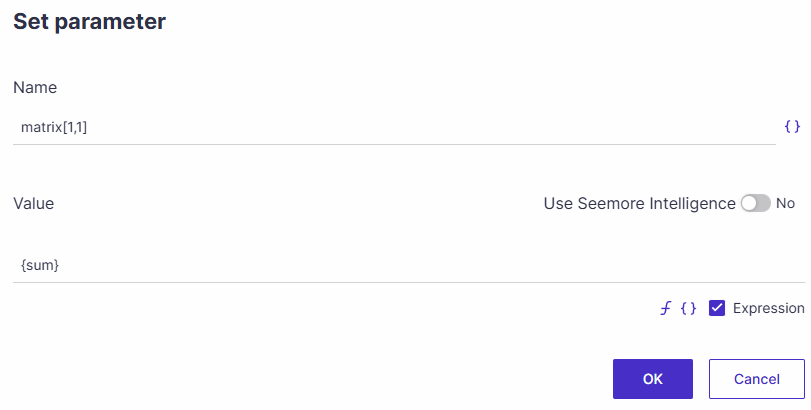
To fill a matrix, you need to access each cell using parameterName[row_number, column_number]
Copying Multi-value Parameters
Multi-value parameters can be copied with the “Set parameter” instruction. You can copy all values from one multi-value parameter to another, provided both share the same structure in terms of dimension and size.
Use Cases & Examples
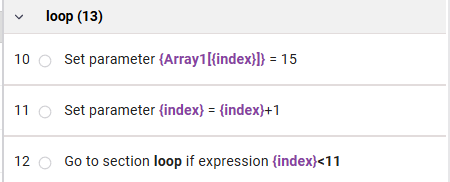
Use loops to populate Multi-value Parameters. The loop uses a section and the Go to section instruction to populate the parameter.
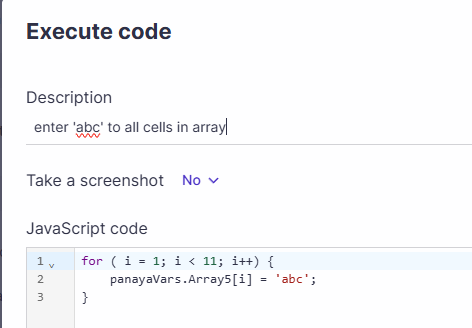
Coding using Multi-value parameters.
Using Multi-value parameters in Input/Output to or from components.