Compare Mode is accessible in the ScriptBuilder Viewer and when reviewing automation run details.
Good to Know!
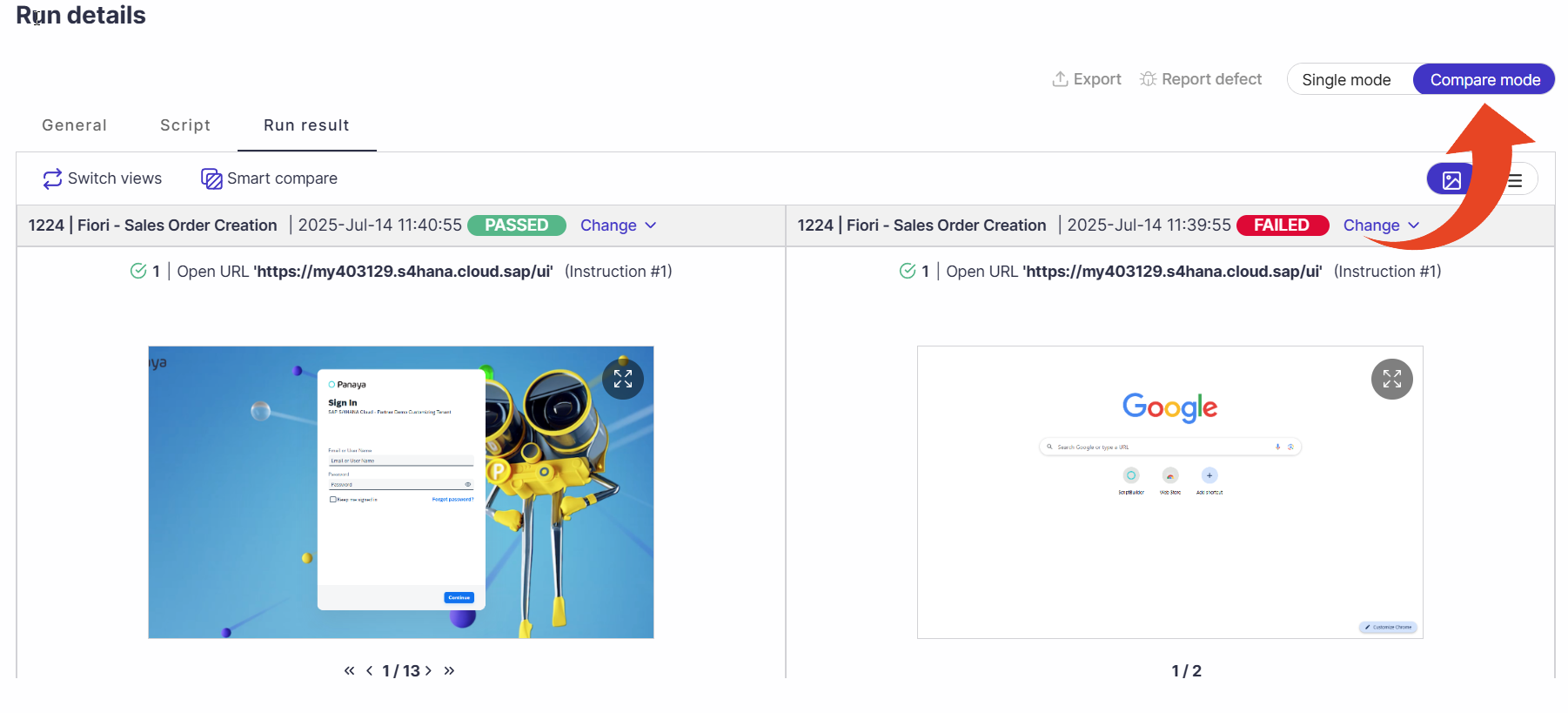
The comparison appears in a dual-pane layout, where the left side serves as the baseline for the displayed instructions.
Each side can be configured using one of the following options: Last Run, Last Passed Run, Specific Run, or Current Script.
Comparison Tabs
You can compare metadata, screenshots, and instructions included in the General, Script, Run Result, and Datasets tabs (where applicable).
General tab comparison
Enables comparison of the script along with its general information or metadata, if available.
When selecting the “Current test” option, the latest script will be displayed without any run data.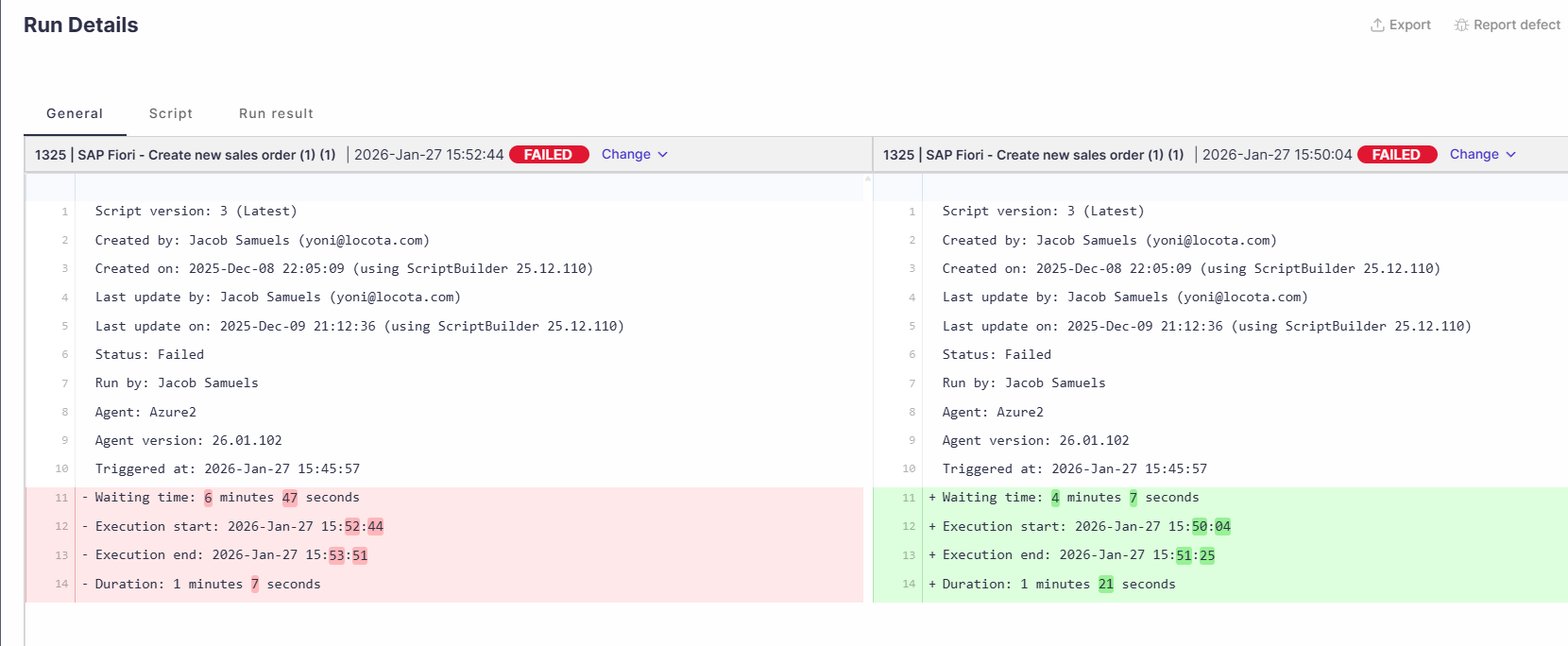
Script tab comparison
Compares script instructions stored in the selected version, along with recorded screenshots.
When selecting the “Current test” option, the latest version of the script instructions and recorded screenshots are displayed.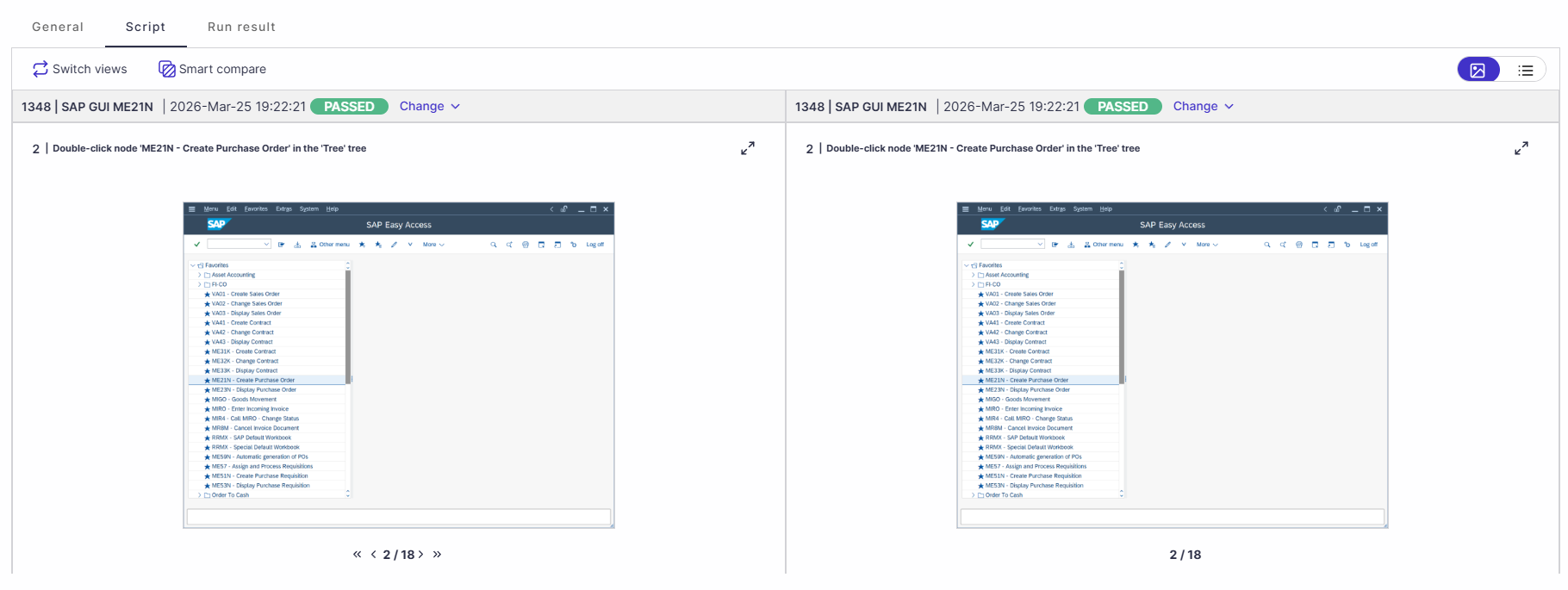
Run result tab comparison
Compares executed script instructions (from Agent or Attended mode), along with screenshots captured during execution.
When selecting the “Current test” option, the latest script instructions and screenshots are displayed.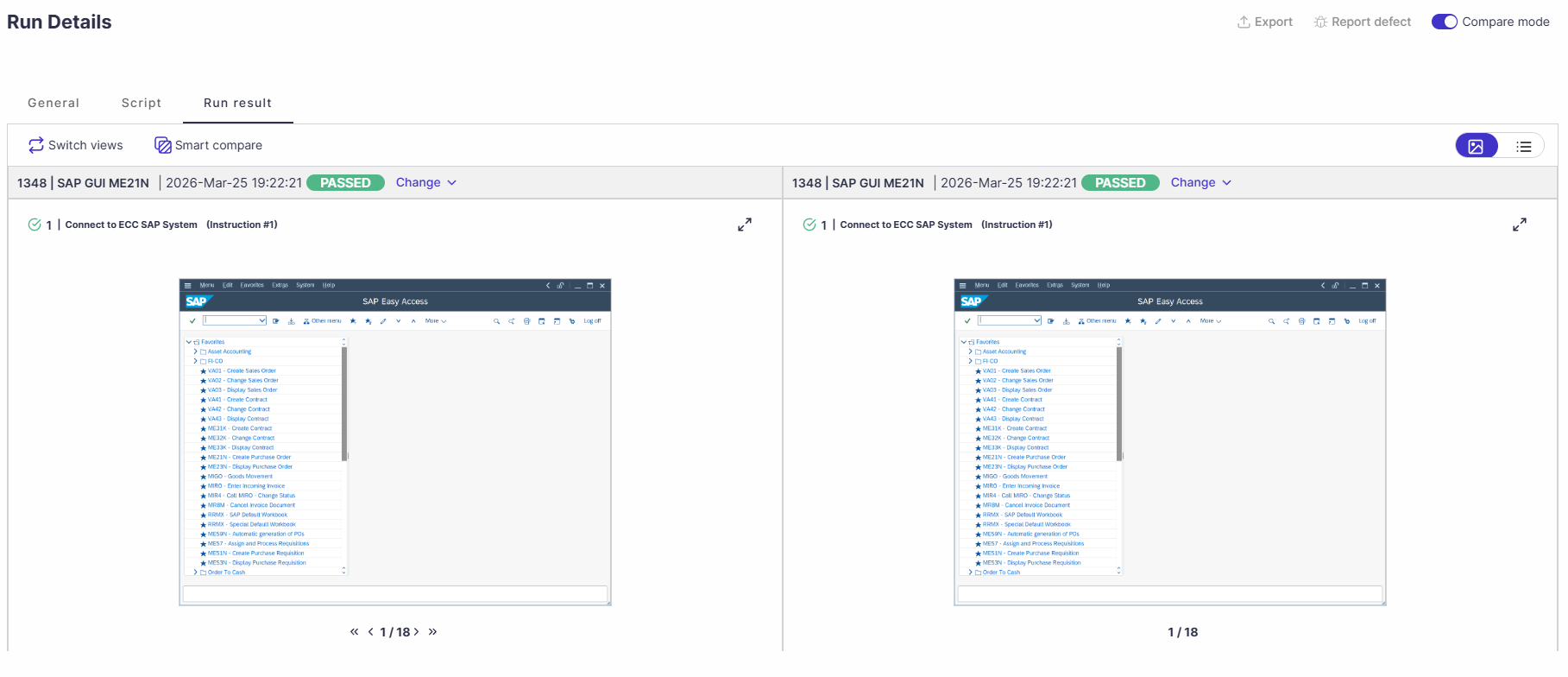
Datasets tab comparison
Compares the dataset used for the run, including the dataset name and parameter values.When selecting the “Current test” option, the dataset name and parameter values are displayed, as they were used by the script.
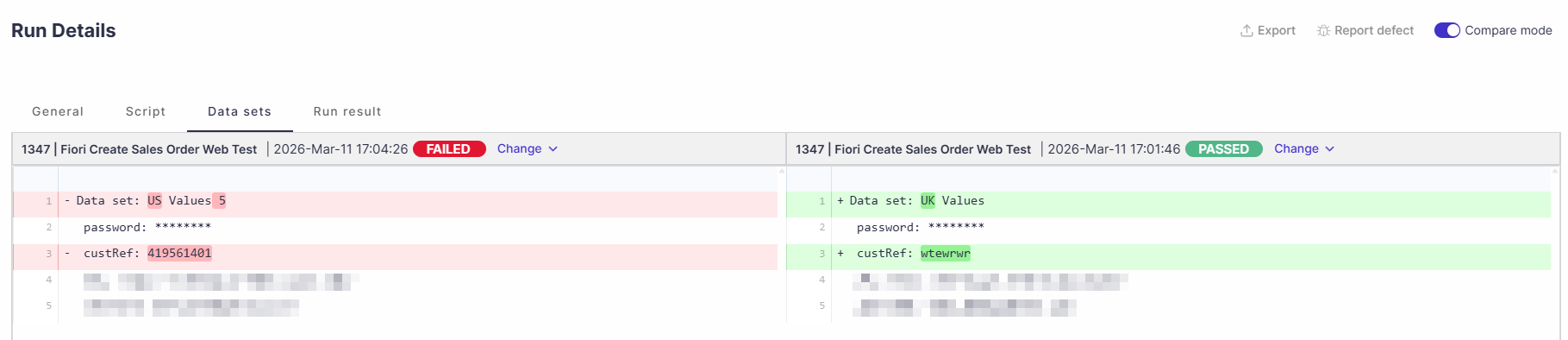
Comparison Selection
You can use compare mode to compare screenshots and instructions from two views, such as a passed vs. a failed run or the last run.
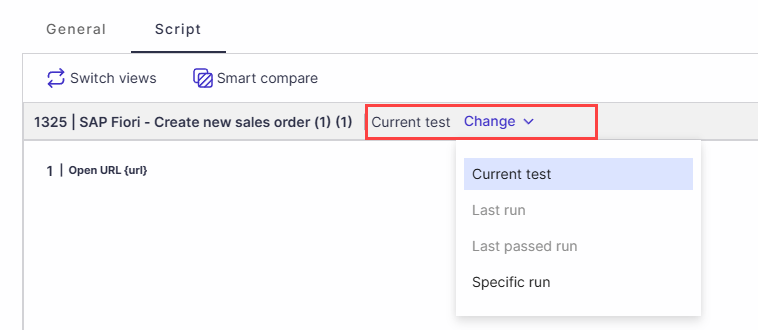
Switch Views
Use the Switch views option to switch between the left and right displays.
