The Panaya Recorder for web applications supports Microsoft Edge based on Chromium for capturing business process testing.
To set up the Panaya Recorder to work with Microsoft Edge, an extension is required.
Follow the below steps to enable and install the extension.
Before you continue
The setup in this article applies to users who cannot access the Google Chrome store and will be using Panaya in Microsoft Edge only. If you have access to the Chrome Extension Store, please proceed to the following guide: Panaya Recorder Installation Guide from the Chrome Store
.NET Framework, version 4.6.2 or above, is required with .NET Framework 3.5 enabled
Click here to learn how to enable
Install Panaya Recorder for Web Applications
Watch a quick video on how to install it, then follow the detailed instructions below.
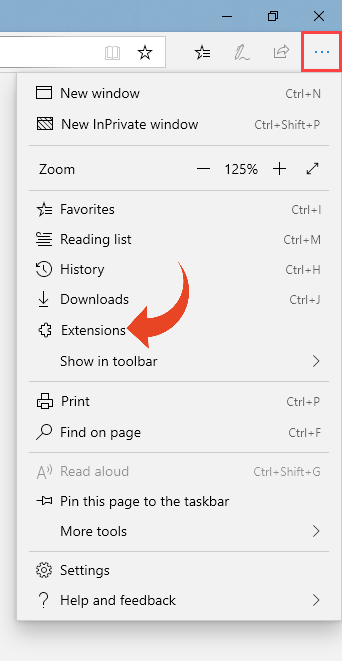
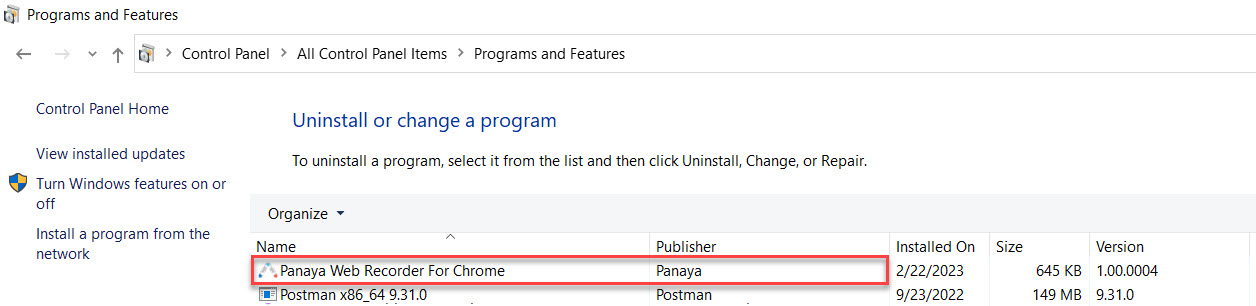
In Microsoft Edge, click on the Settings and more button (Alt+F), then select Extensions
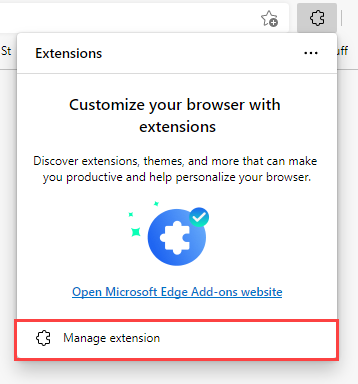
Click on Manage Extension
Click on Get extensions for Microsoft Edge
.png)
Search for Panaya Recorder For Web Applications and Click on Get
Alternatively, you can use this link to add Panaya Recorder for Web Applications to your Microsoft Edge extensions..png)
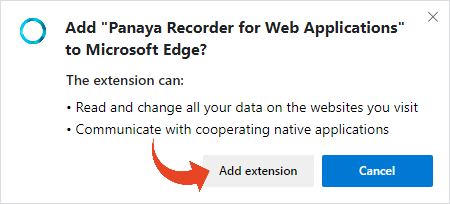
Click on Add extension
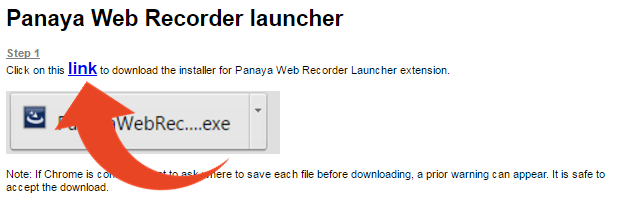
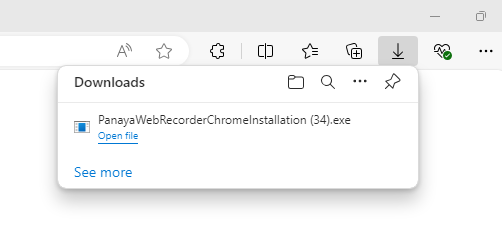
Click on the link to download the PanayaWebRecorderChromeInstallation.exe file.
Click on Open file (at the top right of the screen) to run the downloaded file. Then, follow the instructions in the installation wizard to complete the recorder installation.
Restart Microsoft Edge
To verify that the installation was successful - In Microsoft Edge, click on the Settings and more button (Alt+F), then select Extensions
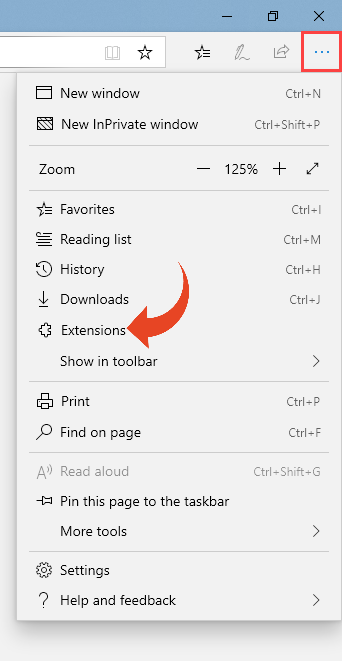
Verify that the Panaya Recorder for Web Applications add-on appears and is turned on.
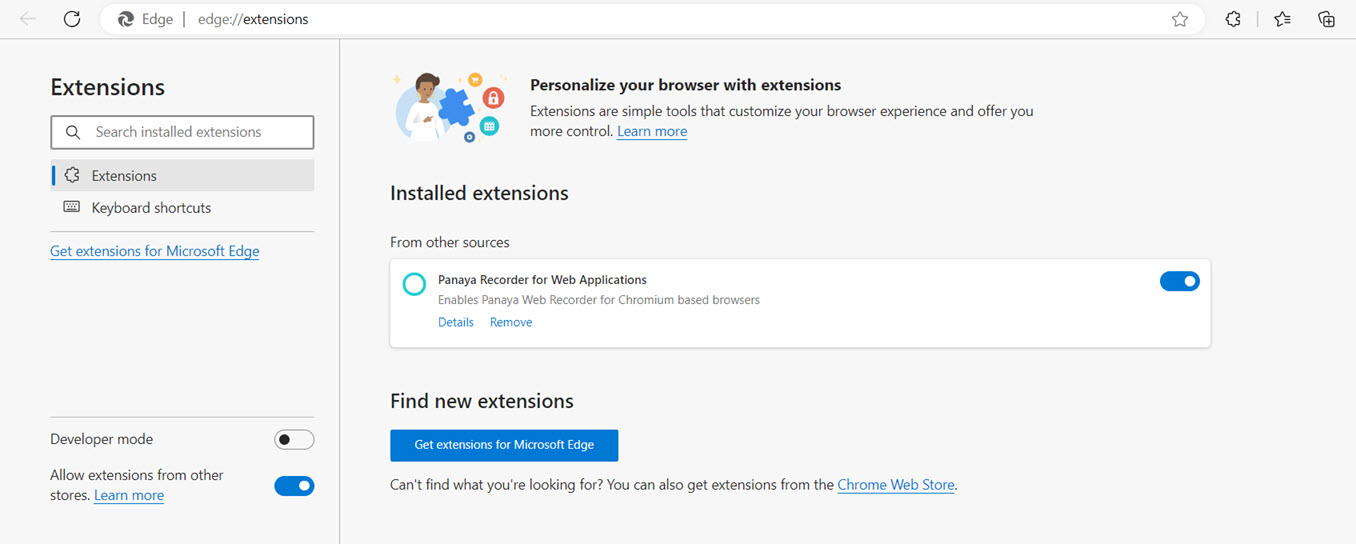
Open your Windows Control Panel and select Programs and Features.
Verify that the Panaya Web Recorder for Chrome is installed.
Panaya Recorder for Web Applications did not install properly? Were you unable to download it?
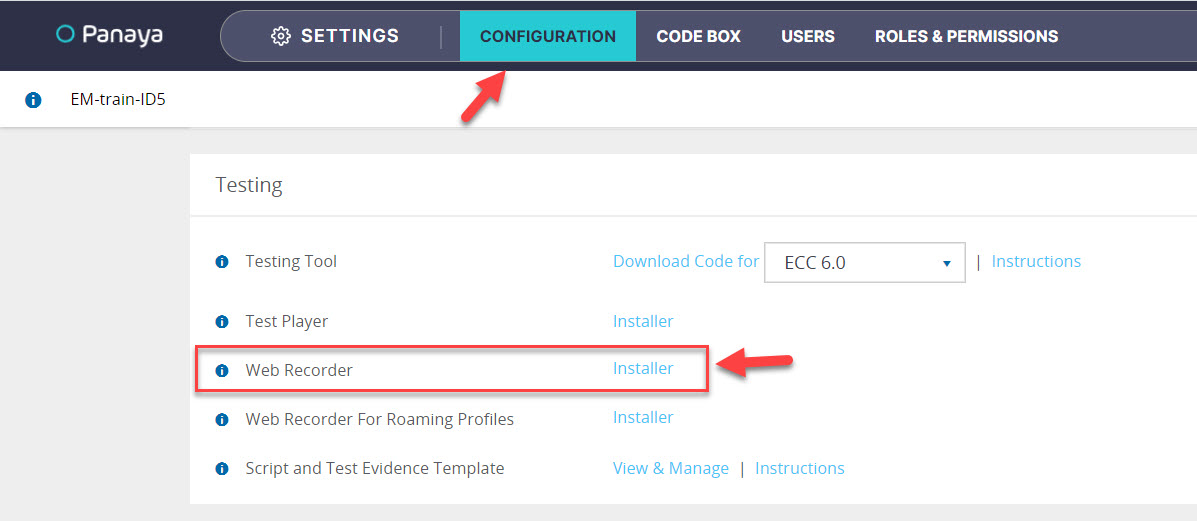
You can download it from Settings > Configuration > Web Recorder > Installer
No admin rights or cannot add the extensions?
Contact your IT Administrator for assistance
The default installation directory of the PanayaWebRecorderChromeInstallation.exe is under the logged-in user's AppData/Roaming folder.
Did you receive the "Browser Extension Communication Error" message shown below?
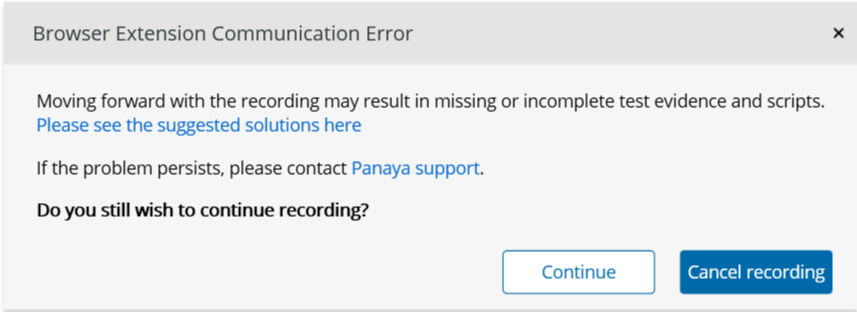
If that’s the case, please check whether Panaya Web Recorder for Chrome was installed correctly (see Step 10 above). If it’s already installed, restart your computer and attempt recording again. If the problem continues, proceed with the troubleshooting steps below:
1. Launch the Panaya Recorder application, then close it. The act of starting and closing the Recorder initiates the update of the native-messaging host file.
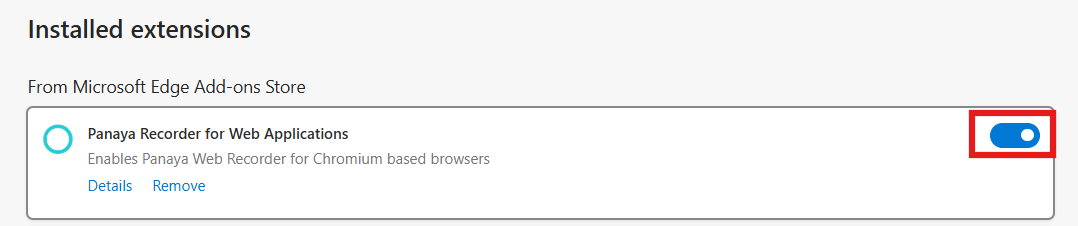
2. In the browser, disable and then re-enable the Panaya Recorder Edge Extension for Microsoft Edge. Doing so ensures that Edge is properly registered in the native-messaging host setup.
3. Restart the Recorder — Resume recording to confirm that it starts up successfully.
If you need assistance after following these instructions, please contact Panaya Support.