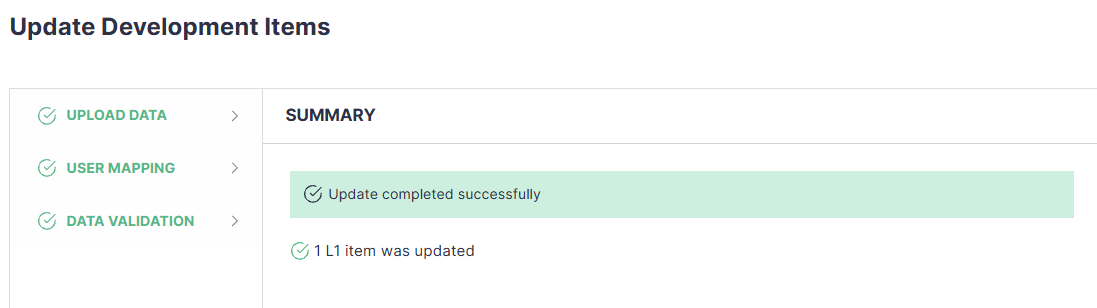
Use Excel to update standard and custom fields across multiple existing Level 1 requirements or features. Export the development items, edit their field values in the spreadsheet, and upload the updated file to Panaya to apply the changes.
Before you begin
You must have the Requirement / Feature Mass Edit permission.
Mass update requirements and features
Open the relevant project and click the Development, Requirements, or Workstreams tab.
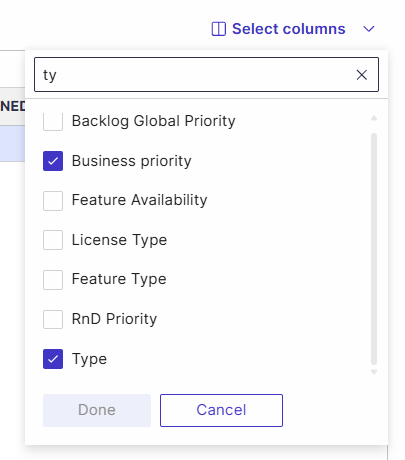
Add the ID and Type columns to the list using the Select columns button.
Use the Export button to export the relevant requirements or features you want to update to an Excel file.
Open the exported file in Excel and update the required standard or custom field values. /
Verify that your file includes the ID and Type columns populated. If your file is missing these fields, you can either add them manually, or add them to the list using the select columns button and then re-export the file.
Save and close the file.
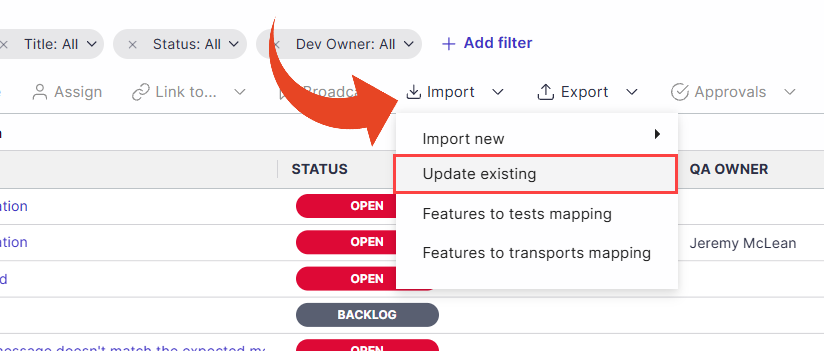
Return to the development list and select Import > Update existing to begin the update process.
Upload the updated Excel file in the guided wizard.
Review User Mapping to map users referenced in the file to Panaya users, then review Data Validation. Resolve any issues identified before proceeding.
Review the changes and complete the wizard to apply the updates.
Note
Uneditable fields will be ignored.