Select Complete Cycle under the cycle's general tab after completing a Test Cycle.
To do so, navigate to the "Tests" tab and select the "Tree" view. Highlight the relevant cycle and then click Complete Cycle.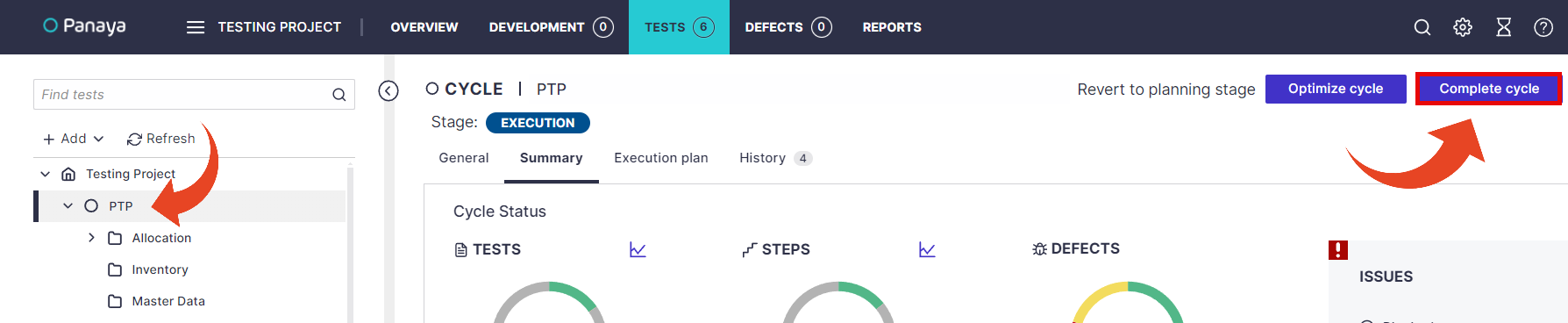
This will change the cycle status to “Completed” in the main dashboard.
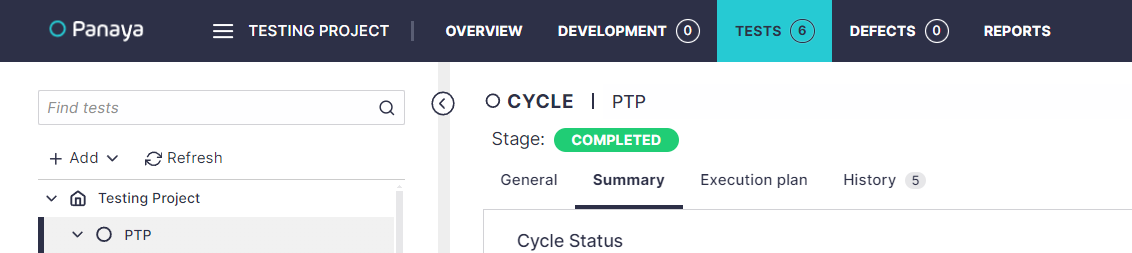 At this point, notifications and workflow will stop, and you can move on with any additional cycles or close the project out.
When the cycle status is set to completed no tests can be executed:
- The Run & Document button will not be available
- None of the Test Steps are in "Ready to test" status
- None of the Test Steps are in "Ready to test" status