Using Panaya’s ScriptBuilder to record an automated script is easy, fast and simple. For the most part, all you have to do is simulate what the user would do manually, and the instructions will get automatically added to the script. However, there are a few guidelines you should be aware of in case something doesn’t work as expected.
To record entering text in a textbox, the user only needs to type in the text as they would manually, but there are some conditions for the instructions to be added to the script:
The instruction will only be added once the focus leaves the textbox and moves to another element (e.g., the user clicks the Continue button, presses the Enter key, etc.).
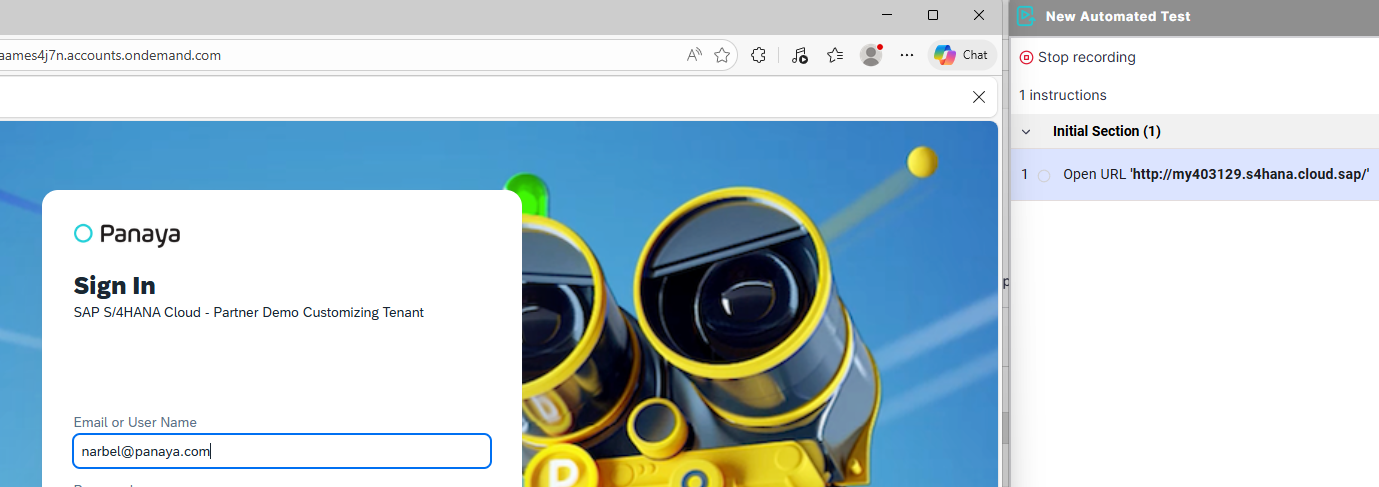
Be advised that it can take a few seconds from the moment the action is performed until the instruction is seen in the script. If recording is stopped immediately after leaving the field - ScriptBuilder may not have enough time to complete processing and create the instruction.
If the user inserts text that is the same as already exists in the field, the instruction will also not be added to the script.
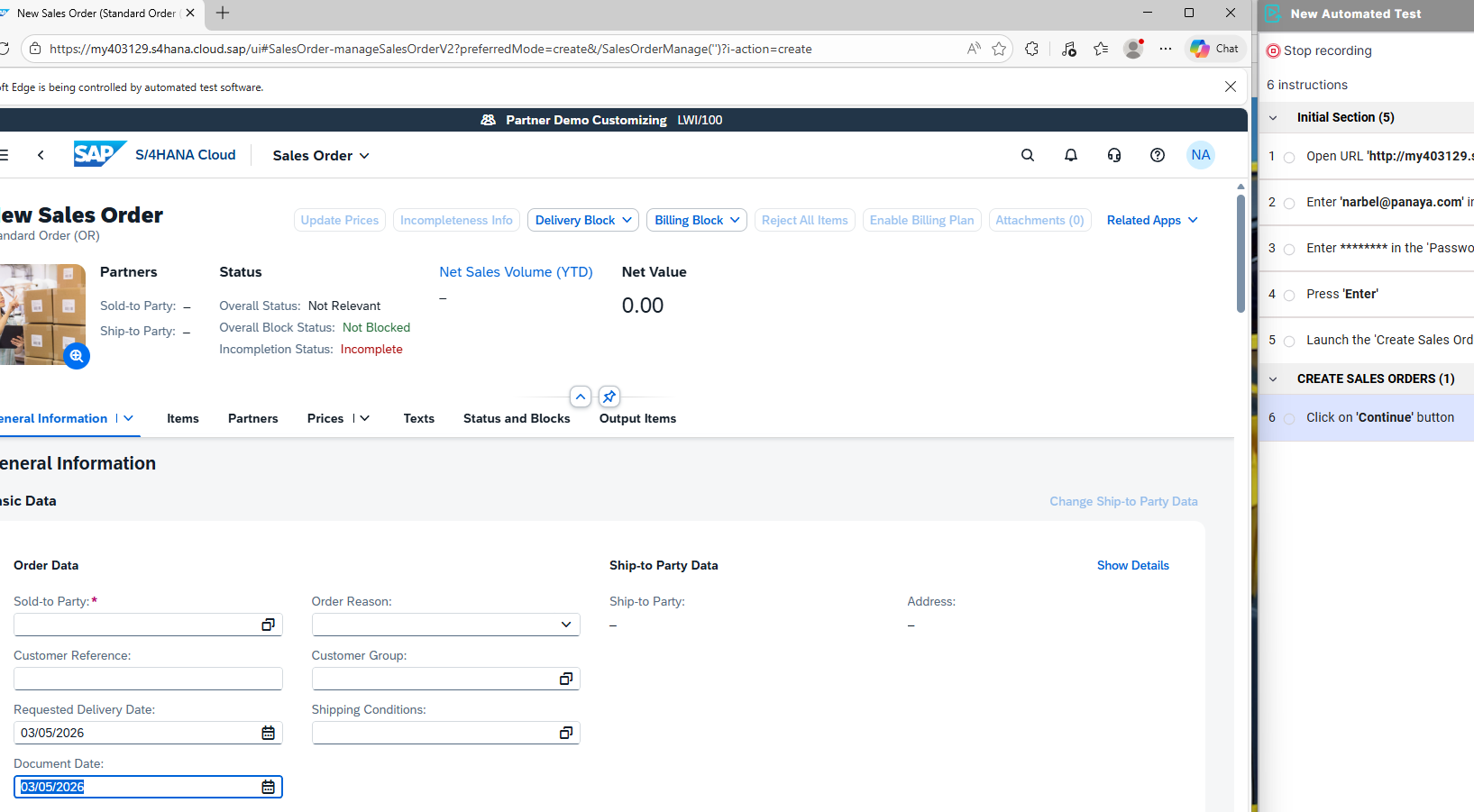
To get around this, the user can either:Enter a different value and edit the instruction after it is added.
Clear the value, press outside (to change focus) and re-enter the desired value, or
Add the instruction using a template.