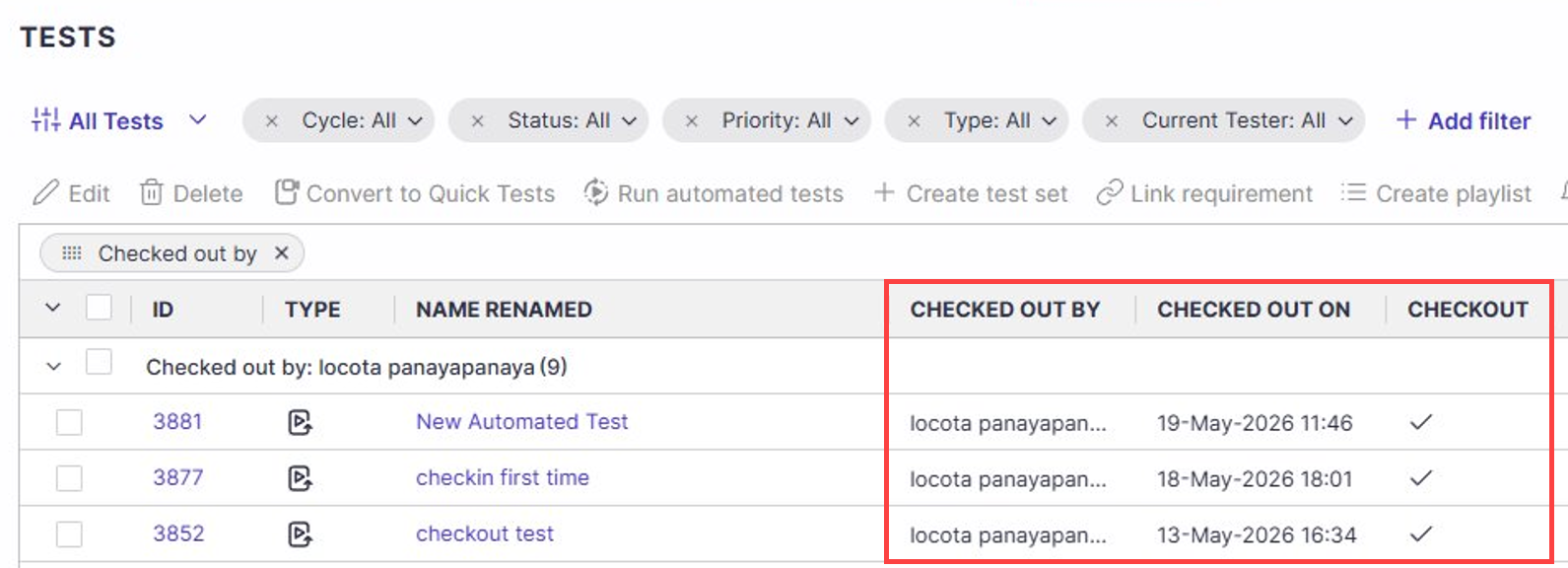
Shared Editing enables exclusive editing of individual scripts through explicit checkout, preventing concurrent modifications. Shared Editing lets one user edit an automated test while allowing everyone else to continue viewing the latest published version. This ability is enabled by using a check-in/checkout mechanism.
When you check out an automated test, Panaya creates a private draft that only you can see and edit. Other users can still open the test, but they see the latest checked-in version in read-only mode.
The mechanism ensures that locks persist across user sessions until they are explicitly released through check-in or a force unlock. It also allows users to hold locks on multiple tests simultaneously.
When you're finished editing, you can either check in the draft to publish your changes or revert it to discard the draft.
Good to Know!
Only one user can check out an automated test at a time.
Checking out creates a private draft rather than locking the published version.
Other users can continue viewing the last published version while the draft is being edited.
You can execute checked-out script drafts before publishing them.
Checking in publishes the draft and makes it the current version of the script.
Administrators can release a checked-out test if the user who owns the draft is unavailable.
Checking Out a Script
Check out a test before making changes.
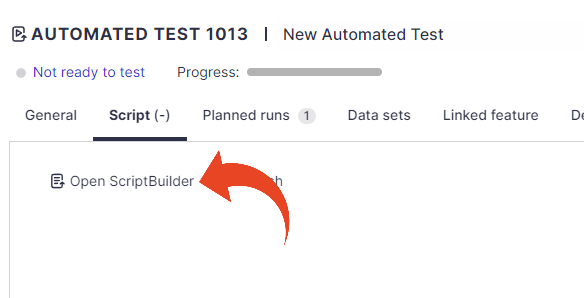
Select the Script tab of an Automated test and click on Open ScriptBuilder.
Click Check out.
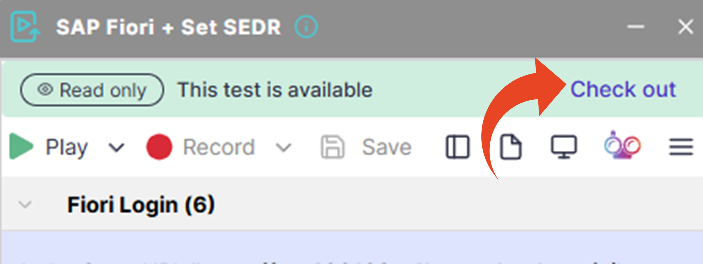
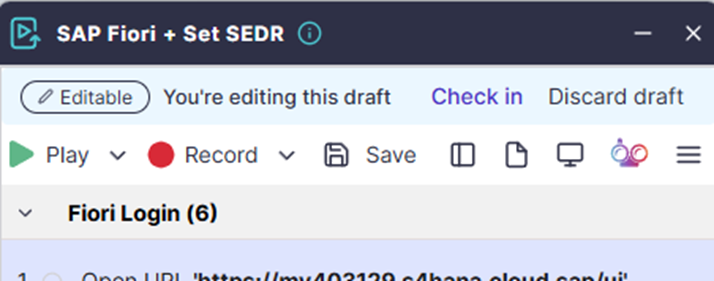
The test enters Editable mode, and a private draft is created.
While the test is checked out:
Only you can edit the draft.
Other users continue to view the last published version.
A ScriptBuilder ribbon indicates that you are editing a draft.
Checking In the Draft
When your changes are ready, check in the draft to publish them.
In ScriptBuilder, click Check in.
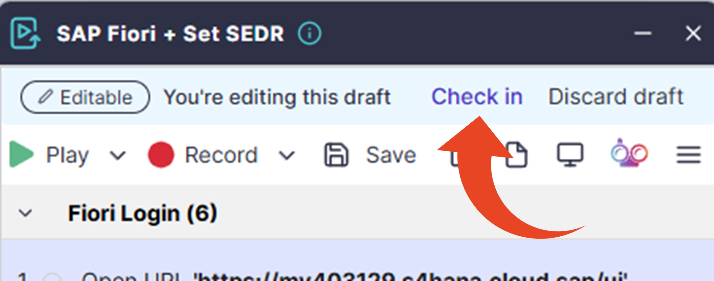
By default, the changes overwrite the existing version. You can choose whether to create a new version.
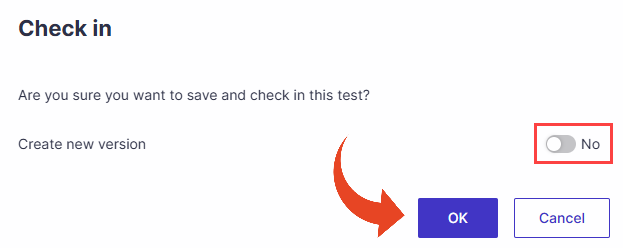
Click OK.
The draft becomes the latest published version, and the automated test becomes available for others to check in and edit.
Running a Checked-Out Draft
You can run a checked-out script draft before checking it in, to make sure your changes work as expected. Run the draft on an execution agent or in attended mode, the same way you run any automated test.
You can run drafts in the Planned Runs tab with the Run Automatically or Run Attended buttons.
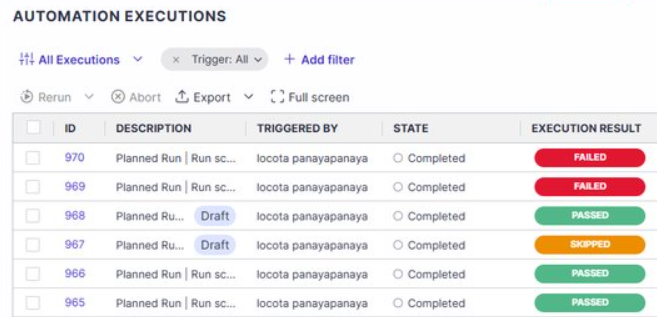
Runs that use a draft are labeled Draft wherever they appear: in the run automation dialog, Planned Runs, Run History, and the Automation Executions page. This makes it easy to tell draft runs apart from runs of the published version.
Revert a Draft
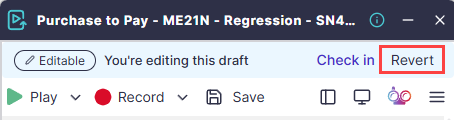
If you no longer need your changes, you can discard the draft on the Panaya site or ScriptBuilder.
Click Revert.
Click Discard to confirm.
The draft will be permanently deleted, and the automated test will be restored to its most recent checked-in version.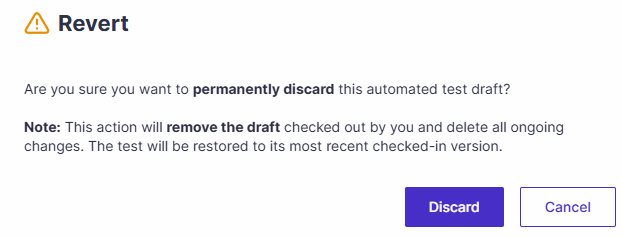
Viewing a Checked-Out Script
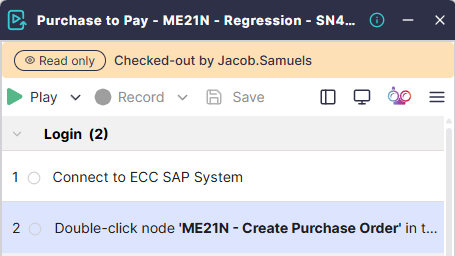
If another user has checked out an automated test, you can still review it and update the general details, assignment, and metadata. A ribbon displays who currently has the test checked out and indicates that you are viewing the last published version.
The automated test script can be opened in ScriptBuilder in read-only mode and can be played back locally. Editing actions to the script remain unavailable until the draft is checked in or reverted.
Force Discard
The Force Discard option allows an administrator with the appropriate permission to forcibly discard a checked-out draft, overriding any existing checkout performed by another user. Force Discard is available from both the Panaya site and ScriptBuilder.
Viewing Tests Checkout Status
The test list includes a dedicated Shared Editing column that displays each test's checkout status.