The Test Runs view provides a centralized view of all test runs executed in your project. You can add more columns to the list, including fields and values. It enables you to monitor testing progress, analyze results, and drill down into specific test executions for further details.
To view all test runs, hover over the Tests tab and select Automation > Test Runs.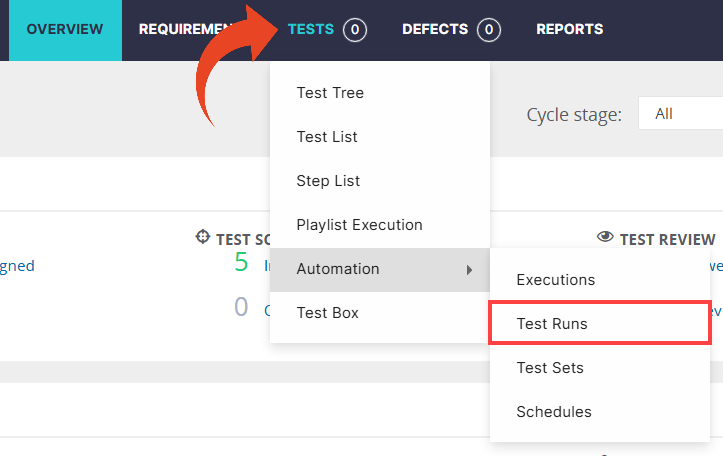
Each row in the grid represents a single test run and displays key details.
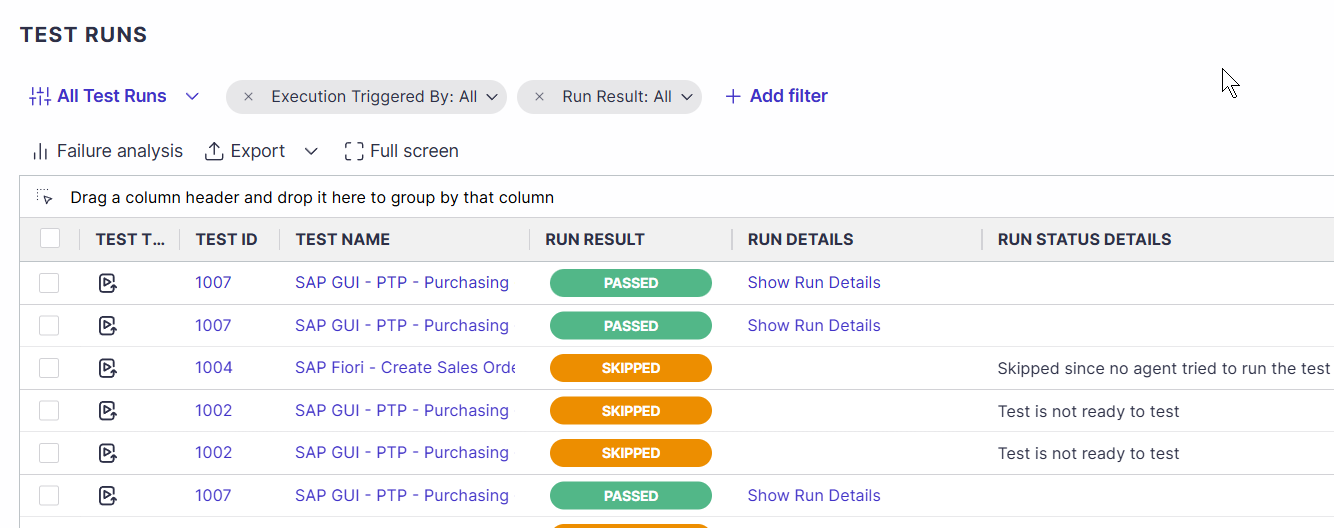
Good to Know!
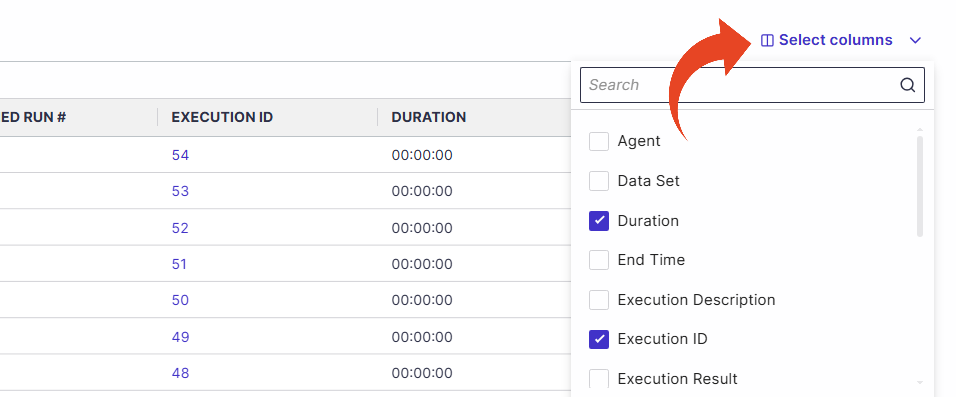
The Select columns button lets you add more columns to the list, with fields and values.
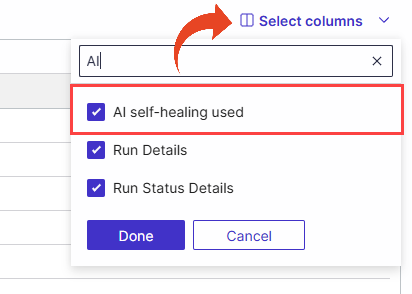
You can add the “AI self-healing used” column to your Test Runs view to improve transparency into AI-driven stability mechanisms and whether it was used during execution.
Note
Attended Runs do not appear in the Test Runs view.
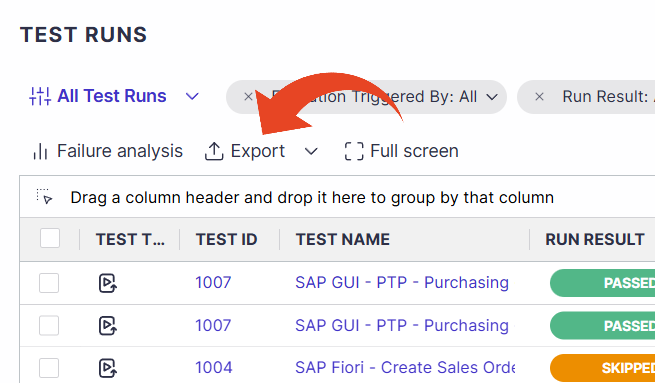
Export Test Runs
The Export button enables exporting the displayed data to Excel or CSV for offline analysis.
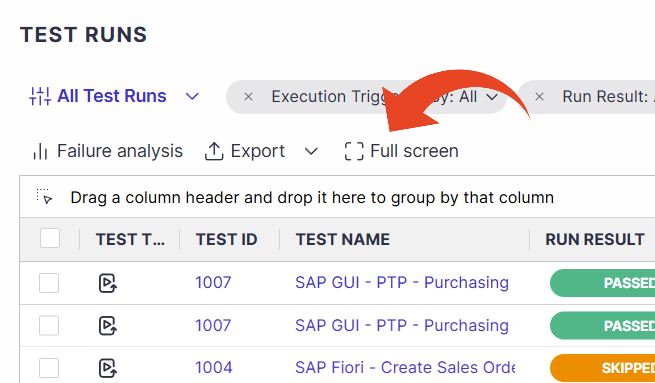
Work in Full screen
You can expand the grid view to full screen for easier navigation and review.
Good to Know!
Use filters to add additional filtering criteria such as tester, execution date, or component.
Use grouping: drag a column header and drop it into the area above the table.
For example, you can group by the test name to help identify test runs of cloned tests, as long as the cloned test name has not changed.