If the following error message appears in ScriptBuilder when attempting to record or play a web test, follow the instructions in this article to resolve.
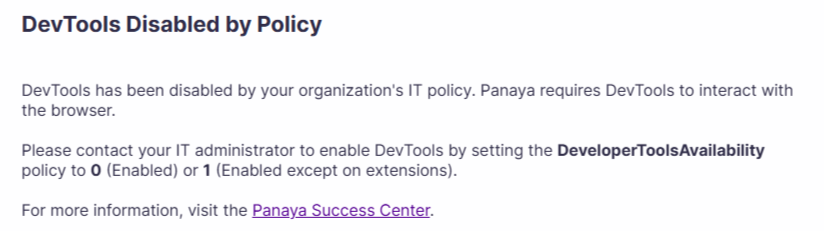
Panaya Script Builder uses DevTools Protocol (CDP) to automate browser interactions.
Your organization's IT policy has disabled Chrome/Edge DevTools.
In some organizations, DevTools is disabled through Windows Group Policy.
When this policy is enforced, Panaya ScriptBuilder cannot automate browser interactions.
Check the active browser policies -
For Microsoft Edge, open edge://policy
For Google Chrome, open chrome://policy
Locate the relevant policy -
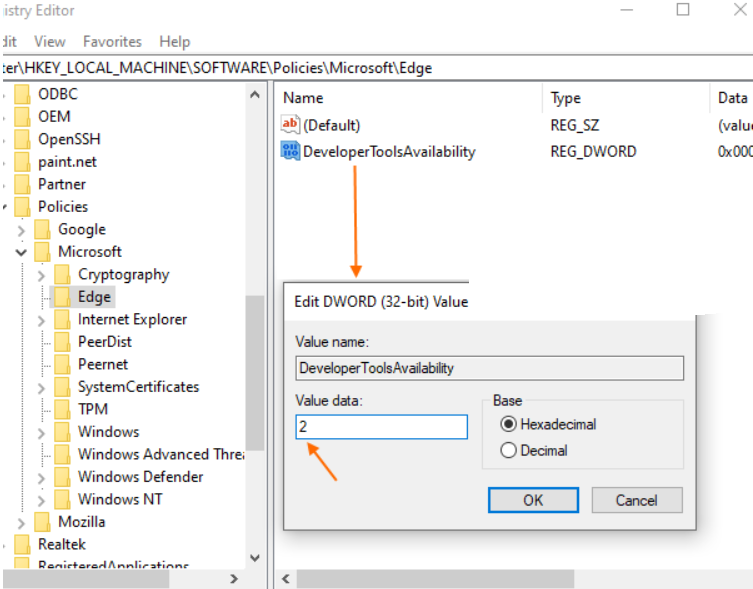
Look for DeveloperToolsAvailability
If the value is set to 2, DevTools is disabled
Collect information for your IT team -
Share the following details with your IT administrator -Required change -
Set DeveloperToolsAvailability to -
0 Enabled
1 Enabled except on extension pages
Current blocking value -
2 Disabled
Registry locations -
Edge: HKLM\SOFTWARE\Policies\Microsoft\Edge\DeveloperToolsAvailability
Chrome: HKLM\SOFTWARE\Policies\Google\Chrome\DeveloperToolsAvailability
Perform DevTools first-time approval
Launch the browser
Navigate to any website (example: https://example.com).
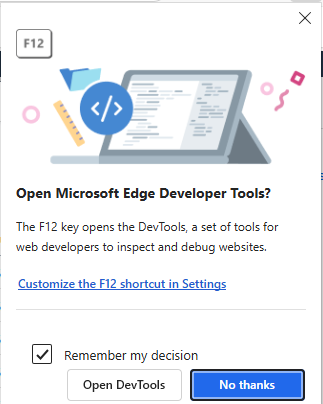
Hit F12 OR Ctrl+Shift+I to open DevTools
If you see a prompt that requires confirmation (Open DevTools / OK / Allow / Approve), click on it.
Wait until DevTools opens up completely.
Close the browser and open ScriptBuilder / Agent.
IT administrators can update the Group Policy or the corresponding registry setting. This change may require approval from security teams. Alternatively, request an exception for the specific machine used to run Panaya tests.
Good to Know!
Policy changes usually require closing and reopening the browser, and in some cases a system restart, before they take effect.