The Email Alerts view provides a comprehensive view of all Salesforce Email Alerts configured in your organization, displaying critical data that enables you to analyze and troubleshoot email alert configurations efficiently.
The Email Alerts Overview is particularly valuable for -
Troubleshooting - Quickly identify why an email alert isn't firing or is sending to incorrect recipients
Impact Analysis - Understand which automations will be affected before making changes to an email alert
Audit & Compliance - Review all email communications triggered by your Salesforce org
Documentation - Generate a comprehensive inventory of email alerts for governance purposes
Migration Planning - Identify dependencies before moving email alerts between environments
Viewing Email Alerts
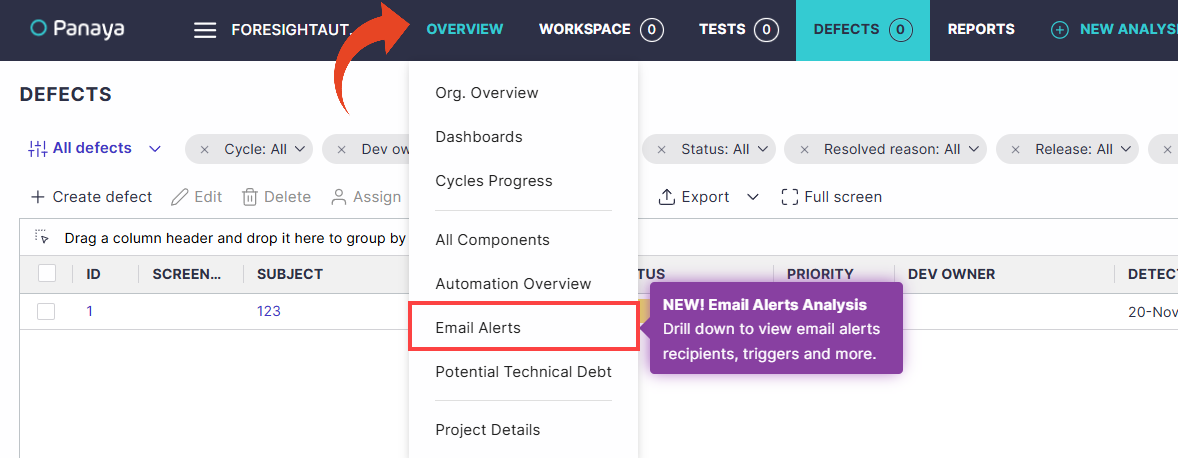
Click on the Overview tab in the top men and select Email Alerts from the drop down list.
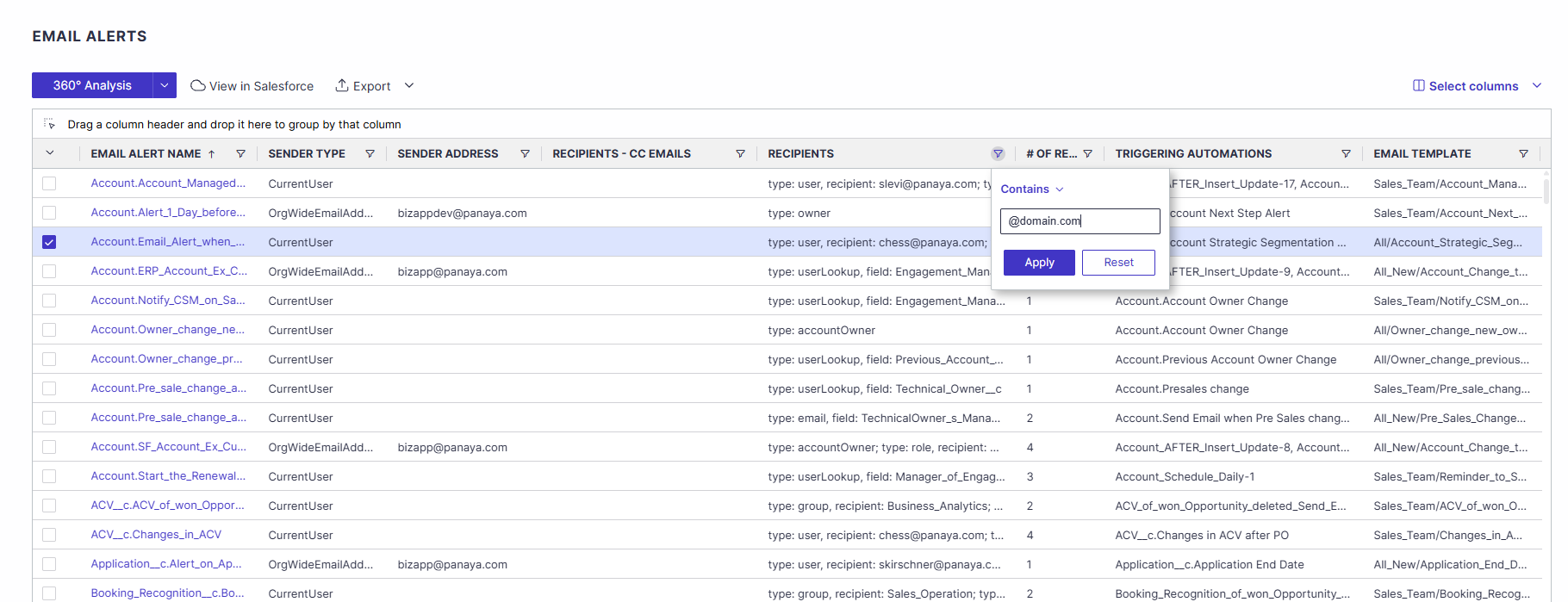
The list presents all configured alerts in one view showing:
Email Alert Name
Sender Type - The type of sender configured for the alert
Sender Address - The email address from which the alert is sent
Recipients - Target recipients for the email alert including metadata type (user, owner, userLookup, group, etc.)
Recipients - CC Emails - Hard-coded CC email addresses
# of Recipients - Combined number of recipients from Recipients and CC Emails columns
Triggering Automations - Flows, Approval Processes, or Apex code that trigger the alert
Email Template - The email template used for the alert
You can filter and group on any column to find information like:
All alerts for a specific domain
Which alerts use a specific email template
Select one or more alerts using the checkboxes and analyze them by clicking the 360° Analysis button or View in Salesforce.
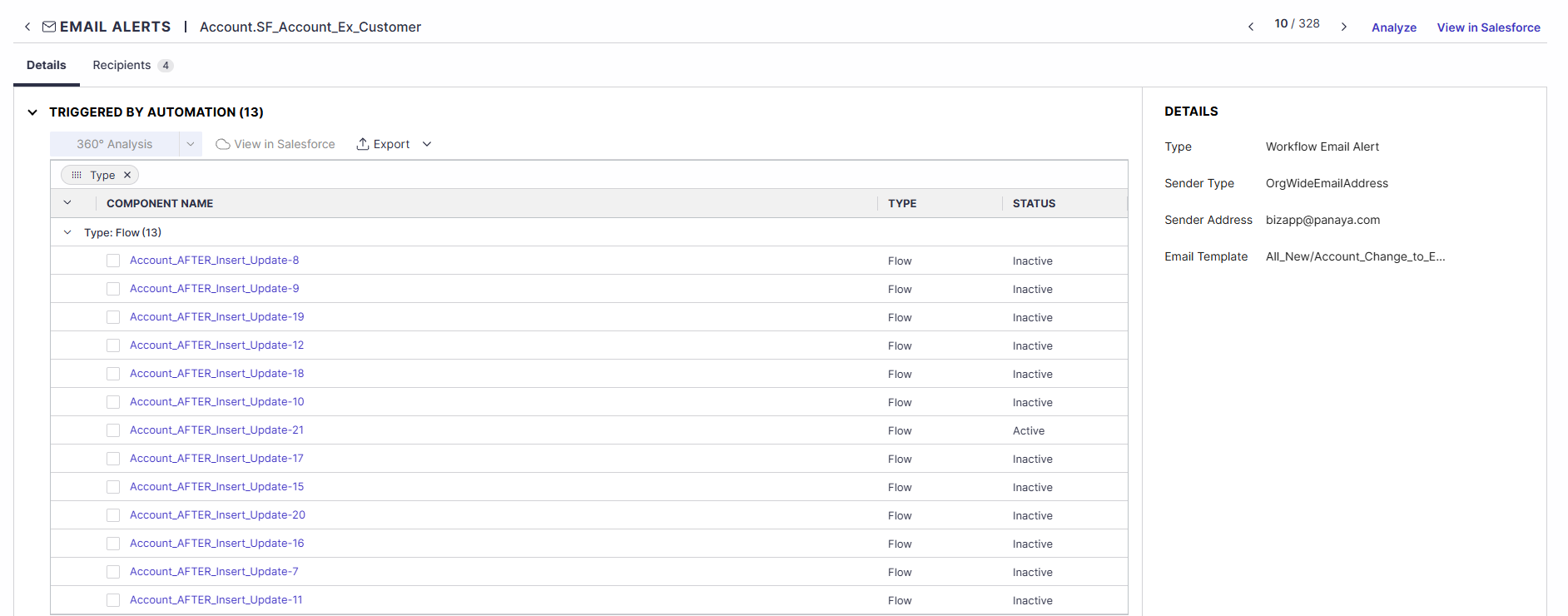
Click on an email alert name to drill down to a list of automations using the alert, and recipient details in the Recipients tab.
Select one or more automations using the checkboxes and analyze them by clicking the 360° Analysis button or View in Salesforce.
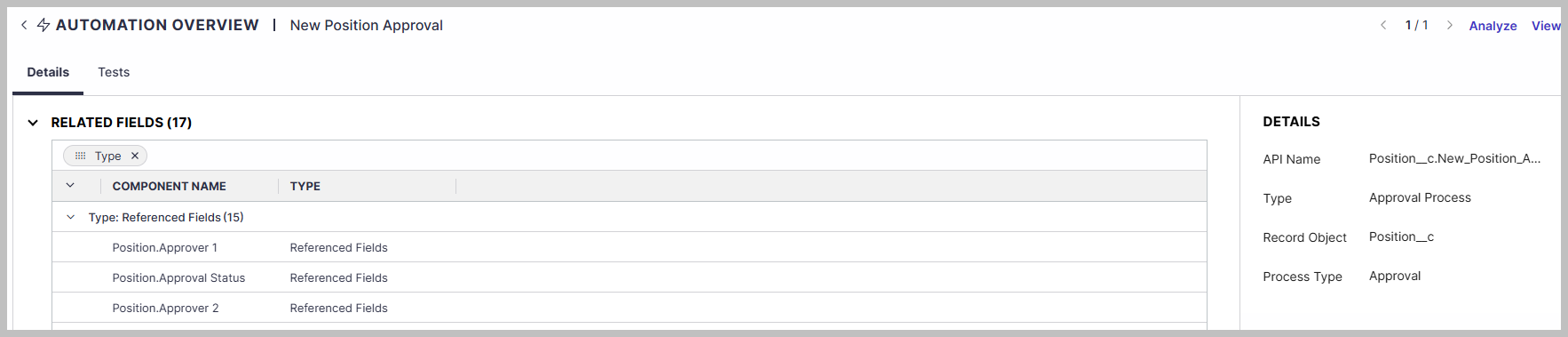
Click on any automation name to display a list of Related Fields and Related Items from the Automation Overview.
Best Practices
Use domain filtering to audit alerts sent to external vs. internal recipients
Before deactivating an automation, check the Triggering Automations column to understand impact
Leverage the drill-down feature to trace email alerts back to their source workflows
Regularly review hard-coded CC addresses to ensure they remain valid and necessary