To successfully extract custom code for your S/4HANA conversion or upgrade, the ATC Run results must be provided. An initial ATC Run should be executed before using the Panaya Custom Code extraction program.
Part of the S/4HANA Setup Guide
This article is part of our S/4HANA Setup Guide
Before you run the ATC
Four things to settle before the first run. Skipping them is the most common cause of submit errors later.
Use the same logon language for every run
Be sure to always log in to SAP using the same language for all ATC Runs, so that the ATC output language is consistent throughout the project.
Regenerate ABAP loads before running ATC checks
This is especially recommended after major system changes, such as:
- SAP upgrade or conversion
- Support package or feature package update
- Large transport import or other major repository changes
- For copied or refreshed systems, the SAP Basis team should confirm whether SGEN is required as part of the post-copy activities. If required, complete SGEN before running ATC checks.
Use SAP transaction SGEN - ABAP Load Generator to generate or regenerate ABAP loads in the checked ATC system.
Enhancement implementation adjustments
Before running ATC checks on an upgraded SAP system, run transaction SPAU_ENH and review any enhancement implementations that require adjustment.
For each enhancement implementation listed in SPAU_ENH, review the conflicts in the Adjustment tab, use Adjust Enhancement Implementation where applicable, then save and activate the enhancement implementation as required.
Program changes after ATC checks
Avoid changing objects directly in SAP after the ATC checks have completed and results uploaded to Panaya. The SAP system should stay stable / unchanged in order to have aligned code with Panaya. This is a preliminary step to avoid submit errors.
Step A - Configure the Remote SAP S/4HANA Checks
Setting the Role as Central Check System
Running the ATC locally?
Are you executing the ATC locally and not using a Central Check System? Skip directly to step B
- Execute transaction code ATC
- The ABAP Test Cockpit Overview screen will appear
- Use the navigation pane and expand ATC Administration
- Under Setup, double-click on System Role
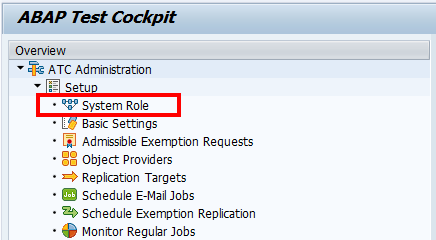
- Hit F6 to change mode
- In the Change System Role screen, select ATC Checks by Object Providers Only.
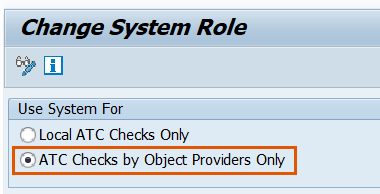
- Save the new setting and go back to the ABAP Test Cockpit Overview screen.
Creating System Groups and Object Providers
- In the ABAP Test Cockpit Overview, use the navigation pane and expand ATC Administration.
- In the Setup section, double-click on Object Providers.
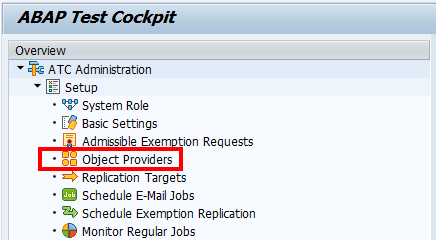
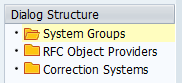
- Double-click on System Groups
- Click on
 to switch to Change Mode.
 - Click on the New Entries button in the toolbar and fill in the ID and a short description for the new system group.
- Save
 the new Entry
- Click on
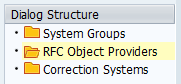
- Double-click the item RFC Object Providers
- Click on
 to switch to Change Mode.
 - Click on the New Entries button in the toolbar and provide the following field description -
- Click on
Fields | Description |
ID | The ID that specifies the Object Provider |
Description | A short text that specifies the Object Provider |
System Group | The system group to which the Object Provider belongs |
RFC Destination | The RFC destination name which connects to the remote system to which you want to connect using the Object Provider |
SAP System | Valid RFC destination for RFC connection to the Checked System Notes:
|
- Save
 the new Entry
Step B - Running SAP S/4HANA Checks
Configuring the ATC Run Series
- In the ABAP Test Cockpit Overview, use the navigation pane and expand ATC Administration.
- In the Runs section, double-click on Schedule Runs.
A list of existing run series will appear.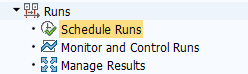
- In the toolbar, click on Create.

- Fill in the name of the series you wish to create and click Confirm
- Provide the following field description -
Field | Description |
Description | A short text description for the ATC run series you wish to configure. Any alternative description must include the SID (&SYS&) parameter The extractor validates that the ATC was performed on the same system where the extractor is running. Therefore, the system ID must be specified in the description. |
Check Variant | S4HANA_READINESS_<Version> |
Objects to Check | Input Package names you wish to check. It is highly recommended to always use the ‘Z*’ and ‘Y*’ values and any additional package where custom code is implemented. |
- Check the "Include Modified Source Code Objects" to analyze VOFM and SD user exit implementations in standard SAP code -
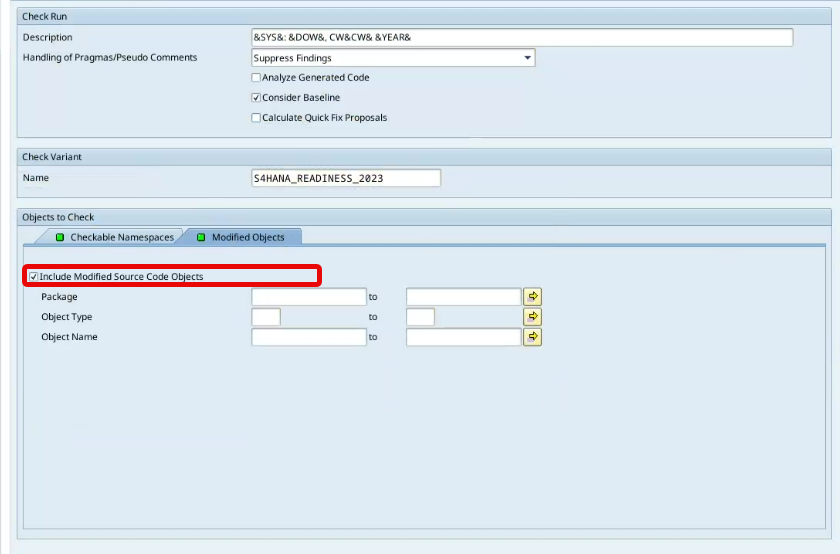
In the Checkable Namespaces, be sure to select Package range Z* and Y*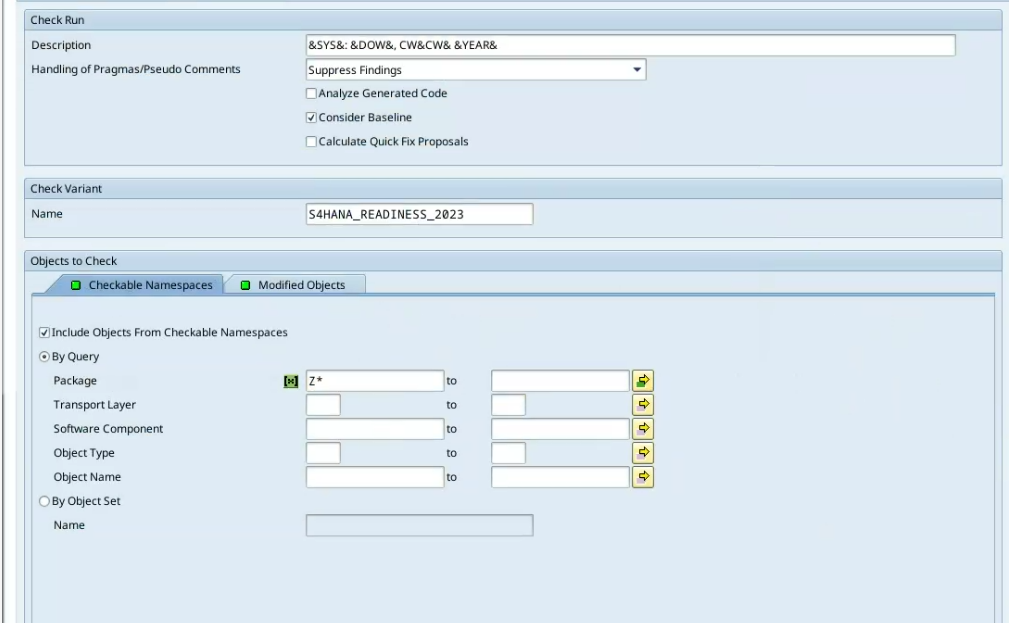
- Save
 the configuration
Scheduling the ATC Run Series
- Use the navigation pane in the ABAP Test Cockpit Overview and expand ATC Administration.
- In the Runs section, double-click on Schedule Runs.
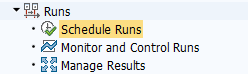
- A list of existing run series will appear
- In the toolbar, click on Schedule

We recommend selecting Execute in Background.
