In automation scripts it can be confusing when multiple “Go To Section” steps run—even when a condition appears to select only one. This behavior is expected and by design.
How It Works
Automation scripts execute sequentially, step by step, in order.
When a condition evaluates to true and triggers a “Go to Section”, the script jumps to that section.
However, execution does not stop there—the script continues running any subsequent steps that follow in the overall sequence.
Important:
If another “Go To Section” exists later in the script order, it will still execute unless explicitly prevented.
Example Scenario
A condition routes the script to Section A → this works correctly.
After Section A, there is another “Go to Section” named Section B.
Because the script continues sequentially, it will still proceed to Section B, even though Section A was already selected.
Why This Happens
This behavior is intentional. It was designed so that:
All steps are executed in order unless conditions or logic explicitly skip them.
Recommended Solutions
To ensure only the intended section runs, consider the following approaches:
1. Reorder Script Steps
Place sections and “Go to Section” steps in an order that prevents unintended execution.
Moving sections can ensure that unwanted steps are not reached after a jump.
This is often the simplest fix.
2. Add Conditional Logic to Skip Steps
Wrap additional “Go To Section” steps in their own conditions.
Use the same variable (or logic) from your original condition.
This ensures the script checks whether it should execute that step before proceeding.
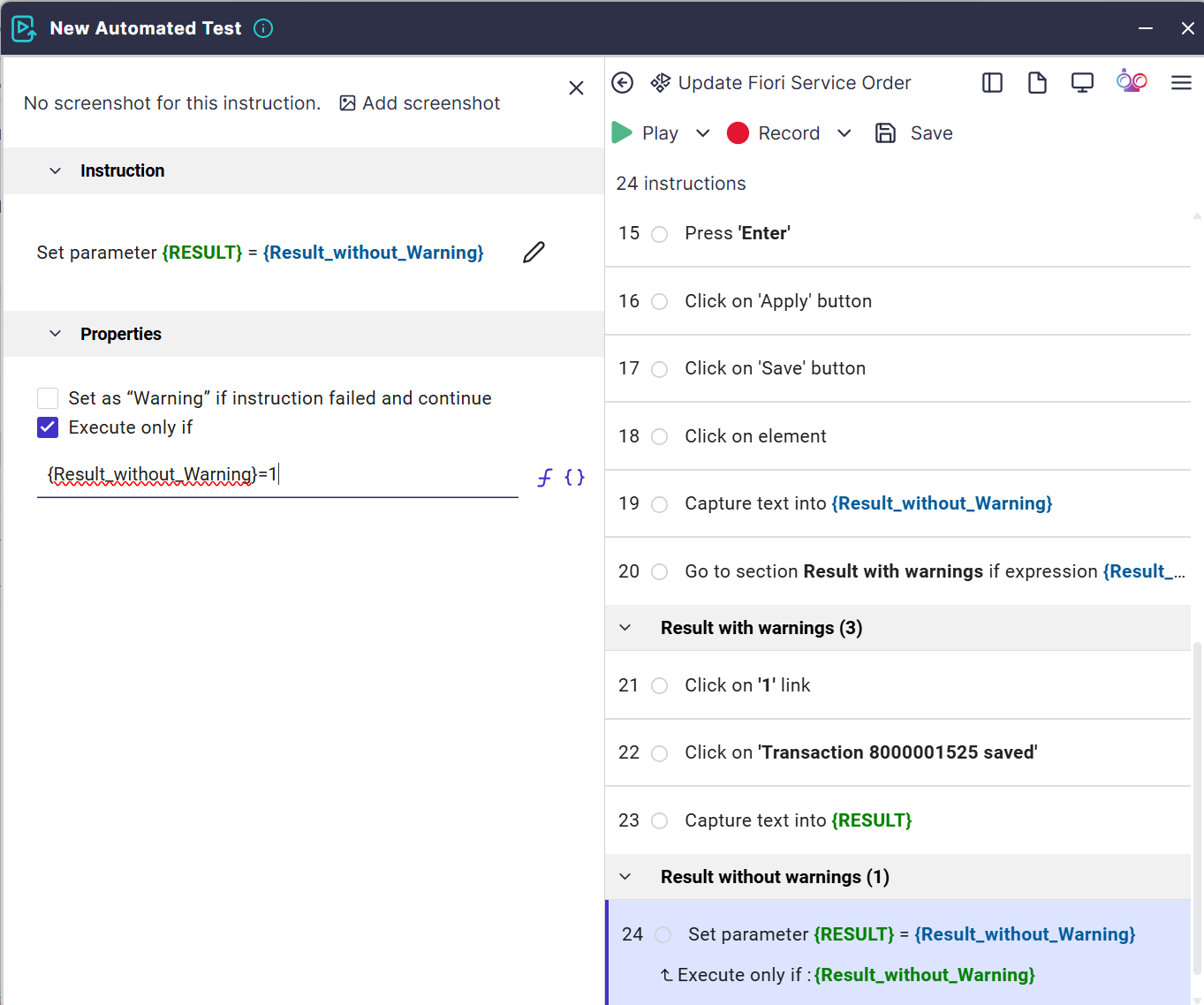
Example: The goal is for the condition in Step 20 to guide the flow to the correct next step, ensuring that only one of the “Result” sections is executed. For example, if the “Result with warnings” section runs, the “Result without warnings” section should be skipped.
As shown below, you can achieve this by using the “Execute only if” option in the Properties panel of the Edit view. This allows the step to be conditionally skipped based on whether a specified condition—such as the value of a parameter—is met.
3. Convert Sections into Components (Recommended Best Practice)
A cleaner and more scalable approach is to:
Convert sections into components
Use “Run Component” steps instead of “Go To Section”
Apply “Execute Only If” conditions in the component properties
Benefits:
Greater control over execution
Cleaner script structure
Easier to manage complex logic

Key Takeaway
“Go To Section” does not terminate script execution—it simply redirects flow.
To control which sections run, you must manage step order or apply explicit conditions to prevent unintended execution.