For SAP GUI version 8.0 and above, it is recommended to disable the Allow/Deny pop-ups from appearing during interactions with Panaya.
To disable these notifications, configure the following in your SAP Security options.
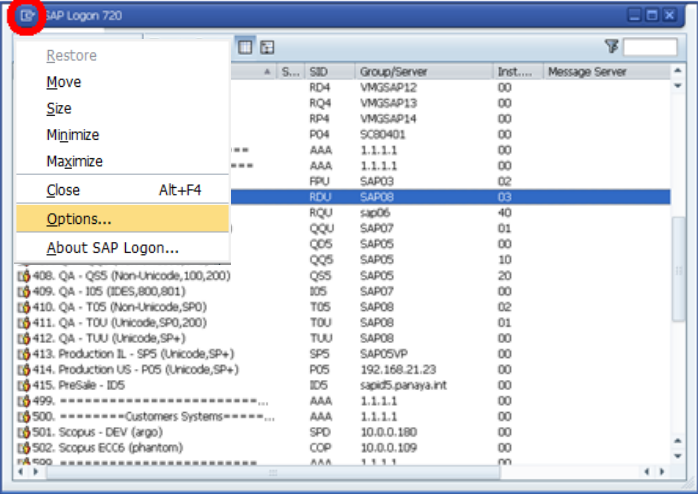
In the SAP log-on screen, press the button in the top left-hand corner and select Options.
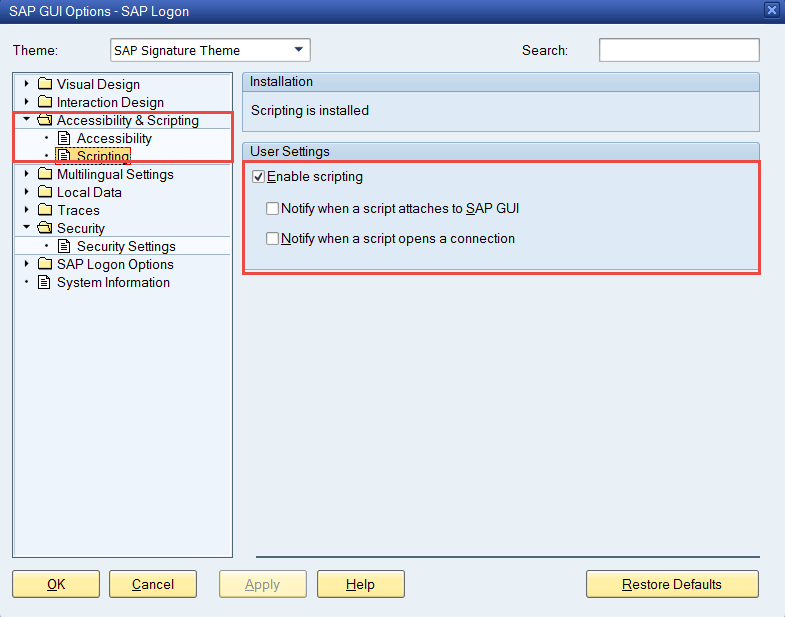
Under Accessibility & Scripting, select Scripting.
Check the Enable scripting option and uncheck the Notify when a script is attached, so SAP GUI and the Notify when a script opens a connection option.
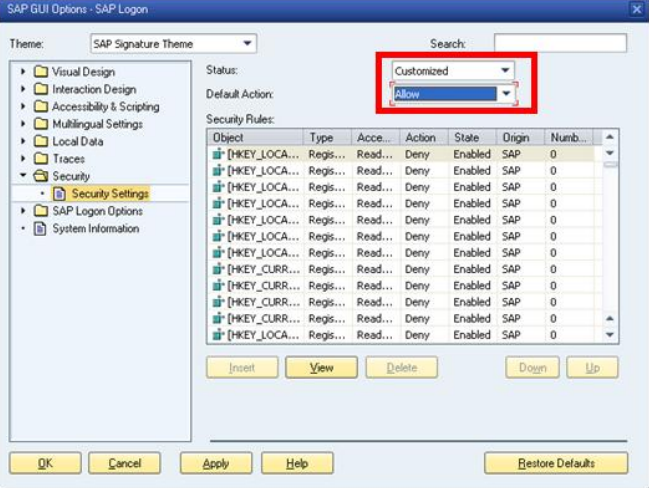
Select the Security folder and click on the Security Settings
Change the Status to Customized with the Default Action set to Allow.
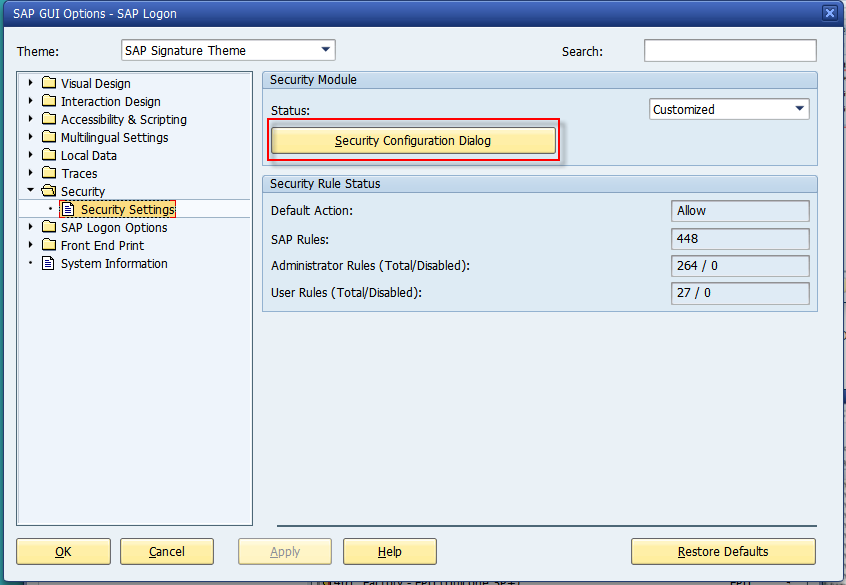
In some versions of SAP, you will need to first click on the Security Configuration Dialog button.
Important!
This setting is required only when using a Direct SAP Connection. If your organization’s security policy does not permit the Default Action to be set to Allow, leave it set to Deny. Then either add a security rule that allows the required SAP connection or use the Interactive SAP GUI Connection.
Apply the new settings and click OK.
No SAP permissions?
Please get in touch with your SAP Basis administrator for assistance.