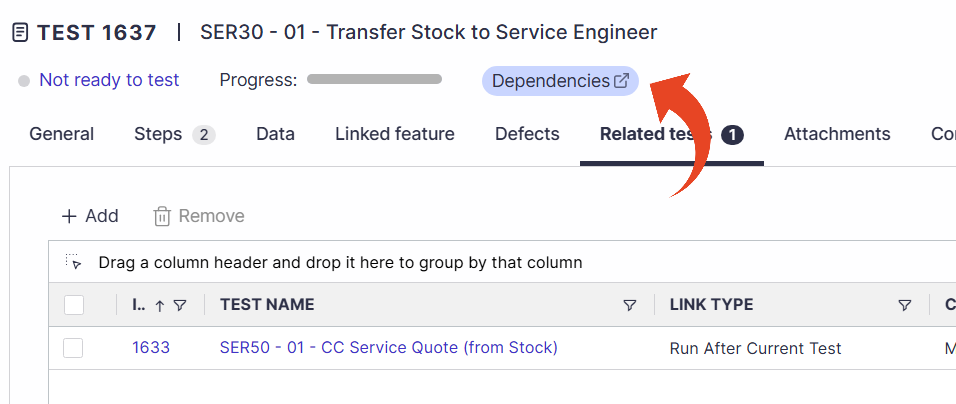
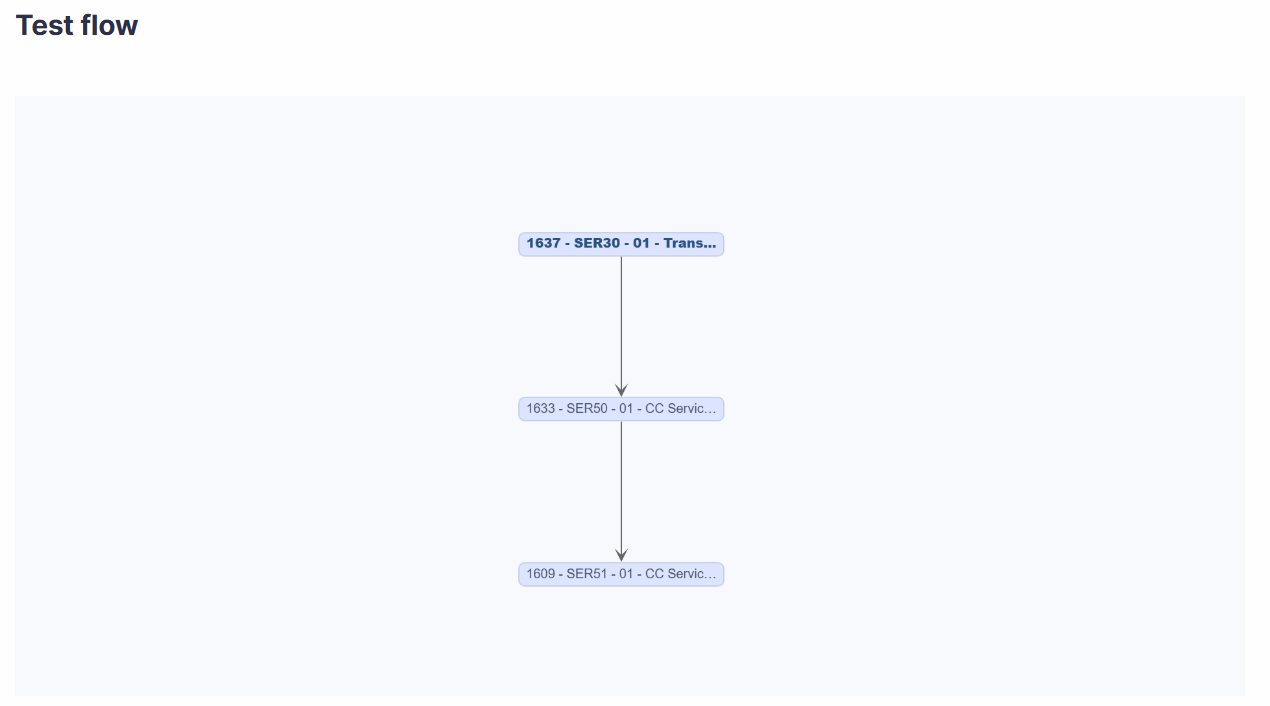
Test Dependencies for manual tests allow users to define and manage execution order between test cases. Dependencies can be created manually or automatically from a folder. Users can also visualize the full dependency flow.
Use Test Dependencies to control test execution sequencing, reduce manual setup, and ensure prerequisite tests are completed before continuing with dependent tests.
For Automated Tests dependencies, user Test Sets.
Creating Test Dependencies Manually
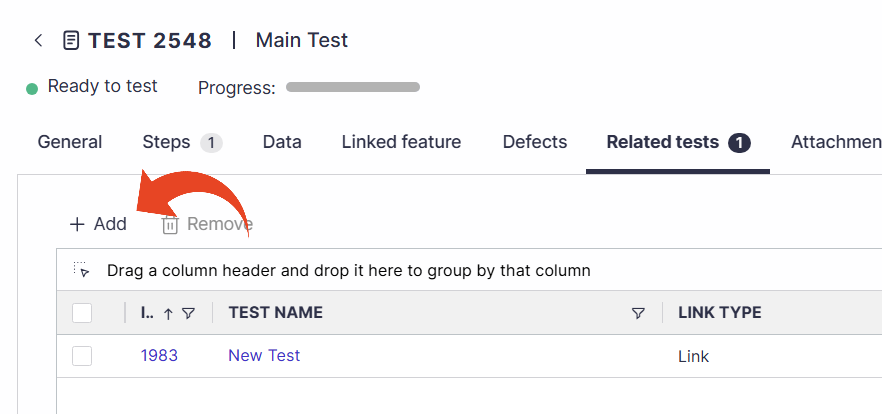
Dependencies are managed in the Related Tests tab to define upstream and downstream dependencies between test cases.
A test cannot start until its prerequisite tests are completed.
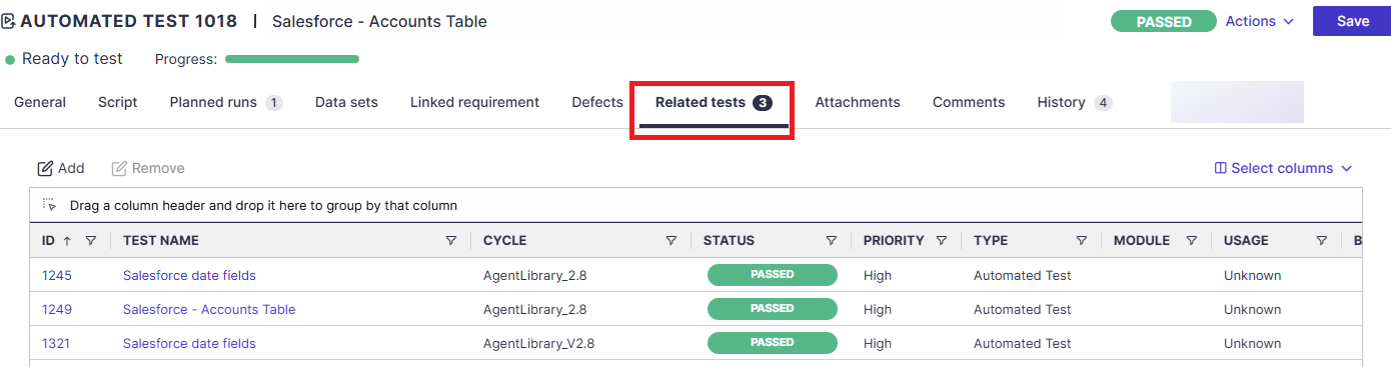
Adding Related Tests
Select the Related tests tab in a manual test.
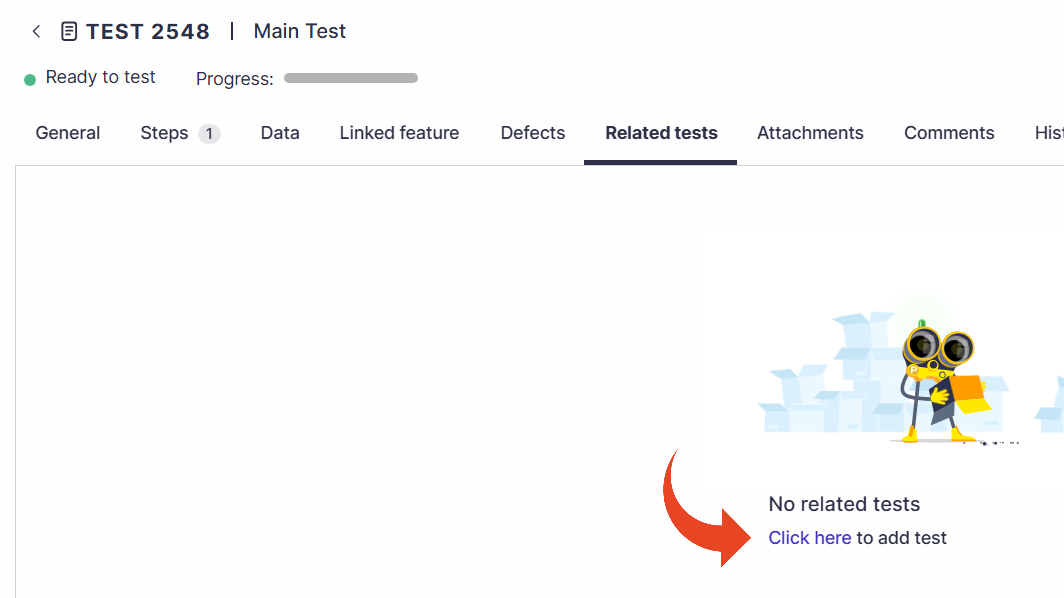
If there are no related tests, click on Click here.
If the Related test already appears, click on + Add.
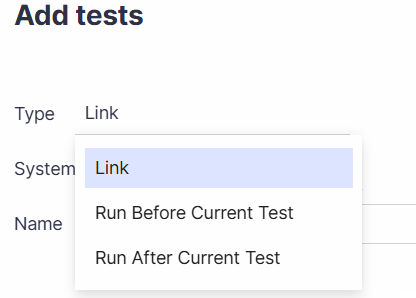
Select the Link Type -
Run Before Current Test
Run After Current Test
Look for the tests you wish to link and click Add.
Good to Know!
If a test is moved out of the folder, Panaya keeps its existing dependencies. Users must remove the dependencies manually in the Related tests tab if they are no longer required.
If a test is deleted, the dependency is removed.
Creating Test Dependencies From a Folder
Dependencies for manual tests can be generated automatically based on the test order within a selected folder.
Dependencies are created according to the test order in the folder.
Only tests located directly in the selected folder are included. Tests in subfolders are excluded.
If the action is repeated, the system removes previously created dependencies from this folder action and recreates them based on the current test list and order.
In the Test Tree, right click a folder that contains tests and select Create Dependencies.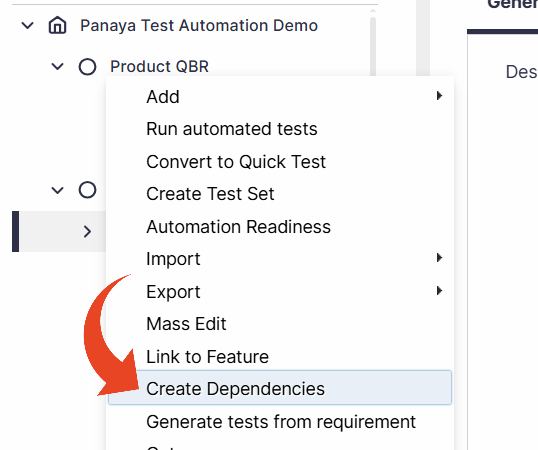
The below confirmation message will appear.
Viewing Dependencies
Once dependencies are in place, a Dependencies button appears in the test. Users can view the dependency test flow with view upstream and downstream relationships.