When automating tests on SAP GUI, one often overlooked but critical success factor is the SAP GUI visual display configuration.
Differences in visual settings between users, systems, or machines can directly affect recording accuracy, element recognition, and playback stability.
This article explains why SAP GUI display options matter, provides concrete examples, and outlines best practices and troubleshooting checks to prevent automation failures.
Why SAP GUI Display Settings Matter for Automation
Successful SAP GUI test automation relies, among other things, on:
Screen structure
Control hierarchy
Technical properties (IDs, types)
Visual layout and rendering
When SAP GUI settings differ:
The same transaction can render different controls
Tables may appear as grids vs. classic lists
Buttons, columns, or fields may move or be replaced
Automation steps recorded by one user may fail during playback for another
This typically results in:
“Element Not Found” errors
Inconsistent behavior across users or environments
If you encounter such an issue, we recommend trying different Display Settings and checking if the issue reproduces or resolves.
Common SAP GUI Settings That Affect Automation
1. Table / Grid Display Options
SAP GUI allows users to customize how tables are displayed. This is one of the most frequent causes of recording/playback issues.
Example: ME21N (Create Purchase Order)
In ME21N, item overviews can be displayed as:
SAP GUI Grid Control (ALV Grid)
Classic table layout
Differences may include:
Column order and visibility
Scroll behavior
Editable vs. non-editable cells
Presence or absence of table toolbar icons
An automation recorded on a grid-based layout may fail if another user’s SAP GUI renders the table differently.
Note
The configuration for these settings differs between transactions.
In ME21N, this can be reviewed and defined under Personal Settings.
Item Overview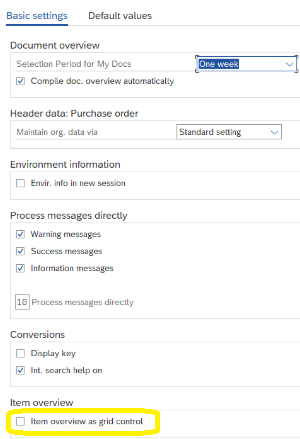
Example: SE16 / SE16N (Data Browser)
In SE16 / SE16N, results can appear as:
ALV Grid with sorting, filtering, and layout variants
Simplified list-style output
If a script interacts with:
Specific columns
Table rows by index
Toolbar buttons (Sort, Filter, Layout)
Any mismatch in table type or layout can cause playback failure.
In this transaction, this can be defined under User Parameters.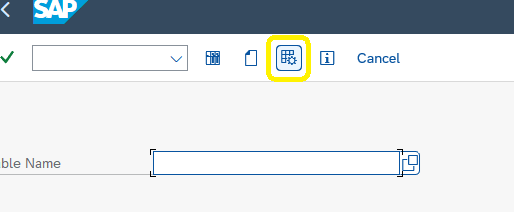
Output List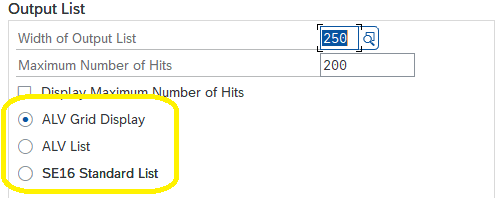
Example: PK13N (Kanban Board)
In PK13N, interest rate data can appear as:
ALV Grid control (modern, interactive table)
Classic SAP table/list control
These variations are influenced by:
SAP GUI version and patch level
User-specific GUI settings
Applied layout or display variants
Theme and font scaling
From an automation perspective, these are not equivalent controls, even though they look similar to the end user.
When entering PK13N, you can check/uncheck the Tabular Display checkbox.
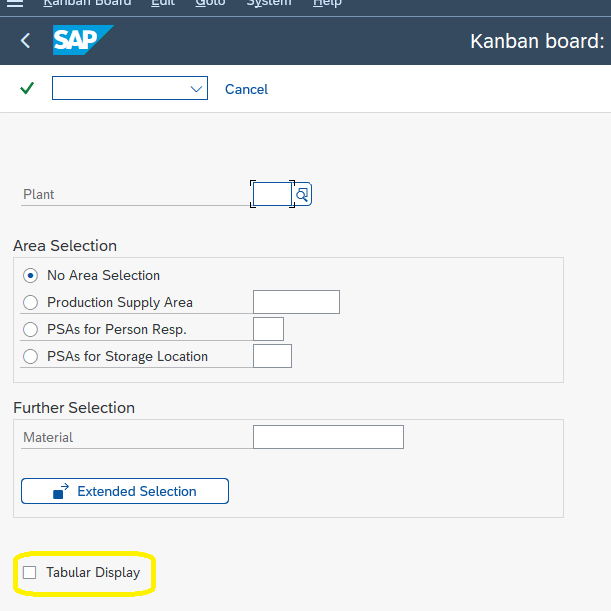
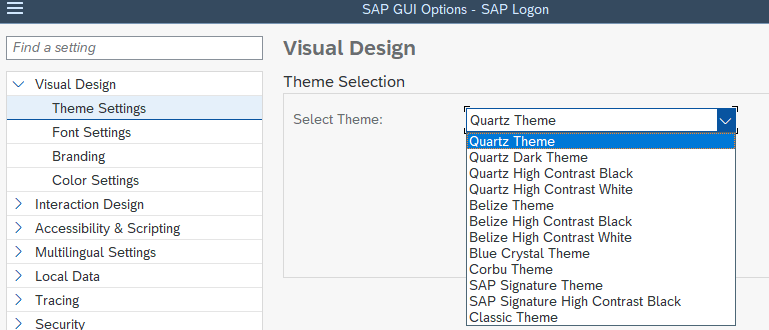
2. SAP GUI Theme Options
SAP GUI themes occasionally influence how screens are rendered.
Common themes include:
SAP Signature Theme
SAP Belize
SAP Blue Crystal
High Contrast themes
Theme differences can affect:
Control spacing and alignment
Visibility of icons and buttons
Rendering of tabs and group boxes
Font size and DPI scaling
While these differences may appear, and usually are, cosmetic to a human user, they can sometimes affect how Panaya Automation identifies controls, especially during recording.
This is controlled in the SAP GUI Options > Visual Design > Theme Settings
Typical Symptoms Caused by Display Mismatches
Users often report:
Recording works, but playback fails for other users
Scripts fail only on specific machines
Table-related steps fail intermittently
In many cases, the root cause is inconsistent SAP GUI visual settings.
Best Practices and Recommendations
1. Standardize SAP GUI Settings Across Users
To ensure reliable automation:
Define a standard SAP GUI configuration for automation users
Align:
Theme
Font size and scaling
Table/grid display preferences
Document and distribute these settings internally
This is especially important for shared test assets, where different users and teams might modify or execute the same scripts.
2. Include SAP GUI Display Settings in Your Automation Checklist
When creating or maintaining automated tests:
Treat SAP GUI visual settings as a precondition
Validate them before recording new scripts
Reconfirm them after:
SAP GUI upgrades
New user setups
New test execution machines
Troubleshooting: What to Verify When Debugging Recording or Playback Issues
When encountering automation failures, always include SAP GUI display settings as part of the investigation.
Recommended checks:
Are the recording user and playback user using the same SAP GUI theme?
Are table controls rendered the same way (grid vs. classic)?
Are layout variants applied automatically in transactions like ME21N or SE16?
Has the SAP GUI version or patch level changed?
Are screen scaling, DPI, or font settings consistent?
Verifying these items early can significantly reduce troubleshooting time.
Summary
SAP GUI visual display options are not just cosmetic — they can directly impact the stability and reliability of automated tests.
Key takeaways:
Differences in table/grid display and themes can break automation
Standardizing SAP GUI settings is a best practice
Display settings should always be checked during automation troubleshooting
By proactively managing SAP GUI visual configuration, you can dramatically improve automation success rates and reduce maintenance effort.