This article explains how to configure your EBS to work with a concurrent program to upload the custom code extraction file to the Panaya servers regularly.
- Download the Oracle extraction tool (panaya-extractor.jar) and upload it to the Oracle Application server
- Download the Panaya Shell Script and update the command you usually use to run an extraction, as shown in the example below
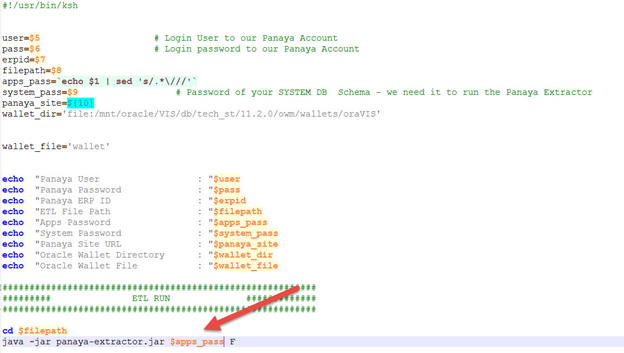
If a connection string is required to connect to the database, check the options suggested here - Update the waller_dir location created in previous steps
- Copy the shell script to your FND_TOP bin folder using WinSCP
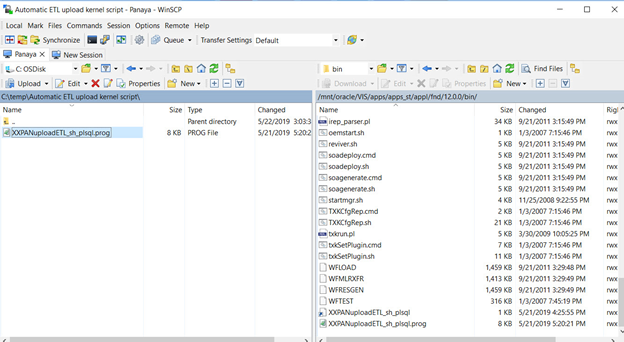
- Create a link to the kernel script using fndcpesr, and verify the link was created using ls -la XX*:

- Allow executable rights to the script using chmod 744 <Script file name>

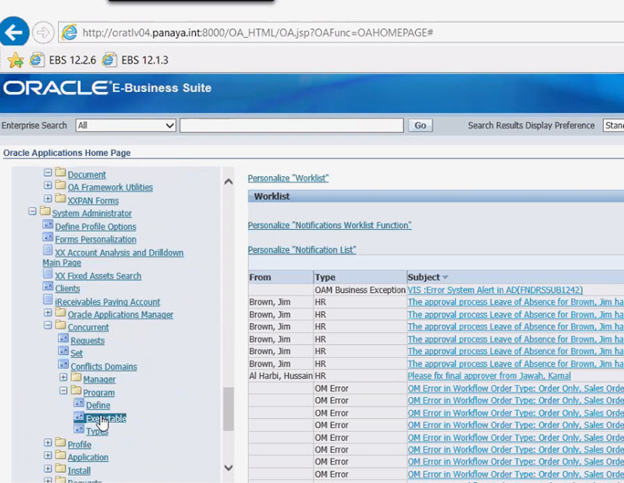
- Log in to the Oracle EBS business suite and create the program executable, according to the values guide shown below
Activity Field
Value you should choose
Panaya Recommended Value
Executable
Any executable User name you choose
XXPAN : Automatic ETL Upload
Short Name
Any executable Short name you choose
XXPAN_AUTO_ETL_UPLOAD
Application
Custom application
Description
Any executable Description you choose
XXPAN : Automatic ETL Upload
Execution Method
Host
Host
Execution File Name
Xxpanuploadetl
XXPANuploadETL
- Fill in the required values.
The value for Application should be applied according to your system setup.
In the example below, the value for Application is Application Object Library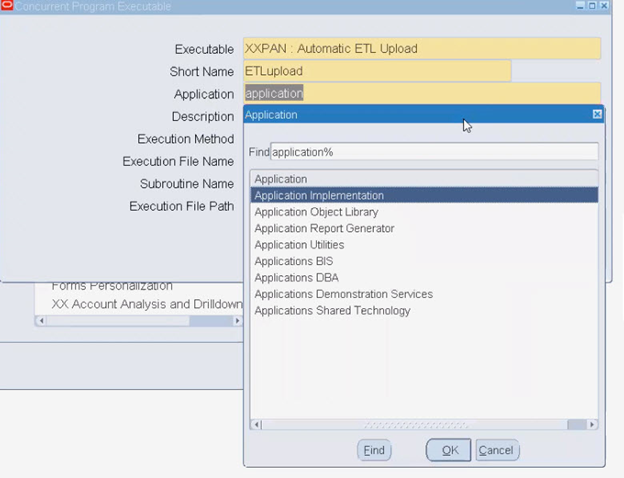
- Fill in the rest of the values and save your changes
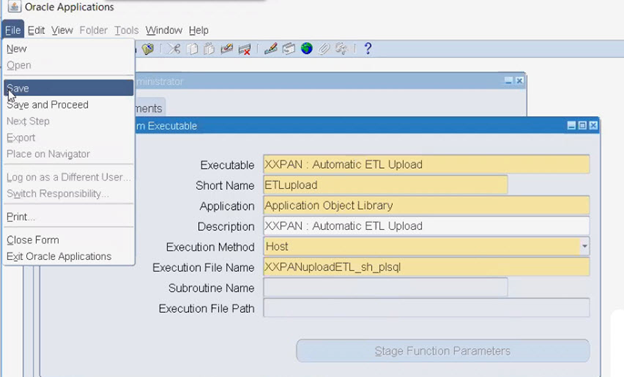
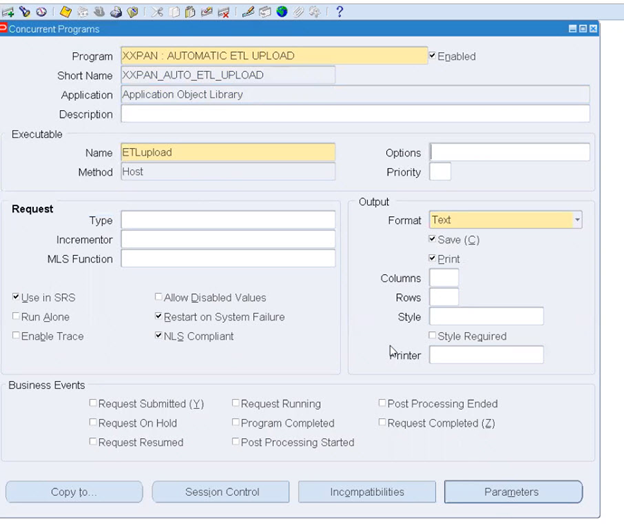
- Create a concurrent program with the following relevant parameters
Activity Field
Value you should choose
Panaya Recommended Value
Program
Any concurrent program name you choose
XXPAN : AUTOMATIC ETL UPLOAD
Short Name
Any concurrent program short name you choose
XXPAN_AUTO_ETL_UPLOAD
Application
Custom application
Description
Any concurrent program description you choose
XXPAN : AUTOMATIC ETL UPLOAD
Executable Name
XXPAN_AUTO_ETL_UPLOAD
Parameter
Description
Enable
Value Set
Default Type
Default Value
Required
Prompt
Panaya_User
Panaya user
✓
100 Characters
Constant
Panaya account user
✓
Panaya user
Access Token
Panaya Access Token
✓
150 Characters
Constant
Panaya access token
✓
ErpId
Erp id
✓
100 Characters
Constant
Panaya system id
To get your ErpID, contact Panaya Support✓
ERP ID
FilePath
File path
✓
100 Characters
Constant
Where the ETL jar file is located
✓
file path
Apps_Pass
Apps password
✓
100 Characters
Constant
Apps schema password
✓
apps password
System Pass
System User assword
✓
100 Characters
Constant
System DB schema password
✓
system user password
panaya_site
Panaya site
✓
100 Characters
Constant
my.panaya.com
emea.panaya.com✓
Panaya site
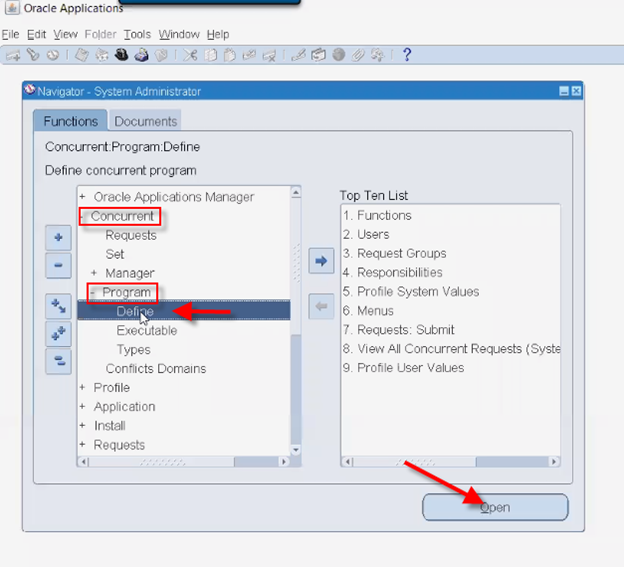
If you begin typing the name of the concurrent program (e.g. XXPAN) and hit enter, a selection list will be displayed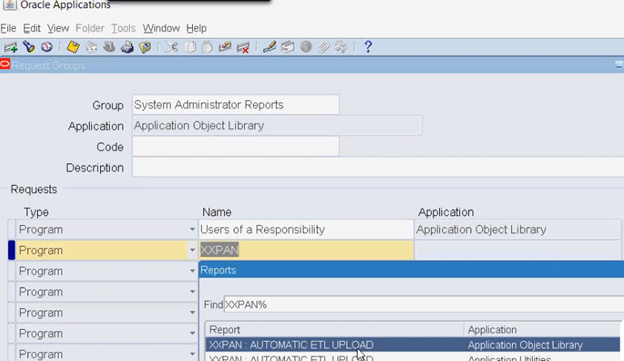
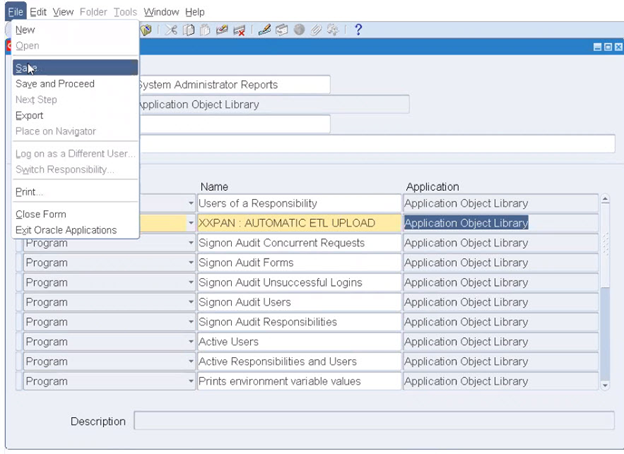
- Save your changes
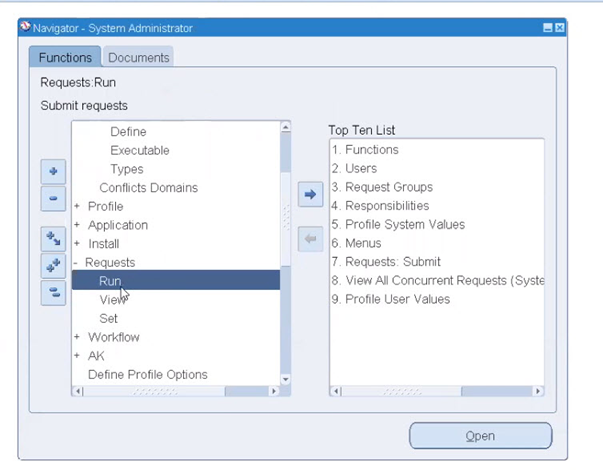
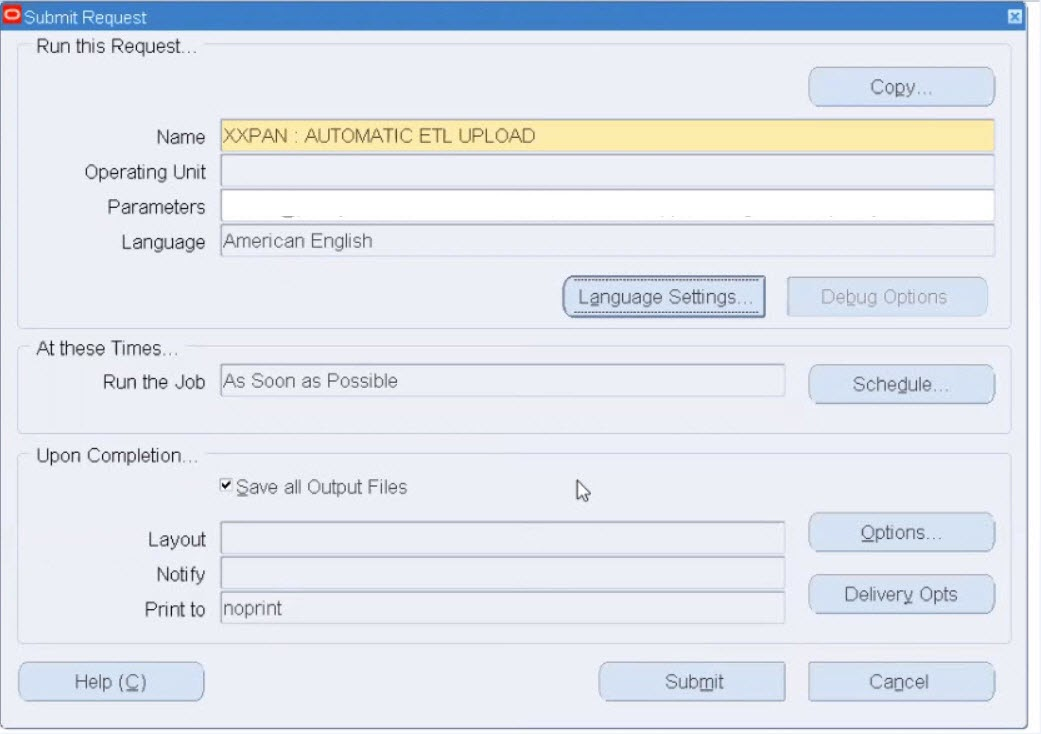
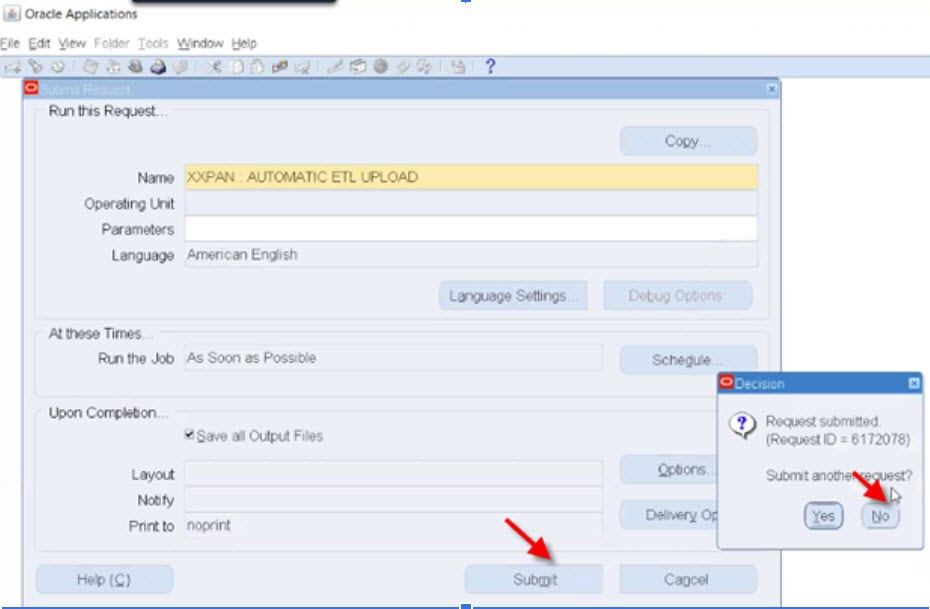
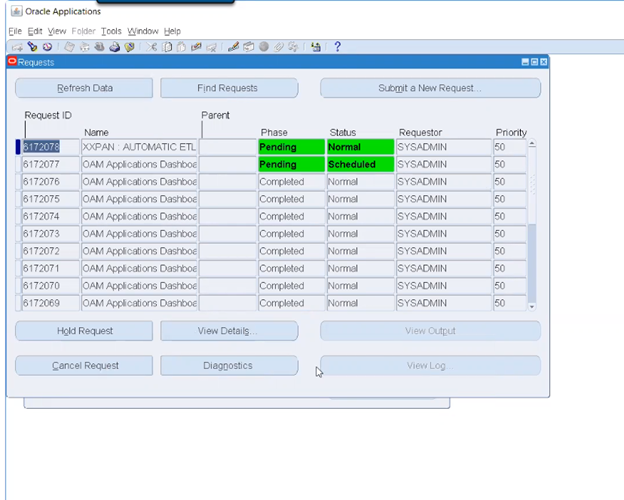
- Submit a Request