Powered by Panaya’s Seemore Intelligence, Assisted Code Corrections is an AI-driven capability that analyzes, plans, and resolves SAP code corrections with high precision. It combines Panaya’s 20 years of SAP domain expertise with enterprise-grade AI trained on millions of real-world lines of code, enabling faster, more reliable remediation of customer code.
Panaya supports both automatic code corrections and an Assisted Fix. When Panaya can safely generate a fix without requiring user input, automatic correction is the recommended approach. An Assisted Fix is intended for corrections that require developer input and thorough review, providing AI-guided remediation while preserving full developer control over the fix design and code changes.
This capability is especially valuable during S/4HANA transformations, where custom code remediation accounts for a significant portion of the project effort. Assisted code corrections reduce risk, shorten timelines, and ensure fixes are test-ready and context-aware.
Assisted Fix Corrections
Assisted Fix focuses on pending manual corrections within your project and identifies opportunities where AI assistance can safely accelerate remediation.
In some cases, Panaya identifies corrections that require user input and thorough review. For these cases, Assisted Fix provides a guided approach that combines AI assistance with developer control. Panaya analyzes each correction, evaluates its complexity, and supports the developer in reviewing, refining, and completing the required code changes.
Why Use Assisted Fix
Provides a detailed summary of the ATC issue, helping developers quickly understand the correction context
Provides the reasoning behind what should be fixed and why, reducing the analysis effort required for a manual correction
Keeps the developer in full control of the fix design, with the ability to review and manually adjust the code in the Fix Assist Code Editor
Reviewing Assisted Fixes
The recommended way to work with assisted corrections is through the Project Plan, which presents the correction phases in the recommended order.
Complete the automatic fixes first.
Next, work on Assisted Fix Packages with the New status. After the AI-assisted fixes in the package are finalized, submit them to SAP as part of the Assisted Fix Package.
After the Assisted Fix Packages are addressed, continue with any remaining Assisted Fix corrections that are not included in a Fix Package.
Important!
Following the Project Plan order helps prevent duplicate work and ensures dependencies between automatic and assisted corrections are handled in the intended sequence.
Covered Scenarios
Assisted Fixes support a continuously expanding set of correction scenarios. Coverage is dynamic and increases over time as Panaya extends AI capabilities and learns from additional projects. Examples of supported scenarios include -
Syntax and structural adjustments required for S/4HANA compatibility
Refactoring recommendations aligned with SAP best practices
Logic adaptations based on deprecated objects or APIs
Context-aware corrections influenced by SAP Notes and system usage
The list of supported cases is not static. As Seemore Assistant evolves, additional correction types are automatically included, increasing automation coverage without requiring changes to your workflow.
Fix Assist Code Editor
The Fix Assist code editor is the primary workspace for collaborating with Seemore Assistant on assisted corrections. It combines code editing, AI analysis, and conversational guidance in a single interface.
When you launch Fix Assist, Panaya performs a deep analysis of the correction. This analysis is based on the correction context, impacted objects, relevant SAP Notes, and Panaya’s accumulated SAP domain knowledge.
Code Editor Highlights
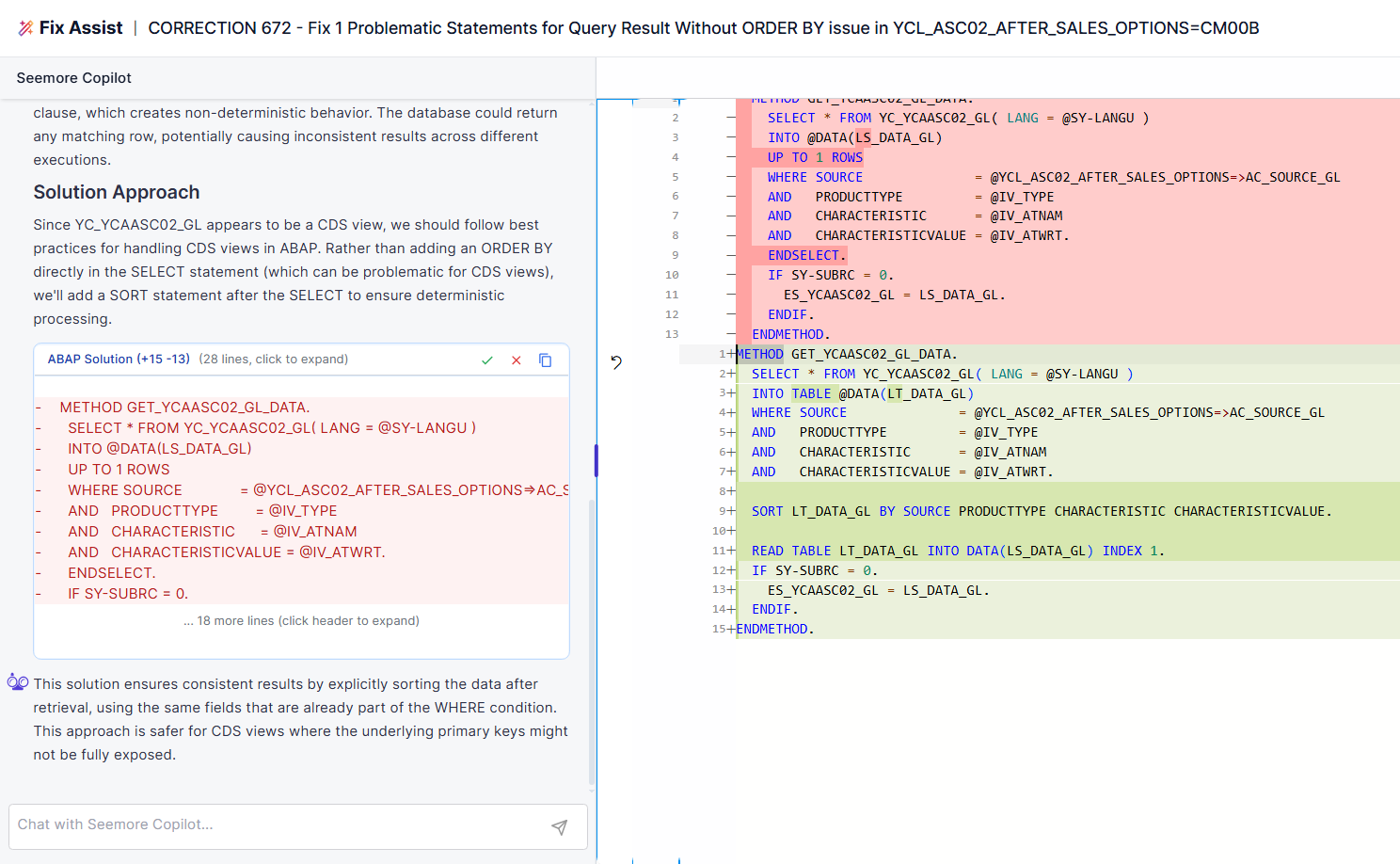
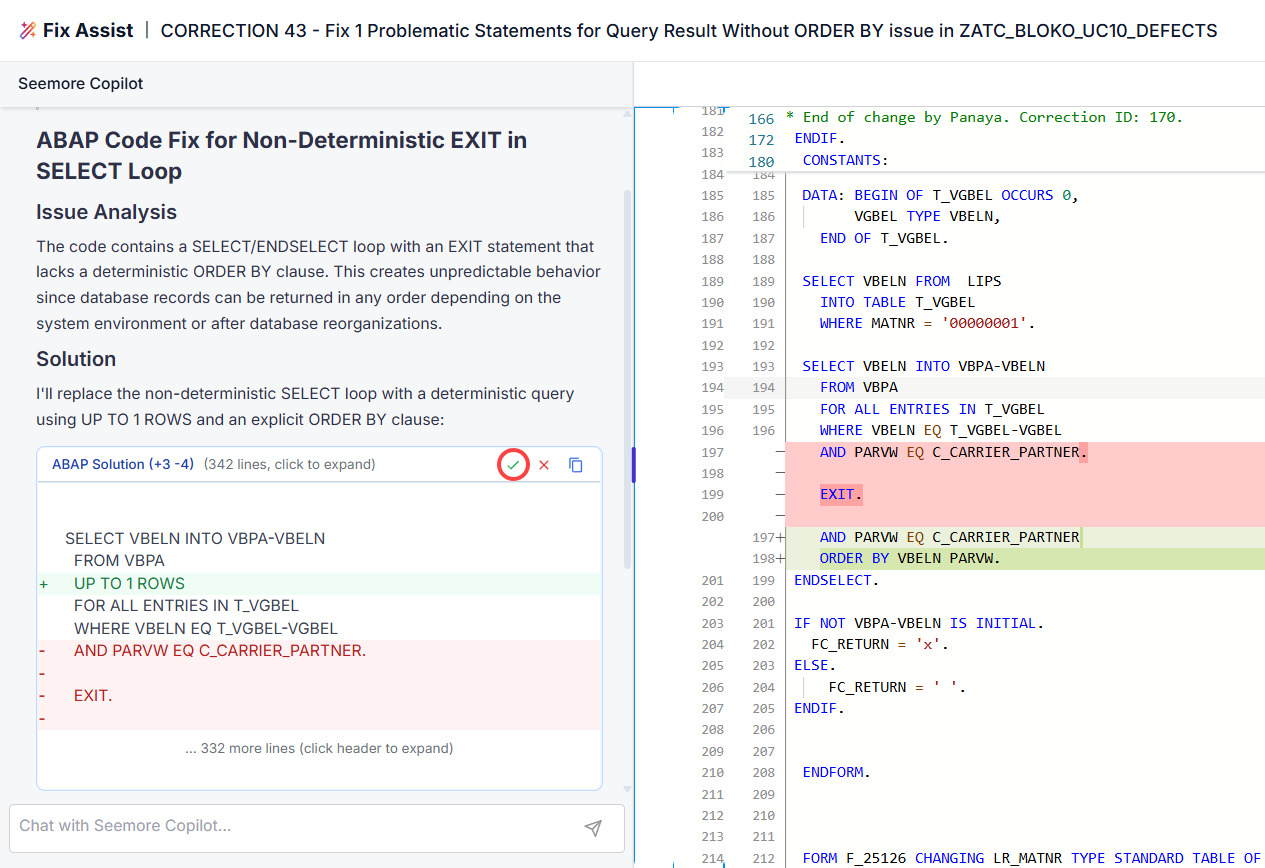
Side-by-side code visualization that highlights the original code and the proposed changes
Inline editing that allows you to manually adjust the code before applying the fix
Context preservation so the AI considers surrounding logic and dependencies
Safe editing workflow that ensures no changes are applied without explicit user action
All edits remain fully transparent, giving developers confidence and traceability throughout the correction process.
Working with the Code Editor
For each assisted correction, you can initiate the AI code editor by clicking on the Fix Assist button.

The Fix Assist code editor opens up and Seemore Assistant begins the analysis based on the correction details and SAP notes and Panaya’s unique domain knowledge.
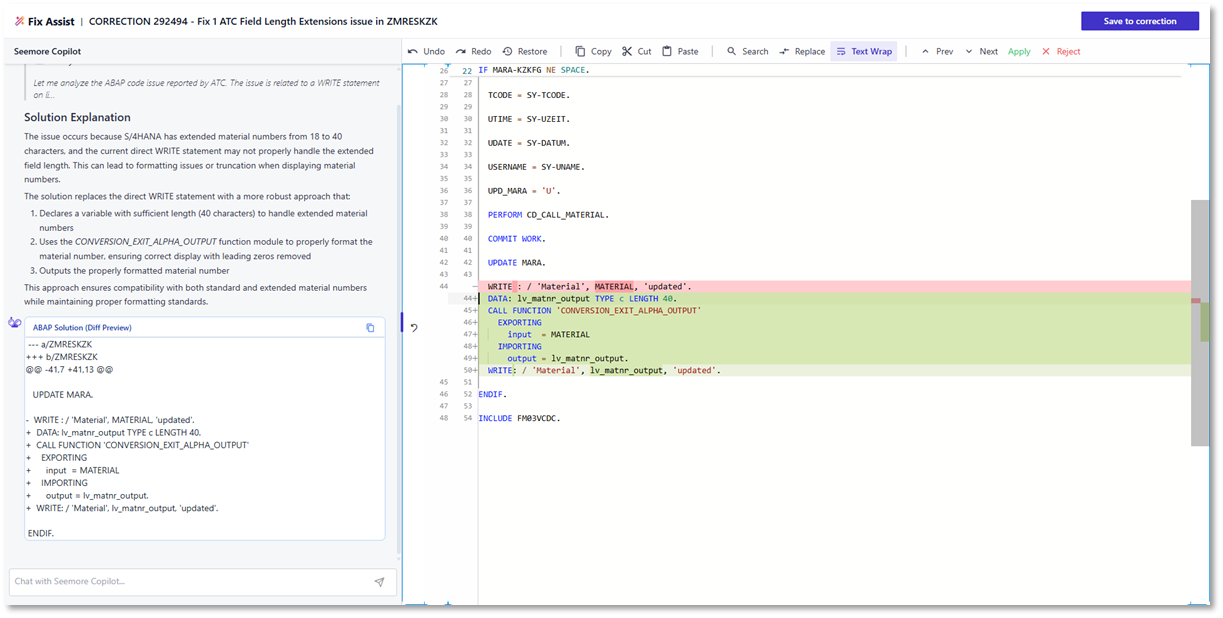
Seemore may ask for further information, and you can reply with answers in the chat.
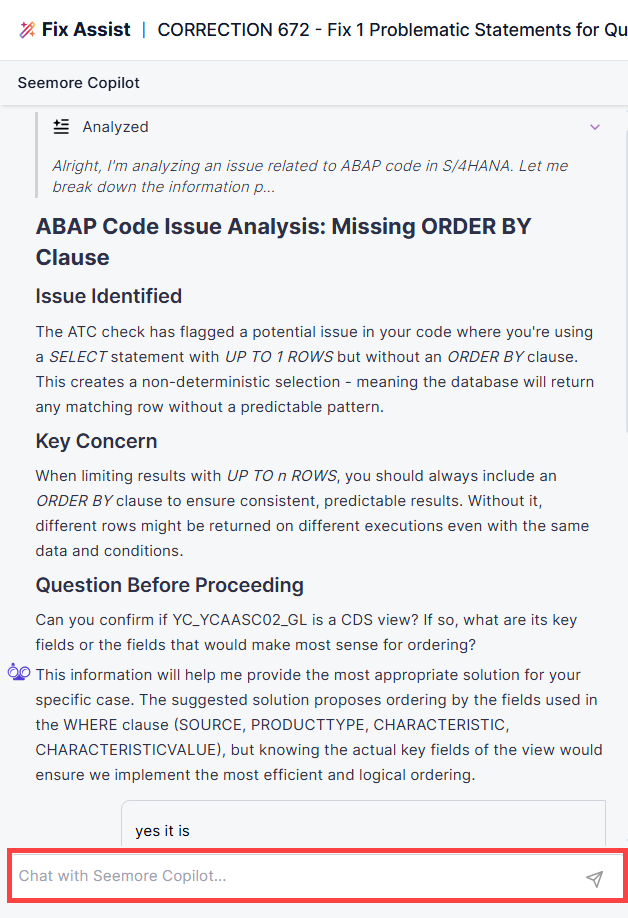
Upon completion of the analysis, Panaya will either suggest a fix, recommend steps to resolve the issue, or request additional information. You can provide more information in the chat and work together with Seemore toward providing an automatic fix for submission.
Red lines indicate code that Seemore will remove.
Green lines indicate code that Seemore will add.
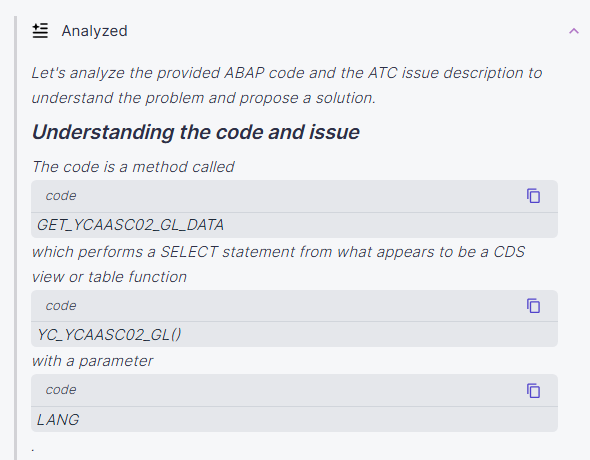
Analysis Details
You can expand the analysis details to review the steps taken by Seemore Assistant to analyze the code and provide an answer.

Chatting with Seemore Assistant
A core element of the Fix Assist Code Editor is the ability to chat directly with Seemore Assistant.
Use natural language in the chat to -
Ask questions about the detected issue or proposed solution
ABAP Explain - Seemore's capability to explain ABAP Code upon request
Instruct the AI to modify the fix, such as changing logic, structure, or naming
Provide additional context that may not be available in the original correction
This conversational interaction enables an actual human-in-the-loop experience. Developers are not limited to accepting or rejecting a fix. Instead, they can guide the AI, explore alternatives, and iteratively improve the solution until it meets both technical and business requirements.
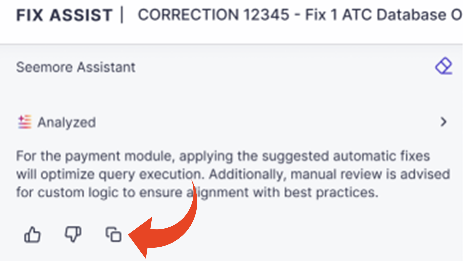
Copy Seemore Responses
You can copy the latest Seemore Assistant response directly to your clipboard from the Fix Assist Code Editor. Use the copied response in code corrections, documentation, collaboration, or follow-up activities without having to manually re-enter the information.
AI-Suggested Fix
Once Seemore Assistant has identified the most applicable code change required, you can accept it or continue to fine-tune the fix by communicating with the Seemore Assistant.
Review the suggested code changes in detail
Continue refining the fix through chat-based instructions
Manually edit the code where needed
To accept the fix, click on the Accept button.
Save and Close a Fix Assist Session
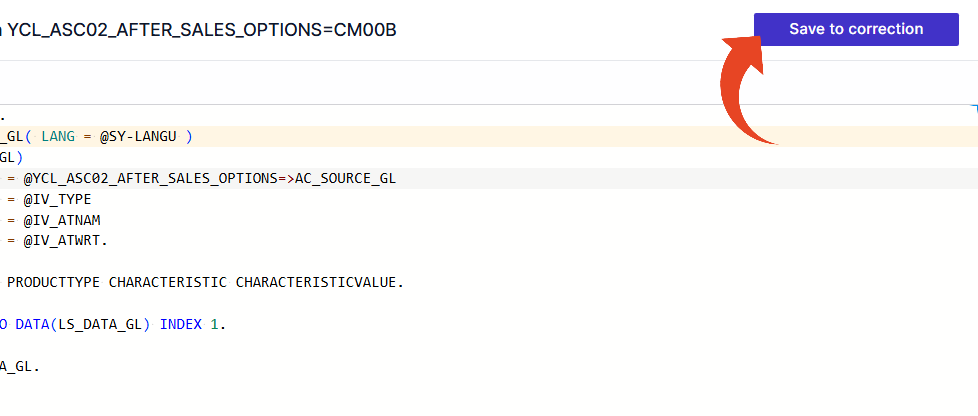
Use Save to preserve your current Fix Assist session and continue working later.
If a valid fix has not yet been created, the session information is saved and Fix Assist remains available so you can reopen the correction and continue working.
When the correction contains a valid fix, use Save and Close to finalize it as a Panaya fix.
After finalization, the fix follows the same behavior as an automatic fix. Fix Assist is disabled for that correction and the finalized fix cannot currently be changed in Fix Assist.
Once finalized, the correction can continue through the standard correction review, testing, and submission workflow.
Fix Summary
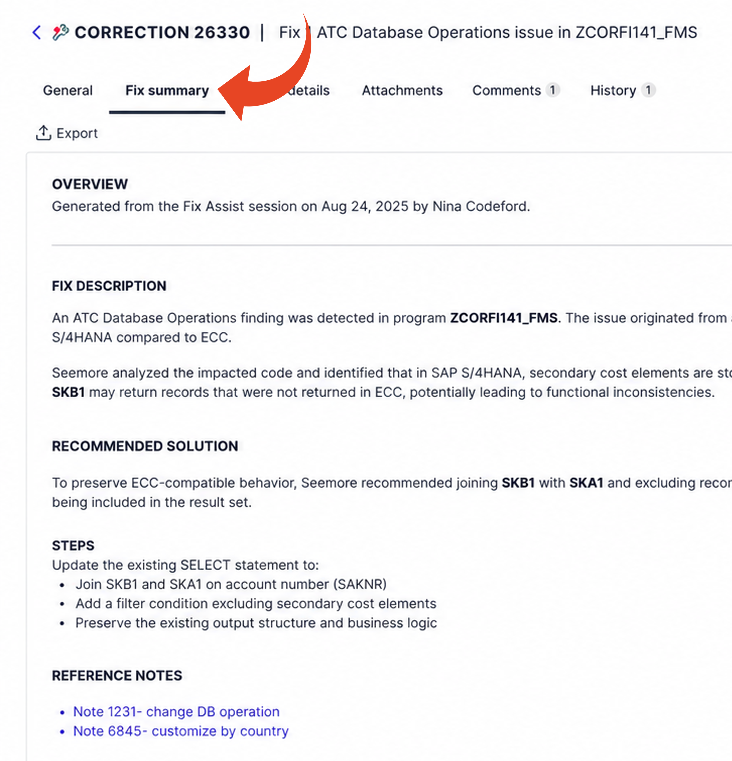
The Fix summary tab provides a persistent summary of the AI-assisted correction. It captures the recommended approach and the work completed during the Fix Assist session.
When an AI-assisted session is saved and closed, Panaya creates a Fix summary that records the recommended approach and completed work. If Fix Assist is used more than once for the correction, multiple Fix summaries can be created. Each summary is recorded in the correction History tab for auditability and traceability, and the Fix summary can be exported to Excel together with the correction details.
ⓘ GOOD TO KNOW!
Assisted Code Corrections is designed to complement developer expertise, not replace it.
The user remains in control of the code changes throughout the Fix Assist session until the fix is finalized with Save and Close.
All fixes align with SAP standards and Panaya’s proven project methodology.